
هذا المحتوى غير متوفر بلغتك بعد.
How to Create a Request for Quotation (RFQ)
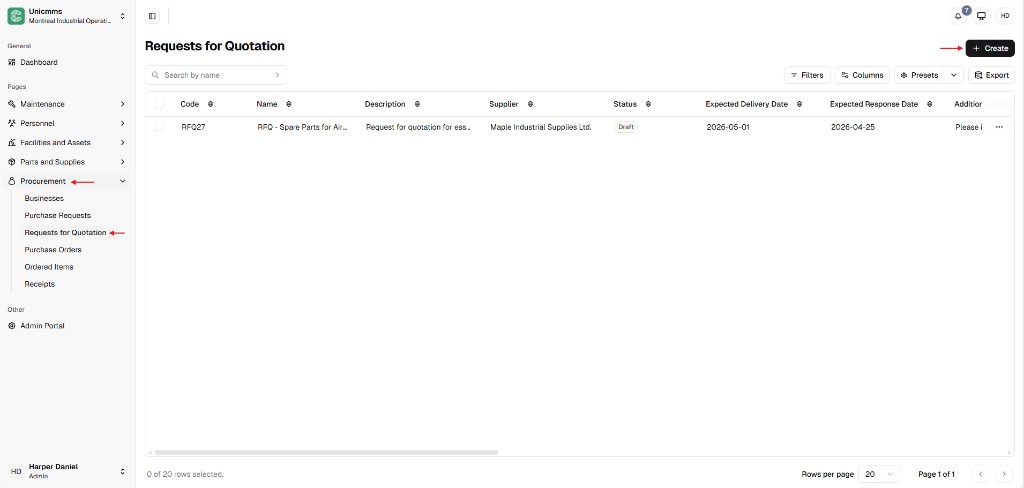
Section titled “How to Create a Request for Quotation (RFQ)”To start a bidding package, go to Procurement → Requests for Quotation and click + Create. The form is split into five areas: General, Supplier information, Products, Shipping information, and Quote submission instructions. Use Cancel and Submit in the header when shown.
Open the create screen
Section titled “Open the create screen”- In the sidebar, open Procurement → Requests for Quotation.
- Click + Create (top-right).
The list shows Code, Name, Description, Supplier, Status, Expected delivery date, Expected response date, and more—plus row ⋯ actions when rows exist. Use Search by name, Filters, Columns, Presets, and Export as needed.
Form overview
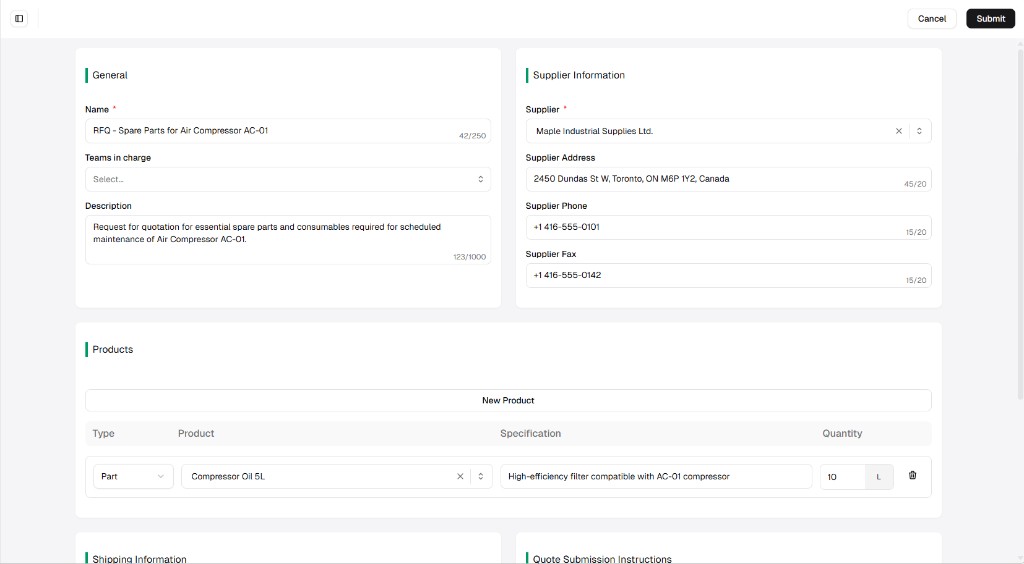
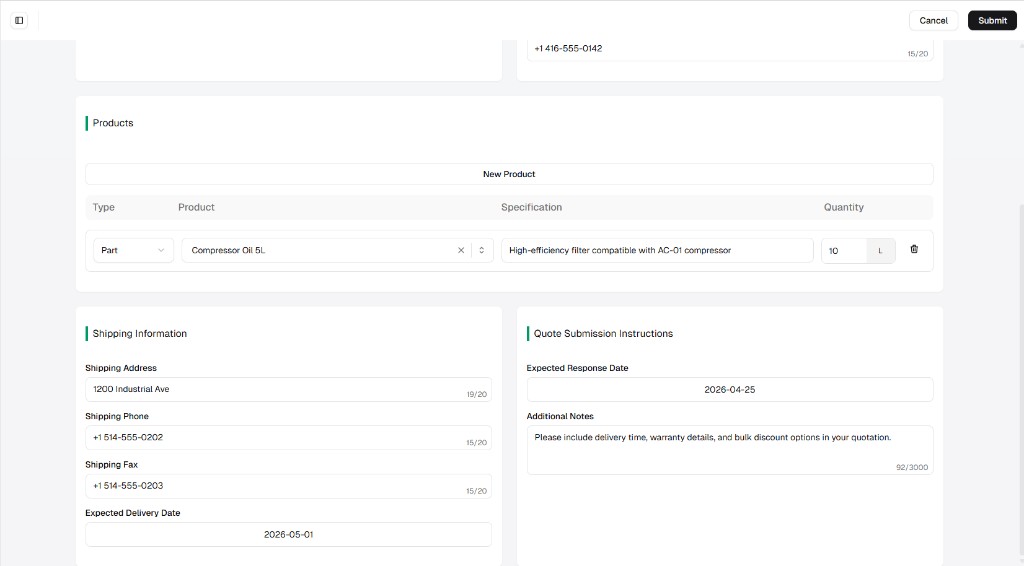
Section titled “Form overview”After + Create, you work through the sections below. The upper part of the screen usually shows General and Supplier information; scroll for Products, Shipping, and Quote submission instructions.
1. General section
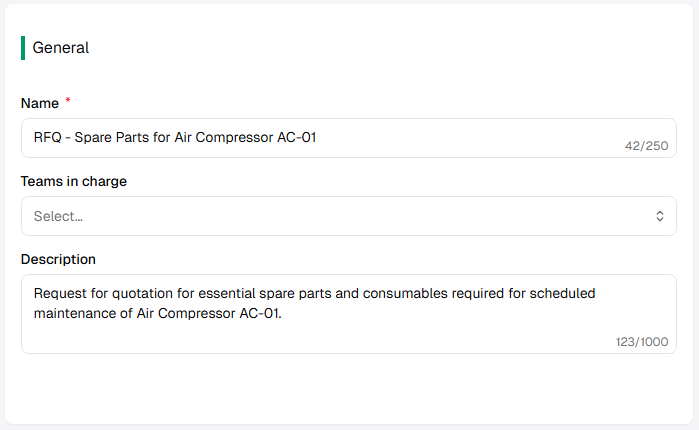
Section titled “1. General section”Defines who owns the RFQ internally and how it is labeled in lists.
| Field | Description | Required? |
|---|---|---|
| Name * | Title of the bidding project (shown in search and lists). Character limit shown in the UI (for example 250). | Yes |
| Teams in charge | Internal team that will evaluate incoming quotes. | No |
| Description | Internal context—why this quote is being requested. Typical limit 1000 characters. | No |
2. Supplier information
Section titled “2. Supplier information”Defines which supplier receives the RFQ. The supplier is chosen from your global Businesses directory.
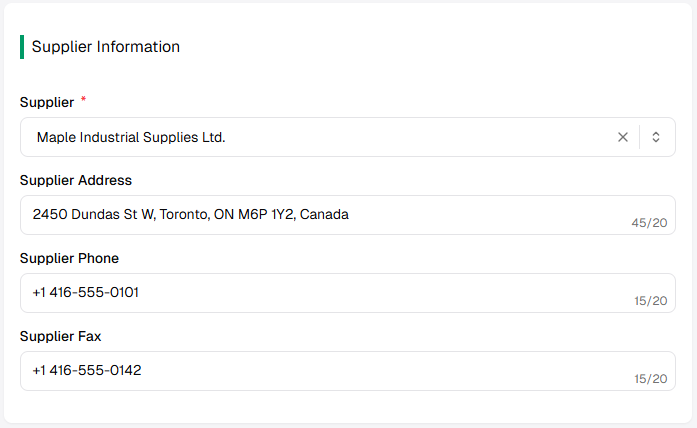
| Field | Description | Required? |
|---|---|---|
| Supplier * | Vendor from the Businesses list (searchable dropdown). | Yes |
| Supplier address | Often prefilled from the business record when you pick a supplier; you can override any value. | No |
| Supplier phone | Same pattern as address. | No |
| Supplier fax | Same pattern as address. | No |
3. Products section
Section titled “3. Products section”Defines exactly what must appear on the supplier’s quote—catalog lines, specifications, and quantities.
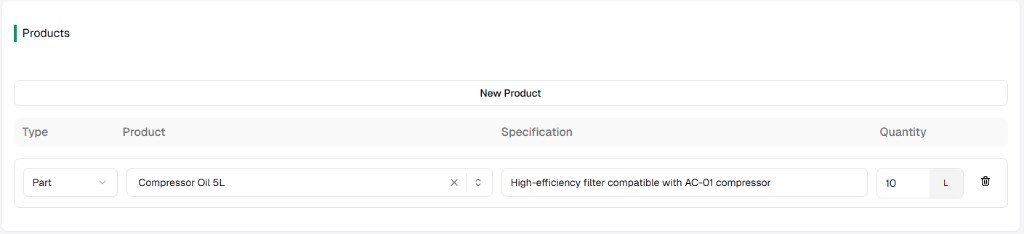
| Element | Description |
|---|---|
| New product | Adds another line to the RFQ table. |
| Type | Part or Asset (or your tenant’s categories). |
| Product | Specific item from the system database, filtered by Type. |
| Specification | Technical or quality requirements the quote must address. |
| Quantity / unit | Volume required (for example 10 L). |
| Trash | Removes the line. |
4. Shipping information
Section titled “4. Shipping information”Defines logistics if the quote is accepted—where goods should be delivered.
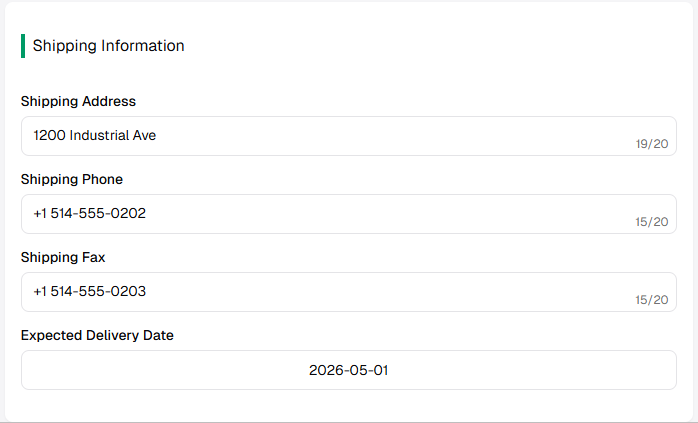
| Field | Description |
|---|---|
| Shipping address | Delivery location (short fields may show strict character limits in the UI). |
| Shipping phone / Shipping fax | Delivery-side contact details. |
| Expected delivery date | Target date the site needs the material on hand. |
5. Quote submission instructions
Section titled “5. Quote submission instructions”Sets the rules of engagement for the supplier’s response.
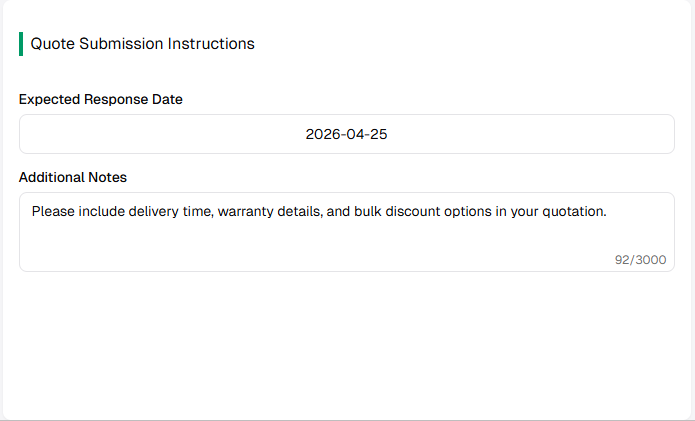
| Field | Description |
|---|---|
| Expected response date | Deadline for the supplier to return a final quote. |
| Additional notes | Instructions such as include shipping in the total, warranty, or bulk discounts—large text area (for example up to 3000 characters). |
Submit
Section titled “Submit”Click Submit to save the RFQ. Cancel leaves without saving (exact draft behavior depends on your build).