
Dieser Inhalt ist noch nicht in deiner Sprache verfügbar.
Additional Costs
Section titled “Additional Costs”About Additional Costs
Section titled “About Additional Costs”Additional Costs are standardized line items for expenses beyond labor and parts. Pre-defining values such as freight, customs, or handling fees improves financial accuracy and keeps reporting consistent across work and procurement flows.
Additional Costs List (Create Entry)
Section titled “Additional Costs List (Create Entry)”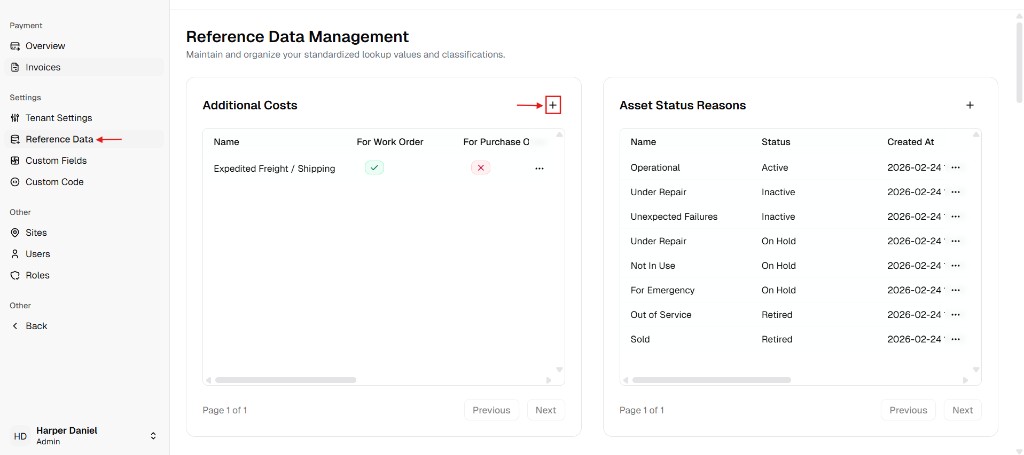
New Additional Cost Dialog
Section titled “New Additional Cost Dialog”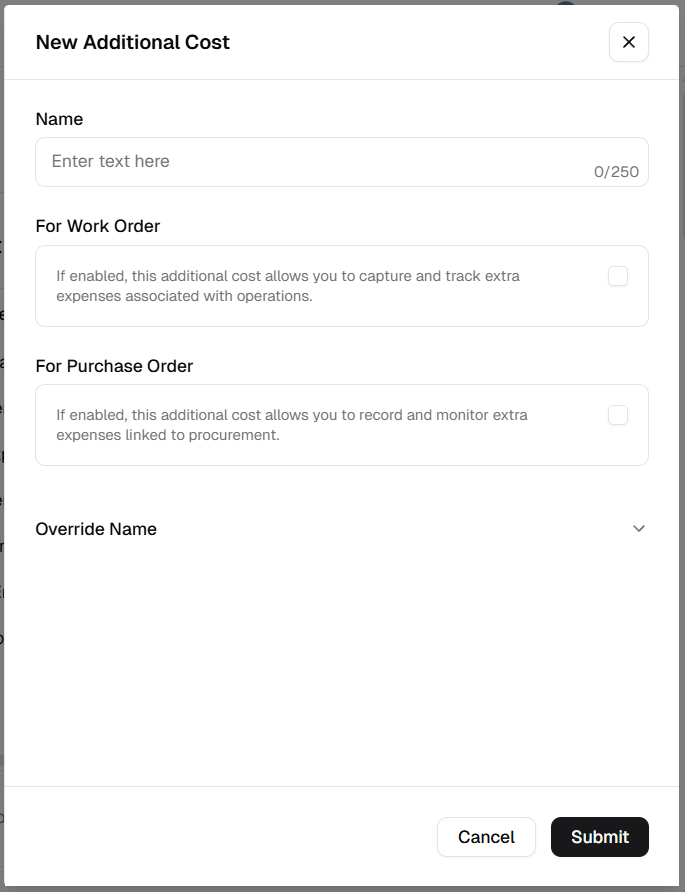
How to manage Additional Costs
Section titled “How to manage Additional Costs”Add a new cost type
Section titled “Add a new cost type”- Open Admin Portal → Settings → Reference Data.
- Find the Additional Costs card and click +.
- Complete the form:
| Field | Description | Required |
|---|---|---|
| Name | Label for the cost (e.g. “Expedited Shipping”). | Yes |
| For Work Order | Turn ON to allow this cost on Work Orders. | Conditional* |
| For Purchase Order | Turn ON to allow this cost on procurement and vendor invoices. | Conditional* |
* Validation: At least one of For Work Order or For Purchase Order must be enabled. You cannot save if both are off.
- Click Submit.
Update an existing cost
Section titled “Update an existing cost”- In the Additional Costs table, open More (⋯) on the row → Edit.
- Change Name or the usage toggles.
- Click Update.
Delete a cost
Section titled “Delete a cost”- More (⋯) → Delete.
- Safeguard: Deletion is blocked if the cost is linked to any historical or active record.
Verification after changes
Section titled “Verification after changes”After creating, editing, or deleting an entry:
- Confirm the Additional Costs table refreshes with the latest state.
- Verify the expected toggles (For Work Order, For Purchase Order) are correct.
- Open a Work Order or Purchase Order and check that available cost options reflect your update (for POs, see How to add additional costs to a purchase order).