
Dieser Inhalt ist noch nicht in deiner Sprache verfügbar.
UniCMMS Role Permissions Reference
Section titled “UniCMMS Role Permissions Reference”This page lists permission names and meanings as grouped in the role editor. Actual availability can depend on your tenant’s modules and version; use this as the canonical glossary when auditing access.
For how roles relate to sites and users, see Roles & Permissions overview and User Management.
Admin is the first permission group on the Create Role and Edit Role screens. Permissions appear as cards in a grid: each card shows a title, a short explanation, and a checkbox in the top-right corner to turn that right on or off for the role.
Across this group (and much of UniCMMS), names follow a simple pattern:
- View … — Read-only access (see lists, open records, no structural changes).
- Manage … — Broader access, usually including adding, changing, or removing records and configuration—exact scope is described on each card below.
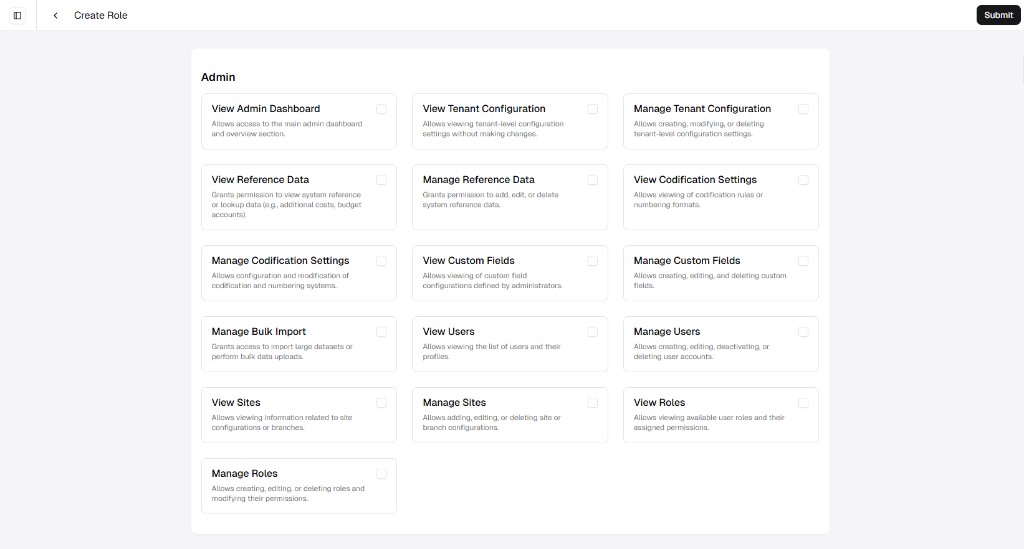
| Permission | What it controls |
|---|---|
| View Admin Dashboard | Opens the main admin overview and health-style summary for administrators. |
| View Tenant Configuration | See tenant-wide settings without changing them. |
| Manage Tenant Configuration | Create, change, or remove tenant-level configuration (the counterpart to view-only above). |
| View Reference Data | See lookup and reference data the product uses everywhere (for example additional costs, budget accounts). |
| Manage Reference Data | Add, change, or remove that reference data. |
| View Codification Settings | See codification rules and numbering formats. |
| Manage Codification Settings | Configure and change codification and numbering systems. |
| View Custom Fields | See how custom fields are defined for modules. |
| Manage Custom Fields | Create, change, or remove custom field definitions. |
| Manage Bulk Import | Use bulk import flows for large datasets (for example spreadsheet uploads). |
| View Users | See the user list and profile-level information you are allowed to view. |
| Manage Users | Create and maintain user accounts (for example add users, change roles and access, deactivate). |
| View Sites | See site or branch configuration. |
| Manage Sites | Add, change, or remove sites or branches. |
| View Roles | See which roles exist and inspect their permission setup. |
| Manage Roles | Add, change, or remove roles and the permissions assigned to them—this is the area covered by Add a role, Change a role, and Remove a role. |
The Asset group controls access to equipment records and everything tied to them—opening and changing records, exports, images, status history, analytics, depreciation, warranties, meters, work orders, attachments, and where the asset sits in the site hierarchy. Like Admin, each right appears as a card with a short explanation and a checkbox in the corner.
Many sub-areas split View (read-only) from Manage or Edit-style rights so you can let people see warranty or status history without letting them change it.
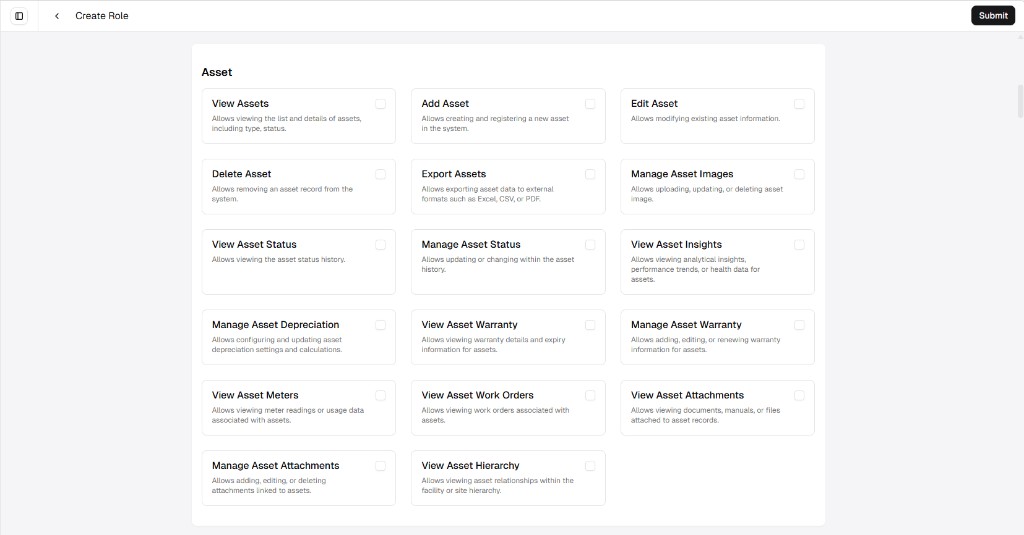
| Permission | What it controls |
|---|---|
| View Assets | See the asset list and record details (for example type and status). |
| Add Asset | Create and register a new asset in the system. |
| Edit Asset | Change existing asset information and fields you are allowed to edit. |
| Delete Asset | Remove an asset record (subject to your organization’s rules and other permissions). |
| Export Assets | Export asset data to external formats such as Excel, CSV, or PDF. |
| Manage Asset Images | Upload, replace, or remove photos and images on asset records. |
| View Asset Status | Open the asset status history (how state changed over time). |
| Manage Asset Status | Update or change status within that history, not only view it. |
| View Asset Insights | See analytical views—trends, performance, or health-style insight for assets. |
| Manage Asset Depreciation | Configure and maintain depreciation settings and calculations for assets. |
| View Asset Warranty | See warranty coverage and expiry information. |
| Manage Asset Warranty | Add, change, or renew warranty details on assets. |
| View Asset Meters | See meter readings and usage-style data linked to assets. |
| View Asset Work Orders | See work orders that belong to or are associated with an asset. |
| View Asset Attachments | Open documents, manuals, or other files attached to the asset record. |
| Manage Asset Attachments | Add, change, or remove those attachments. |
| View Asset Hierarchy | See how the asset relates to other assets and locations in the facility or site hierarchy. |
Business
Section titled “Business”The Business group covers vendor and partner records (companies you work with), including the main business profile, images, people contacts, and file attachments. Permissions use the same card layout as other groups, with View vs Add / Edit / Delete / Manage split so you can let someone see suppliers without letting them change master data or attachments.
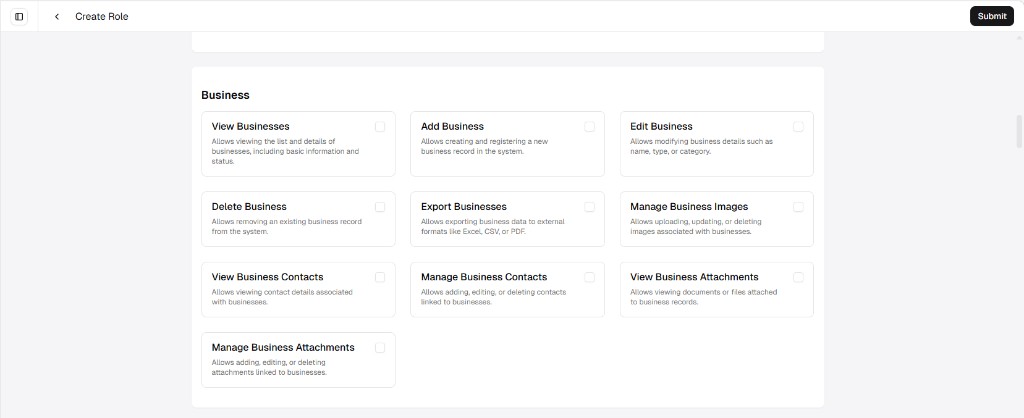
| Permission | What it controls |
|---|---|
| View Businesses | See the business list and record details (for example basic information and status). |
| Add Business | Create and register a new business in the system. |
| Edit Business | Change fields on an existing business such as name, type, or category. |
| Delete Business | Remove a business record (where your process and other rules allow). |
| Export Businesses | Export business data to files such as Excel, CSV, or PDF. |
| Manage Business Images | Upload, replace, or remove images linked to business records (for example logos). |
| View Business Contacts | See contact people and details associated with businesses. |
| Manage Business Contacts | Add, change, or remove contacts linked to businesses. |
| View Business Attachments | Open documents or files attached to a business (for example contracts). |
| Manage Business Attachments | Add, change, or remove those attachments. |
Facility
Section titled “Facility”The Facility group covers buildings and physical locations (areas you maintain or track inside a site). Permissions are shown as cards with a short description and a checkbox, like Business and Asset. Core actions are split into Add, Edit, and Delete so you can allow new locations without granting removal, and View vs Manage for attachments keeps read-only access to floor plans or photos separate from changing files.
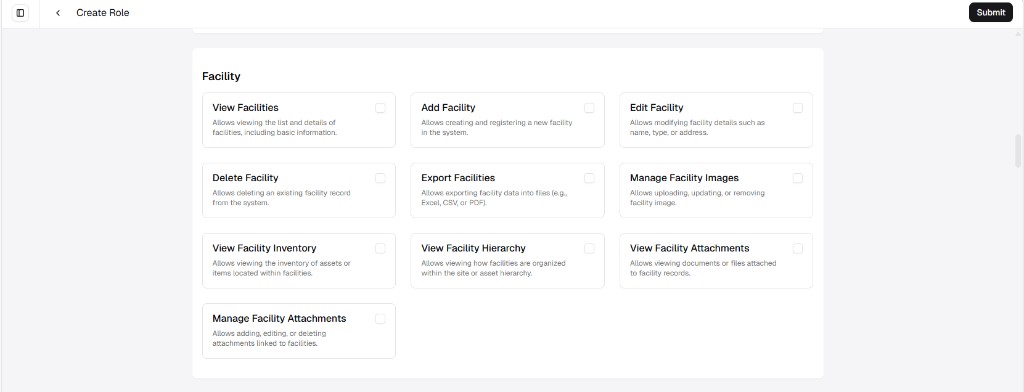
| Permission | What it controls |
|---|---|
| View Facilities | See the facility list and record details (for example basic information about each location). |
| Add Facility | Create and register a new facility in the system. |
| Edit Facility | Change facility fields such as name, type, or address. |
| Delete Facility | Remove a facility record (where your process and other rules allow). |
| Export Facilities | Export facility data to files such as Excel, CSV, or PDF. |
| Manage Facility Images | Upload, replace, or remove images for facilities. |
| View Facility Inventory | See inventory of assets or items inside that facility’s context. |
| View Facility Hierarchy | See how facilities fit in the site or asset hierarchy (how locations nest or relate). |
| View Facility Attachments | Open documents or files attached to a facility record. |
| Manage Facility Attachments | Add, change, or remove those attachments. |
Hierarchy
Section titled “Hierarchy”The Hierarchy group controls whether someone can open the organizational view of sites, assets, and facilities—including parent–child relationships. The role editor shows one permission here, and it is view access only (there is no Manage hierarchy toggle in this group).

| Permission | What it controls |
|---|---|
| View Site & Asset Hierarchy | See the organizational structure of sites, assets, and facilities—how they link as parents and children (who sits under what). |
The Meter group covers measurement devices (what you track on assets or locations), their readings and history, insights built from that data, and files on the meter record. Like Asset and Facility, the screen uses cards with View vs Add / Edit / Delete on the master record, plus Manage where readings or attachments can be changed without opening the whole meter definition.
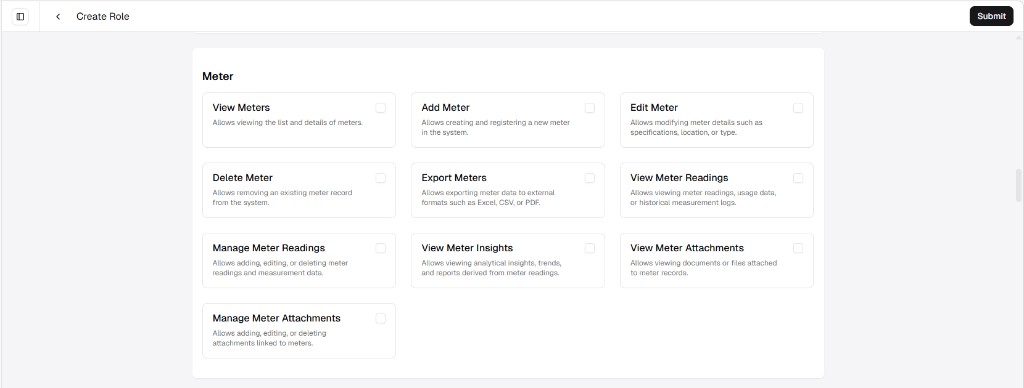
| Permission | What it controls |
|---|---|
| View Meters | See the meter list and details for each device. |
| Add Meter | Create and register a new meter in the system. |
| Edit Meter | Change meter fields such as specifications, location, or type. |
| Delete Meter | Remove a meter record (where your process and other rules allow). |
| Export Meters | Export meter data to files such as Excel, CSV, or PDF. |
| View Meter Readings | See readings, usage-style data, and historical measurement logs. |
| Manage Meter Readings | Add, change, or remove readings and measurement entries—not only view them. |
| View Meter Insights | Open analytical views, trends, and reports based on meter data. |
| View Meter Attachments | Open documents or files attached to a meter record. |
| Manage Meter Attachments | Add, change, or remove those attachments. |
Meter Trigger
Section titled “Meter Trigger”Meter triggers are rules tied to meter readings (for example when a value passes a limit and something should happen automatically). This group controls who can see those rules, set them up, change or remove them, export their definitions, and review what already fired in the past.
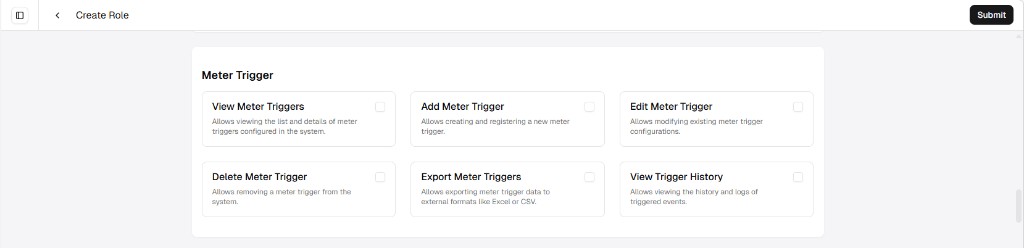
| Permission | What it controls |
|---|---|
| View Meter Triggers | See the list of meter triggers and open each rule’s details as configured in the system. |
| Add Meter Trigger | Create and register a new meter trigger. |
| Edit Meter Trigger | Change an existing meter trigger’s configuration. |
| Delete Meter Trigger | Remove a meter trigger from the system (where your process allows). |
| Export Meter Triggers | Export meter trigger data to external files (for example Excel or CSV). |
| View Trigger History | See history and logs of events that triggers have already produced. |
The Part group governs the spare parts catalog, images, warranty, files, inventory and stock views, receipts, movements, and manual stock actions (issue, receive, undo issue, return to supplier). Cards follow the same pattern as Meter and Facility: separate toggles for View vs Manage, and distinct rights for each manual stock operation so you can match real warehouse duties.
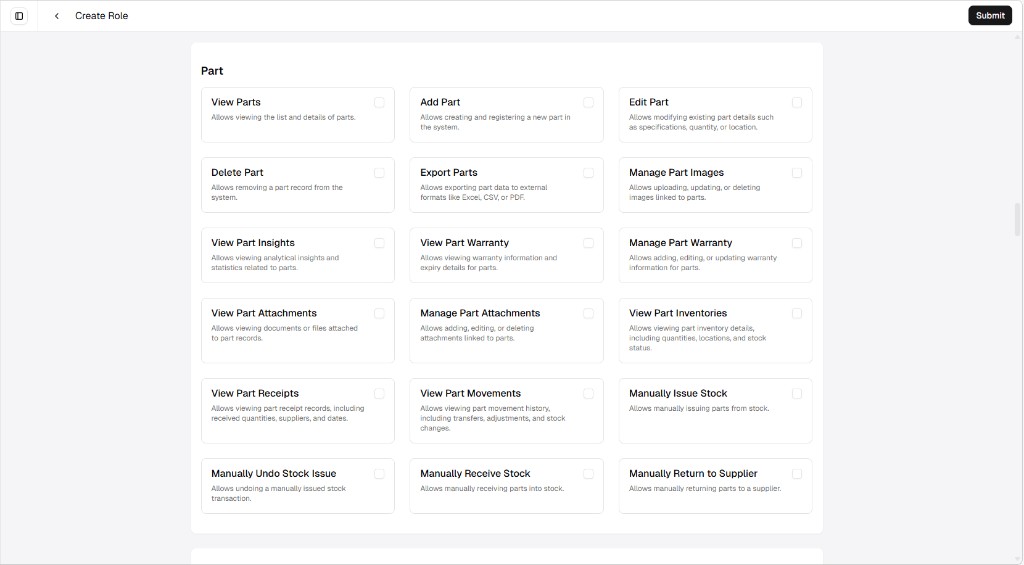
| Permission | What it controls |
|---|---|
| View Parts | See the parts list and each part’s details. |
| Add Part | Create and register a new part in the system. |
| Edit Part | Change part fields such as specifications, quantity on record, or location (as the product allows). |
| Delete Part | Remove a part record from the system (where your process allows). |
| Export Parts | Export part data to files such as Excel, CSV, or PDF. |
| Manage Part Images | Upload, replace, or remove images linked to parts. |
| View Part Insights | Open analytics and statistics about parts (usage, performance-style views). |
| View Part Warranty | See warranty information and expiry for parts. |
| Manage Part Warranty | Add, change, or update warranty information on parts. |
| View Part Attachments | Open documents or files attached to part records (for example specs or vendor PDFs). |
| Manage Part Attachments | Add, change, or remove those attachments. |
| View Part Inventories | See inventory detail—quantities, locations, and stock status for parts. |
| View Part Receipts | See receipt records: received quantities, suppliers, dates, and related context. |
| View Part Movements | See movement history—transfers, adjustments, and other stock changes. |
| Manually Issue Stock | Run a manual issue of parts from stock. |
| Manually Receive Stock | Run a manual receive of parts into stock. |
| Manually Undo Stock Issue | Undo a manually issued stock transaction when your process allows. |
| Manually Return to Supplier | Process a manual return of parts to a supplier. |
Part Cycle Count
Section titled “Part Cycle Count”Part cycle counts are stock audits: you line up what is on the shelf with what the system expects, then perform and validate the count. This group in Roles covers the on-demand cycle count workflow—status, attachments, inventory lines during the count, and Perform Part Cycle Count. It is separate from Part Scheduled Cycle Count (plans that run on a schedule).
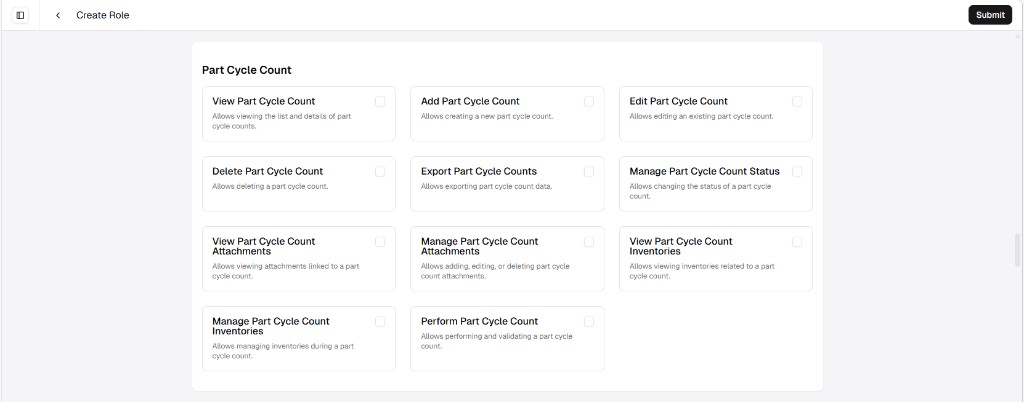
| Permission | What it controls |
|---|---|
| View Part Cycle Count | See the list of part cycle counts and open each record’s details. |
| Add Part Cycle Count | Start a new part cycle count. |
| Edit Part Cycle Count | Change an existing part cycle count (while your process allows edits). |
| Delete Part Cycle Count | Remove a part cycle count record (where rules allow). |
| Export Part Cycle Counts | Export part cycle count data for reporting or analysis. |
| Manage Part Cycle Count Status | Move a count through its status (for example from draft to in progress to completed). |
| View Part Cycle Count Attachments | Open files or documents linked to a part cycle count. |
| Manage Part Cycle Count Attachments | Add, change, or remove those attachments. |
| View Part Cycle Count Inventories | See inventory lines or quantities tied to the count. |
| Manage Part Cycle Count Inventories | Adjust or maintain inventory lines during the count (not only view them). |
| Perform Part Cycle Count | Run the count and validate quantities—doing the physical check in the product workflow. |
Part Scheduled Cycle Count
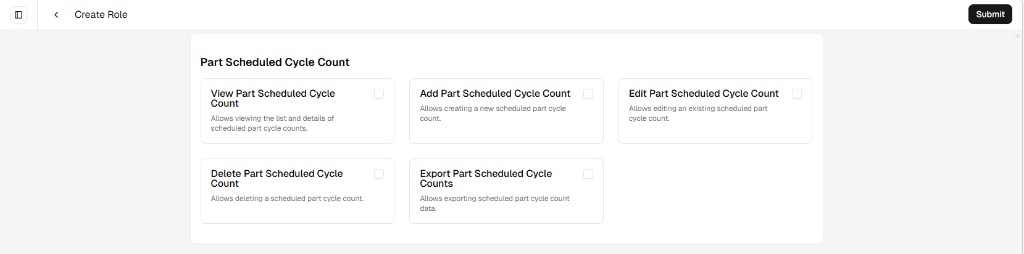
Section titled “Part Scheduled Cycle Count”Part scheduled cycle counts define when and how often cycle counts should happen (for example by calendar or policy). Permissions here only manage the schedule records—view, add, edit, delete, and export—not the same attachment/inventory/perform steps as Part Cycle Count, which apply when someone actually runs a count.
| Permission | What it controls |
|---|---|
| View Part Scheduled Cycle Count | See the list of scheduled part cycle counts and each record’s details. |
| Add Part Scheduled Cycle Count | Create a new scheduled part cycle count. |
| Edit Part Scheduled Cycle Count | Change an existing scheduled part cycle count. |
| Delete Part Scheduled Cycle Count | Remove a scheduled part cycle count (where rules allow). |
| Export Part Scheduled Cycle Counts | Export scheduled part cycle count data for reporting or analysis. |
Part Inventory
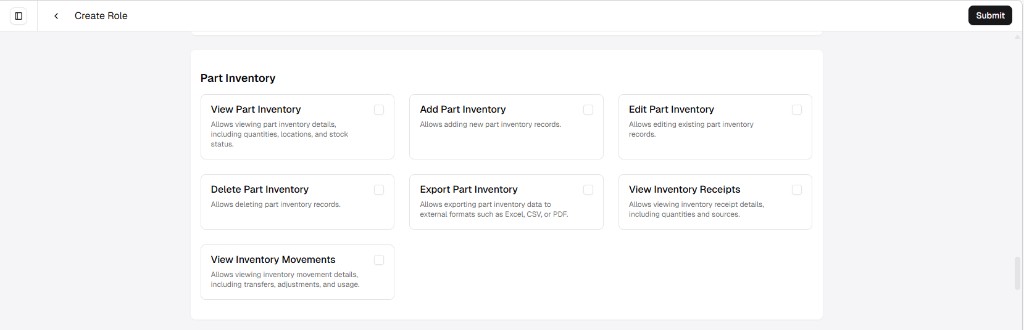
Section titled “Part Inventory”Part inventory is stock by part and location—quantities on hand, where they sit, and status. This group is separate from Part (the catalog) and Part Cycle Count; it focuses on balances, receipts, and movements as they appear for inventory records.
| Permission | What it controls |
|---|---|
| View Part Inventory | See part inventory details—quantities, locations, and stock status. |
| Add Part Inventory | Create new part inventory records. |
| Edit Part Inventory | Change existing part inventory records. |
| Delete Part Inventory | Remove part inventory records (where rules allow). |
| Export Part Inventory | Export part inventory data to files such as Excel, CSV, or PDF. |
| View Inventory Receipts | See receipt detail—quantities received and sources (where stock came from). |
| View Inventory Movements | See movement detail—transfers, adjustments, usage, and other stock changes. |
Part Set
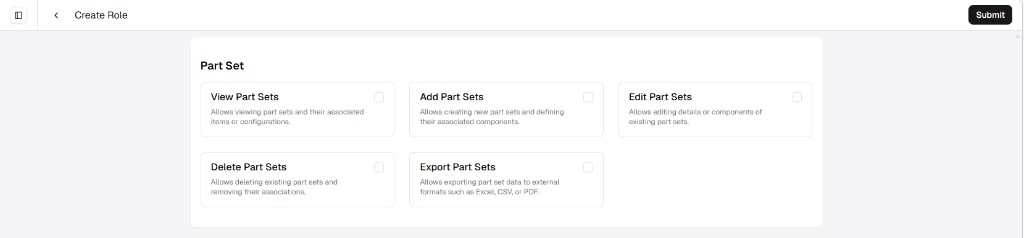
Section titled “Part Set”A part set (sometimes called a kit) groups parts that belong together—for example a spare-parts bundle or a predefined list of components. This group controls who can see those sets, build or change them, remove them, and export the definitions.
| Permission | What it controls |
|---|---|
| View Part Sets | See part sets and the items or configuration tied to each set. |
| Add Part Sets | Create new part sets and define their components or lines. |
| Edit Part Sets | Change an existing part set’s details or its components. |
| Delete Part Sets | Remove part sets and their associations (where rules allow). |
| Export Part Sets | Export part set data to files such as Excel, CSV, or PDF. |
Part Transfer Request
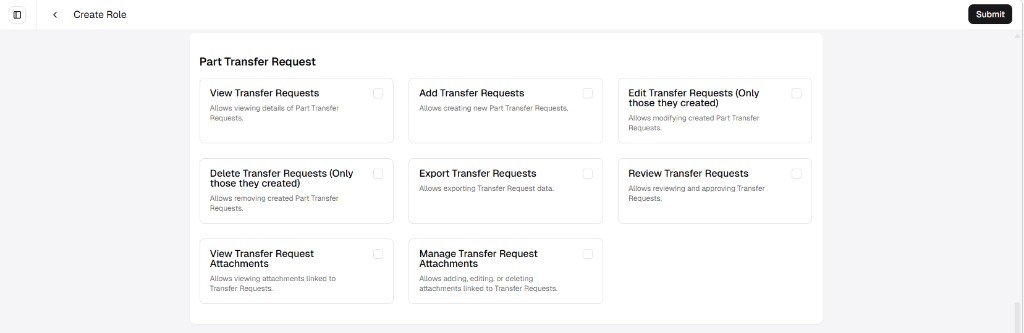
Section titled “Part Transfer Request”Part transfer requests are how people ask to move stock between locations or sites. This group covers opening requests, creating and (where allowed) changing or removing your own, exporting lists, reviewing (approve/decline), and attachments such as shipping paperwork.
| Permission | What it controls |
|---|---|
| View Transfer Requests | See part transfer requests and their details (for example what moves, where from/to). |
| Add Transfer Requests | Create new part transfer requests. |
| Edit Transfer Requests | Change part transfer requests—typically only those the user created (see the label on the permission card in Roles). |
| Delete Transfer Requests | Remove part transfer requests—typically only those the user created. |
| Export Transfer Requests | Export transfer request data for reporting or analysis. |
| Review Transfer Requests | Review, approve, or decline requests in the workflow (separate from only editing your own drafts). |
| View Transfer Request Attachments | Open files linked to a transfer request. |
| Manage Transfer Request Attachments | Add, change, or remove attachments on transfer requests. |
Procedure Template
Section titled “Procedure Template”Procedure templates are reusable checklists for maintenance work—steps, instructions, and how tasks tie together before someone uses them on a work order. This group controls the master templates only, not the live job on the floor.
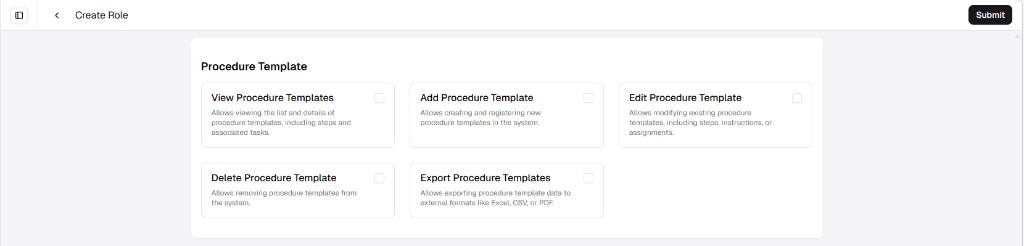
| Permission | What it controls |
|---|---|
| View Procedure Templates | See the template list and each template’s details—steps and linked tasks as the product shows them. |
| Add Procedure Template | Create and register a new procedure template. |
| Edit Procedure Template | Change an existing template—steps, instructions, assignments, or other fields you are allowed to edit. |
| Delete Procedure Template | Remove a procedure template from the system (where rules allow). |
| Export Procedure Templates | Export procedure template data to files such as Excel, CSV, or PDF. |
Regular Maintenance
Section titled “Regular Maintenance”Regular maintenance (preventive / scheduled maintenance in your process) covers PM schedules, requests, work orders, procedures, parts, and attachments tied to that recurring work. The cards below map to those areas—View vs Manage tells you whether someone can only see data or also change it.
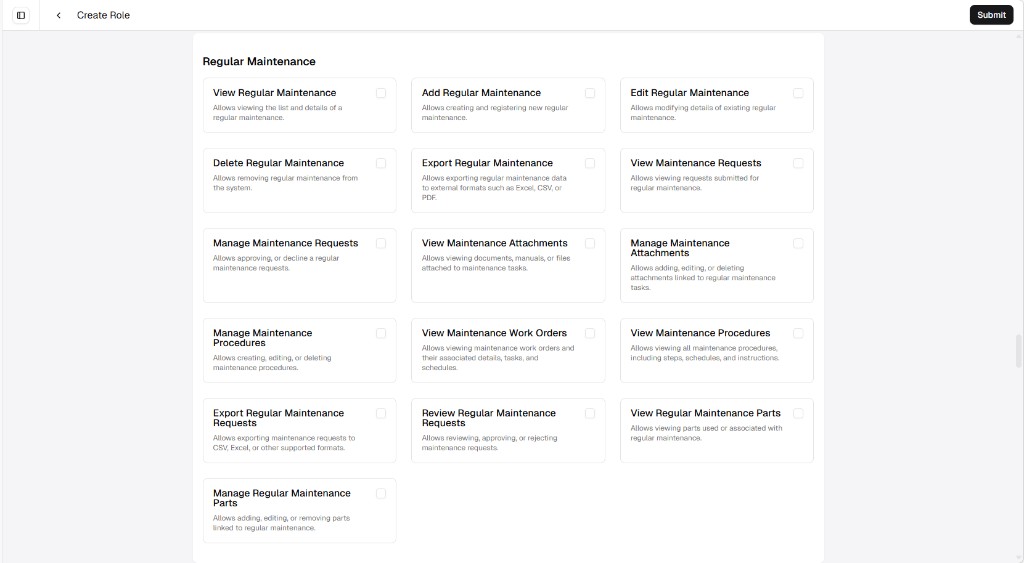
| Permission | What it controls |
|---|---|
| View Regular Maintenance | See the list of regular maintenance records and each record’s details. |
| Add Regular Maintenance | Create and register new regular maintenance. |
| Edit Regular Maintenance | Change existing regular maintenance details. |
| Delete Regular Maintenance | Remove regular maintenance from the system (where rules allow). |
| Export Regular Maintenance | Export regular maintenance data to files such as Excel, CSV, or PDF. |
| View Maintenance Requests | See requests submitted for regular maintenance. |
| Manage Maintenance Requests | Approve or decline regular maintenance requests (workflow actions, not only viewing). |
| View Maintenance Attachments | Open documents, manuals, or files attached to maintenance tasks. |
| Manage Maintenance Attachments | Add, change, or remove attachments on those tasks. |
| Manage Maintenance Procedures | Create, change, or remove maintenance procedures linked to this area. |
| View Maintenance Work Orders | See work orders tied to regular maintenance—details, tasks, and schedules as the product shows them. |
| View Maintenance Procedures | See procedures—steps, schedules, and instructions—without necessarily editing them. |
| Export Regular Maintenance Requests | Export maintenance requests to CSV, Excel, or other supported formats. |
| Review Regular Maintenance Requests | Review, approve, or reject maintenance requests (governance-style step when your tenant uses it). |
| View Regular Maintenance Parts | See parts used or linked to regular maintenance. |
| Manage Regular Maintenance Parts | Add, change, or remove parts linked to regular maintenance. |
Teams group people (and often facilities or assets they cover) for routing work and visibility. This group controls the team records themselves—list and details, add / edit / delete, export, and attachments—not the same as User permissions, which govern the wider user directory.
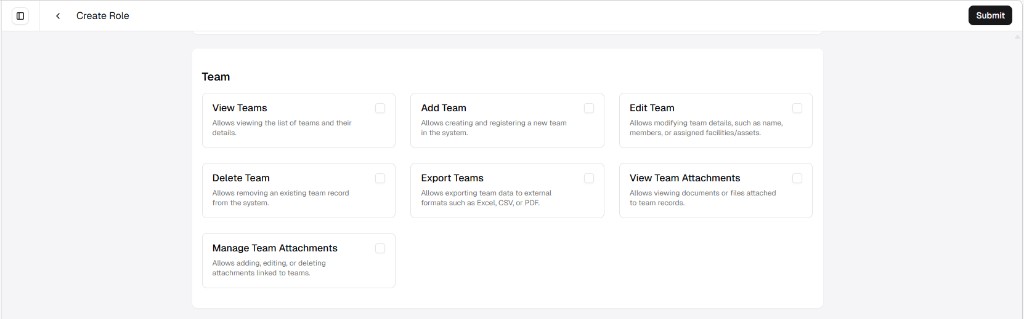
| Permission | What it controls |
|---|---|
| View Teams | See the team list and each team’s details. |
| Add Team | Create and register a new team in the system. |
| Edit Team | Change team fields such as name, members, or linked facilities / assets (as the product allows). |
| Delete Team | Remove a team record (where rules allow). |
| Export Teams | Export team data to files such as Excel, CSV, or PDF. |
| View Team Attachments | Open documents or files attached to team records. |
| Manage Team Attachments | Add, change, or remove attachments linked to teams. |
Time Trigger
Section titled “Time Trigger”Time triggers run actions on a calendar or schedule (for example “every Monday” or “first of the month”), unlike Meter Trigger rules that react to readings. This group covers defining triggers, exporting them, and seeing when they have run in the past.
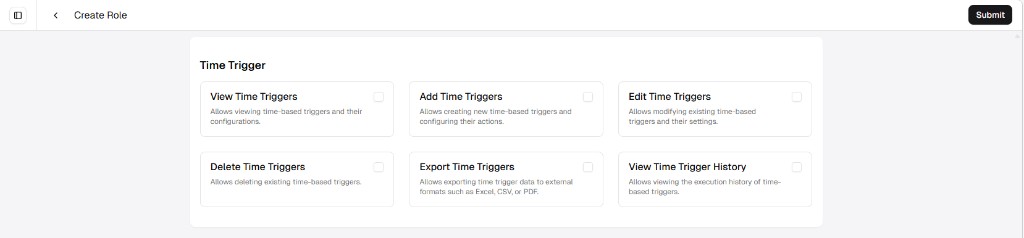
| Permission | What it controls |
|---|---|
| View Time Triggers | See time-based triggers and how each one is configured. |
| Add Time Triggers | Create new time-based triggers and set their actions (as the product allows). |
| Edit Time Triggers | Change existing triggers and their settings. |
| Delete Time Triggers | Remove time-based triggers (where rules allow). |
| Export Time Triggers | Export time trigger data to files such as Excel, CSV, or PDF. |
| View Time Trigger History | See execution history—when time-based triggers ran and what the product recorded. |
This User block in the role editor is narrow: it only exposes View Users—seeing people in site context. Full directory administration (add accounts, change roles, deactivate, and so on) sits under Admin (View Users / Manage Users there), not in this section.

| Permission | What it controls |
|---|---|
| View Users | See the user list and profile-style details for people within a site (site-scoped visibility as your tenant applies). |
Work Order
Section titled “Work Order”Work orders are the main jobs your team executes—status, team, assets, parts, costs, procedures, comments, and attachments. The role editor lists each area separately so you can give technicians fill and view rights without letting them delete jobs or manage financial closeout.
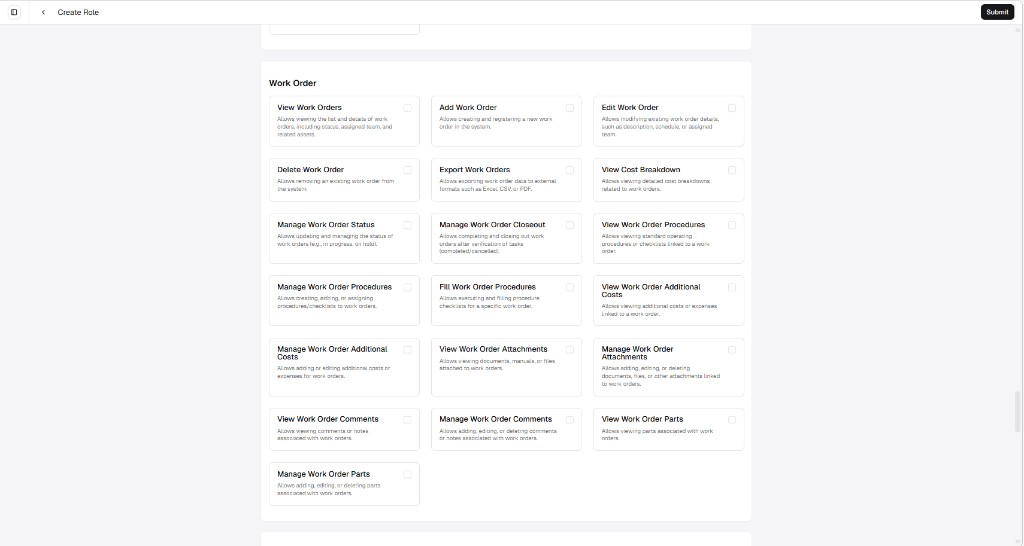
| Permission | What it controls |
|---|---|
| View Work Orders | See the work order list and details—status, assigned team, related assets, and context the product shows. |
| Add Work Order | Create and register a new work order. |
| Edit Work Order | Change work order fields such as description, schedule, or assigned team. |
| Delete Work Order | Remove a work order (where rules allow). |
| Export Work Orders | Export work order data to files such as Excel, CSV, or PDF. |
| View Cost Breakdown | See cost detail for a work order (labor, material-style breakdowns as the product shows). |
| Manage Work Order Status | Update work order status (for example in progress, on hold). |
| Manage Work Order Closeout | Complete and close out work orders after work is verified (including cancelled flows if your tenant uses them). |
| View Work Order Procedures | See procedures or checklists linked to the work order. |
| Manage Work Order Procedures | Create, change, or assign procedures/checklists to work orders. |
| Fill Work Order Procedures | Execute checklist steps on the work order (technician-style completion). |
| View Work Order Additional Costs | See additional costs or extra expenses on the work order. |
| Manage Work Order Additional Costs | Add or change additional costs or expenses. |
| View Work Order Attachments | Open documents, manuals, or files attached to the work order. |
| Manage Work Order Attachments | Add, change, or remove attachments. |
| View Work Order Comments | See comments or notes on the work order. |
| Manage Work Order Comments | Add, change, or remove comments or notes. |
| View Work Order Parts | See parts linked to the work order. |
| Manage Work Order Parts | Add, change, or remove parts on the work order. |
Work Request
Section titled “Work Request”Work requests are how people ask for maintenance before a Work Order exists. Permissions split submitting and editing your own requests from reviewing everyone’s, and treat guest (unauthenticated) requests separately. Delete rights usually apply only while a request is not yet resolved—see the labels on each card in Roles.
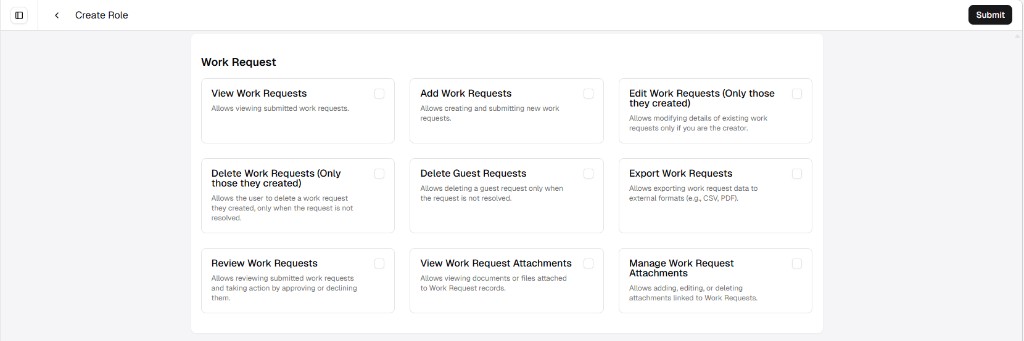
| Permission | What it controls |
|---|---|
| View Work Requests | See submitted work requests. |
| Add Work Requests | Create and submit new work requests. |
| Edit Work Requests | Change a request—typically only ones you created (as shown on the permission card). |
| Delete Work Requests | Remove your own requests—usually only if not resolved yet. |
| Delete Guest Requests | Remove guest requests—usually only if not resolved yet. |
| Export Work Requests | Export work request data (for example CSV or PDF). |
| Review Work Requests | Review incoming requests and approve or decline them. |
| View Work Request Attachments | Open files attached to work request records. |
| Manage Work Request Attachments | Add, change, or remove attachments on work requests. |
Dashboard
Section titled “Dashboard”The Dashboard group is a single permission in the role editor. Enabling it turns on full dashboard management: create, edit, share, and delete dashboards—not a separate “view only” toggle in this section.

| Permission | What it controls |
|---|---|
| Access to dashboard | Full dashboard access: create, edit, share, and delete dashboards—not view-only. (The label on the card may match this wording or show a small spelling difference; rely on the card description in Roles.) |
Purchase Order (PO)
Section titled “Purchase Order (PO)”Purchase orders (POs) are formal buying documents—vendor, lines, status, extra costs, and attachments (invoices, terms). This group maps each concern to its own toggle so buyers can view POs without managing freight charges or files.
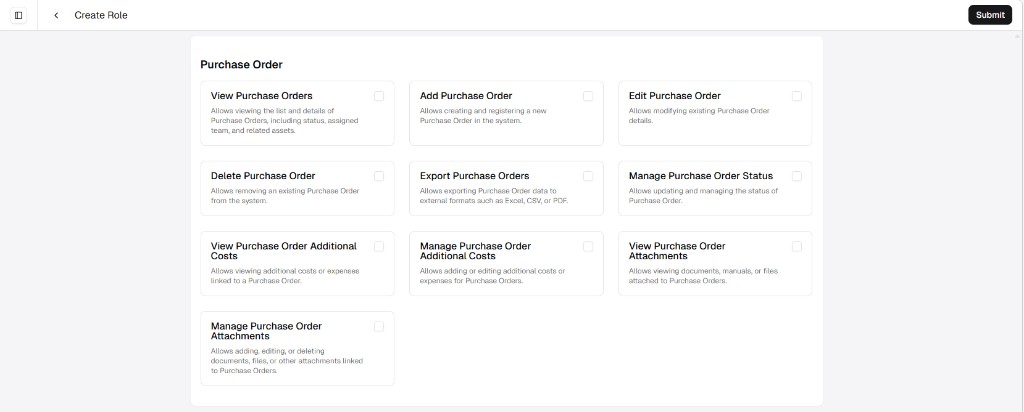
| Permission | What it controls |
|---|---|
| View Purchase Orders | See the PO list and details—status, team, related assets or context as the product shows. |
| Add Purchase Order | Create and register a new purchase order. |
| Edit Purchase Order | Change an existing PO’s header and line detail (as allowed). |
| Delete Purchase Order | Remove a PO (where rules allow). |
| Export Purchase Orders | Export PO data to files such as Excel, CSV, or PDF. |
| Manage Purchase Order Status | Update PO status (for example draft, sent, received). |
| View Purchase Order Additional Costs | See additional costs or extra expenses on the PO. |
| Manage Purchase Order Additional Costs | Add or change additional costs or expenses. |
| View Purchase Order Attachments | Open documents or files attached to the PO. |
| Manage Purchase Order Attachments | Add, change, or remove attachments on the PO. |
Purchase Request
Section titled “Purchase Request”Purchase requests are internal asks for material or services—often before a formal Purchase Order (PO) is raised. Permissions separate submitting and editing your own requests from reviewing and approving others’, and from attachments on the record.
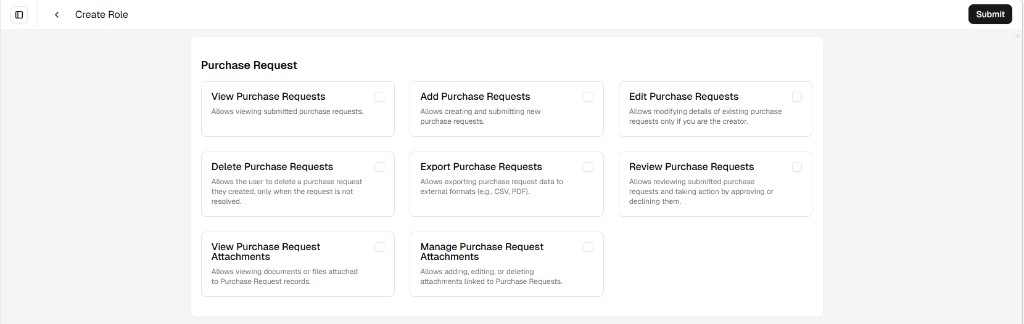
| Permission | What it controls |
|---|---|
| View Purchase Requests | See submitted purchase requests. |
| Add Purchase Requests | Create and submit new purchase requests. |
| Edit Purchase Requests | Change a request—typically only if you created it (as on the permission card). |
| Delete Purchase Requests | Remove your own requests—usually only while not resolved yet. |
| Export Purchase Requests | Export purchase request data (for example CSV or PDF). |
| Review Purchase Requests | Review requests and approve or decline them. |
| View Purchase Request Attachments | Open files attached to purchase request records. |
| Manage Purchase Request Attachments | Add, change, or remove attachments on purchase requests. |
Receipt
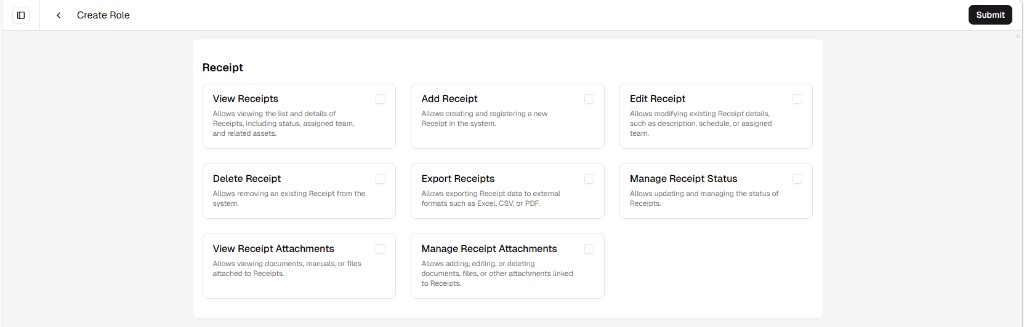
Section titled “Receipt”Receipts record goods arriving against orders—what came in, status, who handled it, and proof in attachments (delivery notes, photos). This group splits master receipt actions from status updates and files so receiving clerks can scan documents without deleting records.
| Permission | What it controls |
|---|---|
| View Receipts | See the receipt list and details—status, team, related assets or context as shown. |
| Add Receipt | Create and register a new receipt. |
| Edit Receipt | Change receipt fields such as description, schedule, or assigned team (as allowed). |
| Delete Receipt | Remove a receipt (where rules allow). |
| Export Receipts | Export receipt data to files such as Excel, CSV, or PDF. |
| Manage Receipt Status | Update receipt status and drive the receiving workflow. |
| View Receipt Attachments | Open documents or files attached to receipts. |
| Manage Receipt Attachments | Add, change, or remove attachments on receipts. |
Request For Quotation (RFQ)
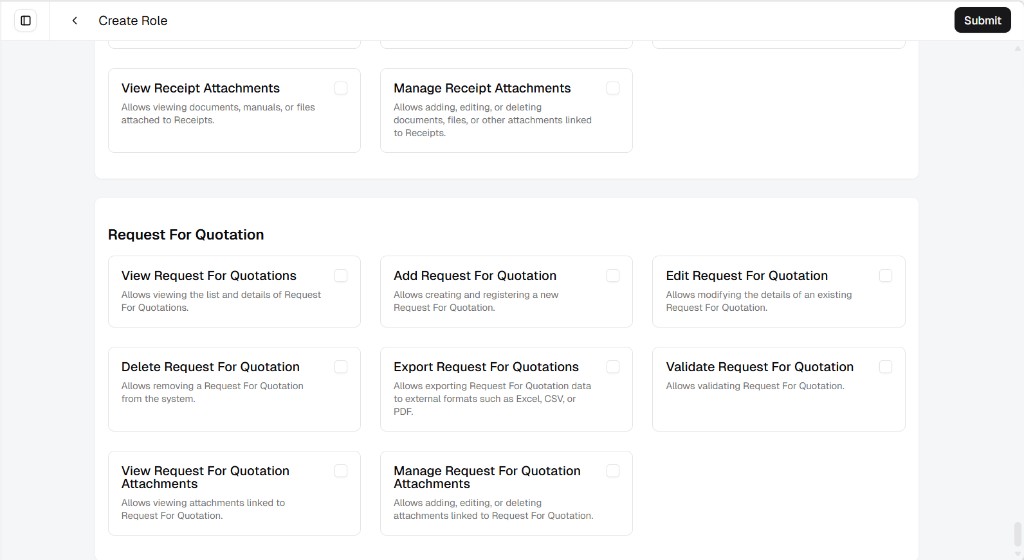
Section titled “Request For Quotation (RFQ)”An RFQ is a supplier bidding package—scope, lines, and responses. These permissions control the RFQ record, validation when your process requires a formal sign-off, and attachments (quotes, comparisons, terms).
| Permission | What it controls |
|---|---|
| View Request For Quotations | See the RFQ list and each record’s details. |
| Add Request For Quotation | Create and register a new Request For Quotation. |
| Edit Request For Quotation | Change an existing RFQ’s details. |
| Delete Request For Quotation | Remove an RFQ (where rules allow). |
| Export Request For Quotations | Export RFQ data to files such as Excel, CSV, or PDF. |
| Validate Request For Quotation | Run the validation step for an RFQ (for example formal approval or sign-off before award—exact behavior follows your tenant’s workflow). |
| View Request For Quotation Attachments | Open files linked to RFQ records. |
| Manage Request For Quotation Attachments | Add, change, or remove attachments on RFQs. |