
How to Record a Meter Reading
Abschnitt betitelt „How to Record a Meter Reading“ VERFÜGBARKEIT
Berechtigung: ✓ Zählerstand erfassen
Plattform: ✓ Web ✓ Mobil
There are two ways to open the Reading dialog for an existing meter. Both paths use the same form; pick whichever fits your workflow.
Method 1: From the meters list (row menu)
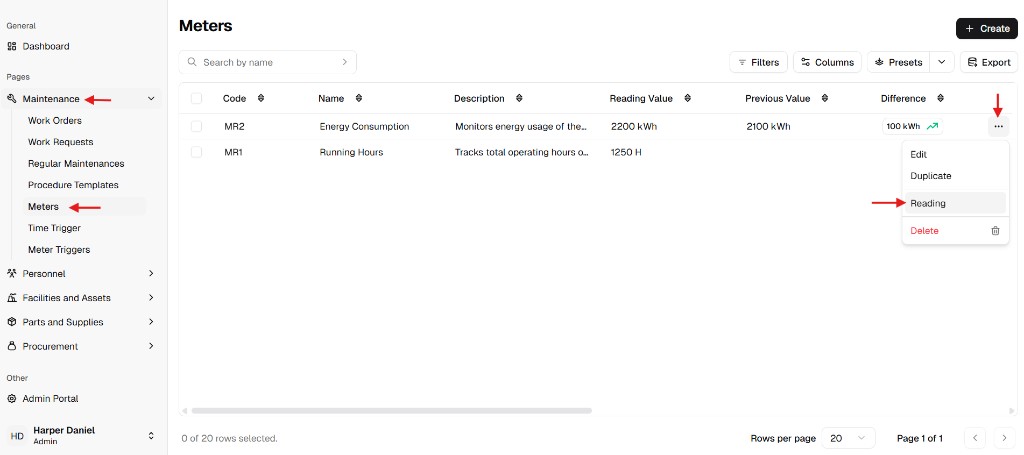
Abschnitt betitelt „Method 1: From the meters list (row menu)“- Open Maintenance → Meters.
- Find the meter in the table.
- In that row, click More (⋯) under Actions and choose Reading.
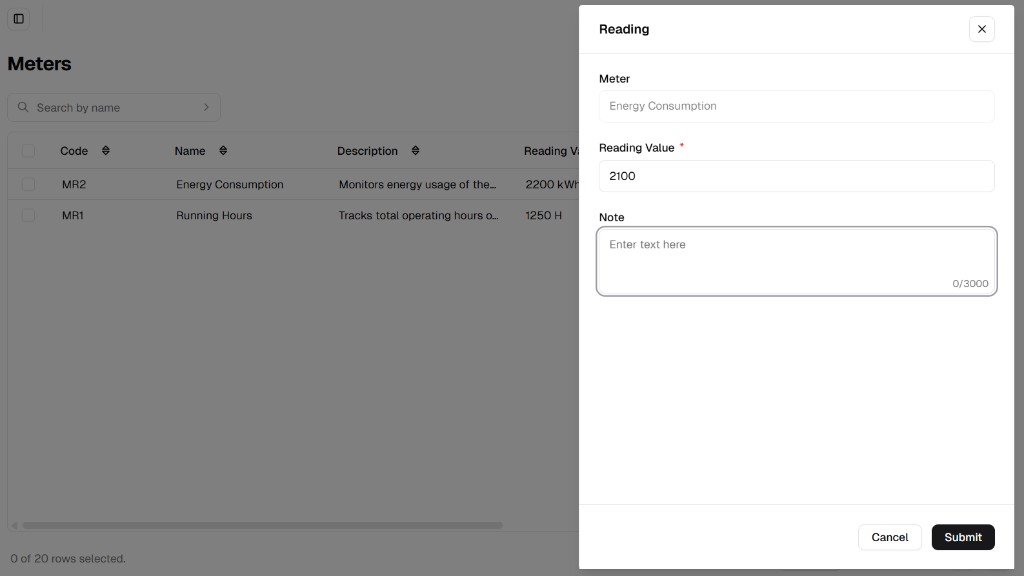
- In the Reading window, enter Reading Value, add an optional Note, then click Submit.
Method 2: From the meter detail page
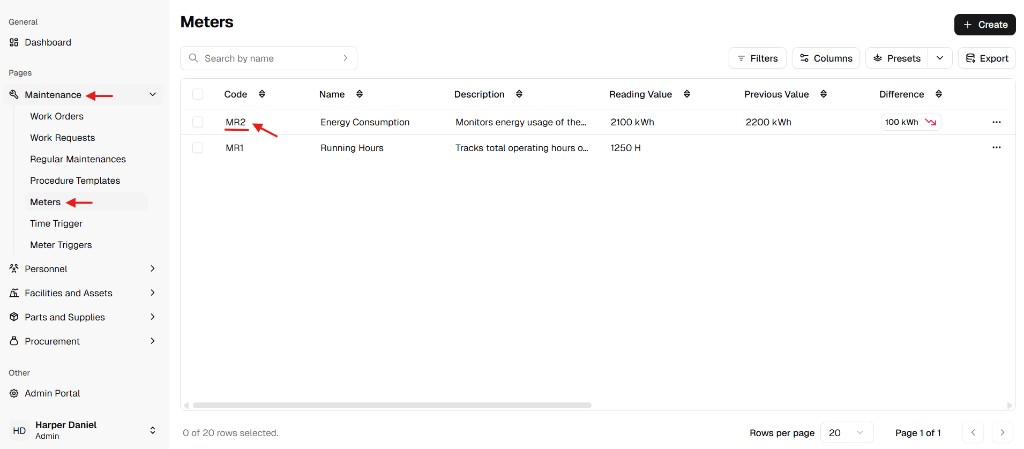
Abschnitt betitelt „Method 2: From the meter detail page“- Open Maintenance → Meters.
- Click the meter Code (link in the table, e.g. MR2) to open its detail page.
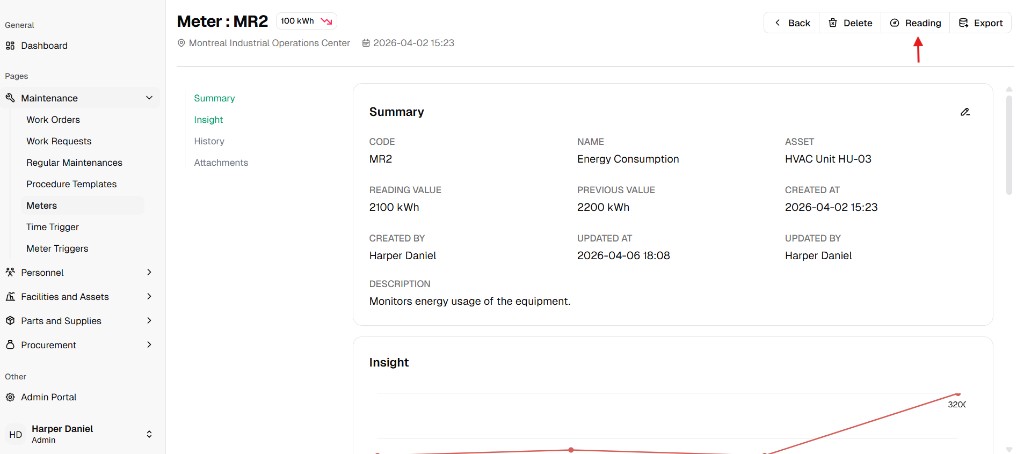
- On the meter page, click Reading in the top toolbar (with Back, Delete, Export, etc.).
- Enter Reading Value, add an optional Note, then Submit — same dialog as Method 1.
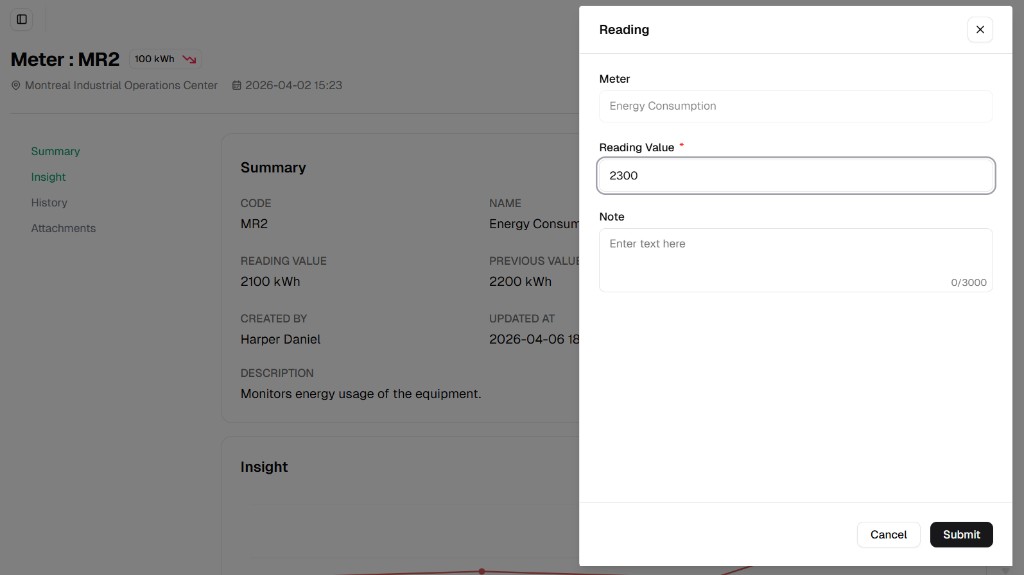
Reading form fields
Abschnitt betitelt „Reading form fields“The system evaluates the new value immediately against any active Meter Triggers.
| Field | Instruction | Required |
|---|---|---|
| Meter | Filled automatically from the meter you chose; not editable here. | System |
| Reading Value | Enter the new numeric reading from the field or instrument. | Yes |
| Note | Optional context (conditions, who performed the reading, remarks). | — |
Click Submit to append the reading to the meter history (visible on the History tab where available).