
How to Create a Meter
Abschnitt betitelt „How to Create a Meter“ VERFÜGBARKEIT
Berechtigung: ✓ Zähler hinzufügen
Plattform: ✓ Web ✓ Mobil
Follow these steps to configure a new meter in the system.
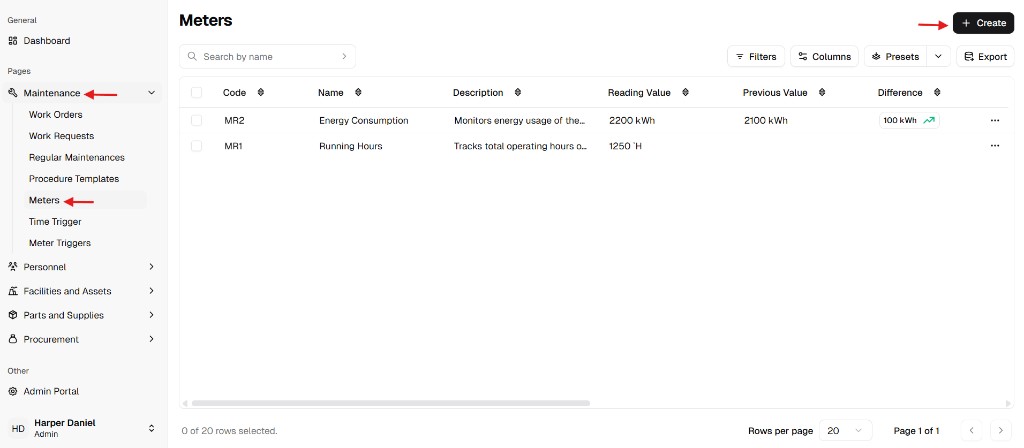
Step 1: Navigate to Meters
Abschnitt betitelt „Step 1: Navigate to Meters“From the main sidebar, navigate to Maintenance and select the Meters sub-menu.
Step 2: Open the Creation Form
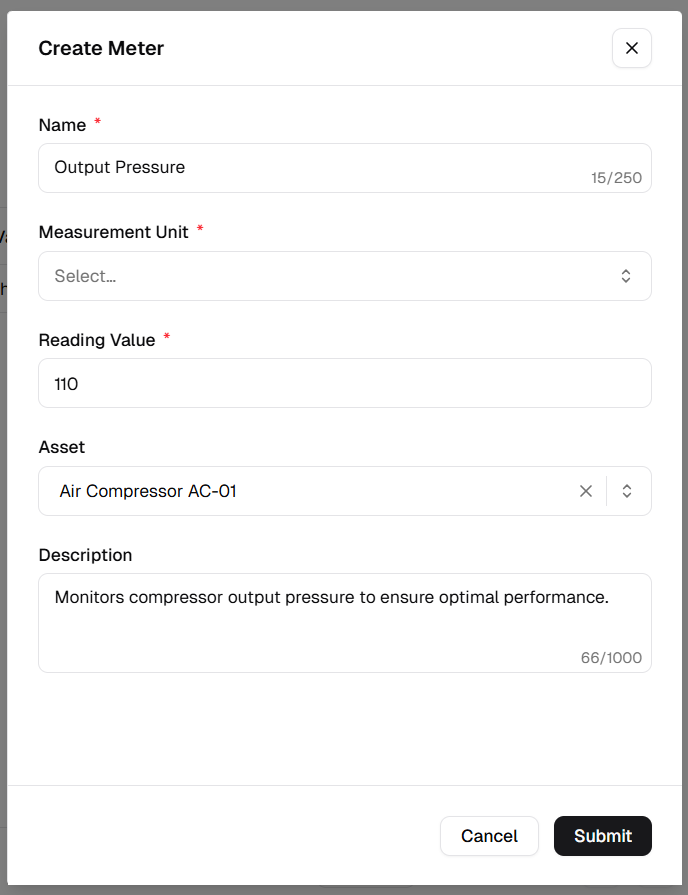
Abschnitt betitelt „Step 2: Open the Creation Form“Click + Create in the top action bar of the Meters list.
Step 3: Define Meter Parameters
Abschnitt betitelt „Step 3: Define Meter Parameters“Complete the input fields in the creation form (order matches the Create Meter dialog):
| Field | Instruction | Required |
|---|---|---|
| Name | Enter a clear identifier (e.g., “Output Pressure”, “Air Compressor 01 Hours”). | ✅ Yes |
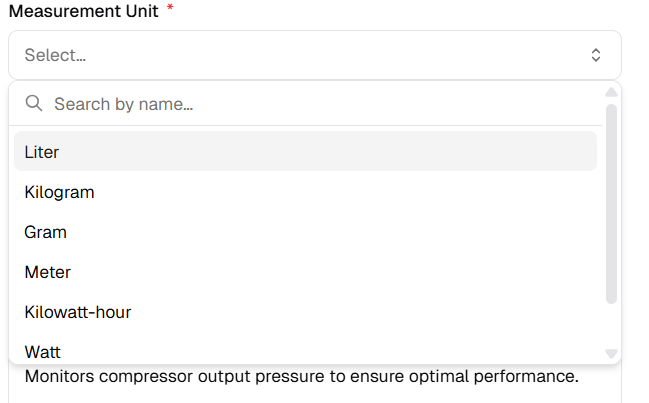
| Measurement Unit | Pick a unit from the dropdown. The list is driven by reference data: values come from the Metric Units table in Reference Data Management. UniCMMS includes many standard units; if the unit you need is missing, add it there first, then open the form again. | ✅ Yes |
| Reading Value | Enter the current or initial reading (numeric). | ✅ Yes |
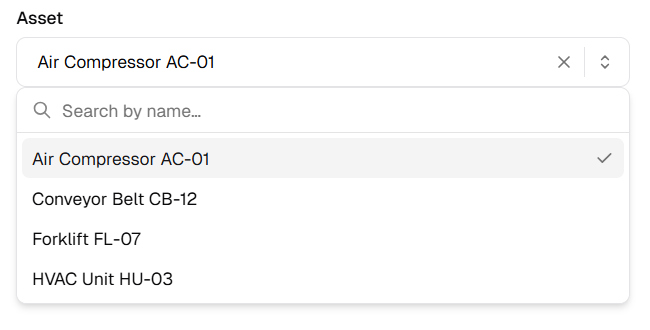
| Asset | Optionally link the meter to an asset belonging to the same site you are working in. The dropdown is filled with assets for that site. If you do not see the asset, open the list and use Search by name… (the search box at the top of the dropdown) until it appears. | — |
| Description | Optional context (purpose, location, or operating notes). | — |
Measurement Unit — Open the dropdown to browse units or type in Search by name….
Asset — Choose a site asset or search from the same dropdown.
Step 4: Save
Abschnitt betitelt „Step 4: Save“Click the Submit button to finalize the meter configuration.