
Dieser Inhalt ist noch nicht in deiner Sprache verfügbar.
How to generate a purchase order from an RFQ
Section titled “How to generate a purchase order from an RFQ”Generate PO is the step that turns an agreed Request for Quotation (RFQ) into an official Purchase Order (PO). UniCMMS carries supplier, line items, quantities, and prices from the RFQ into the PO form so procurement matches what was bid—reducing manual entry and mismatch risk.
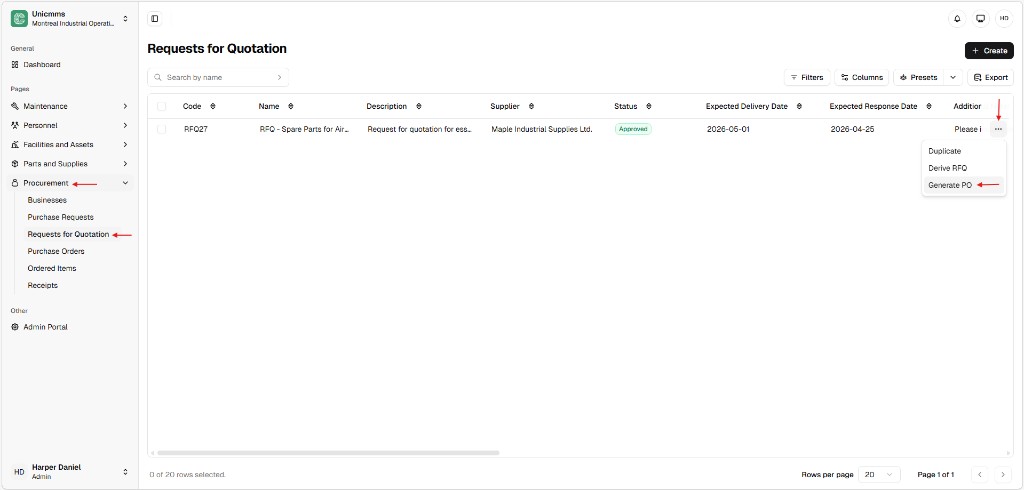
1. Navigate
Section titled “1. Navigate”Go to Procurement → Requests for Quotation.
2. Locate the winning RFQ
Section titled “2. Locate the winning RFQ”Find the RFQ that reflects the accepted quote with the supplier—typically Approved or Validated (exact statuses depend on your tenant). Generate PO is usually available only when the RFQ is in a post-approval state suitable for conversion.
3. Open Generate PO
Section titled “3. Open Generate PO”On the row, click ⋯ (More) and choose Generate PO.
4. Review the Create Purchase Order form
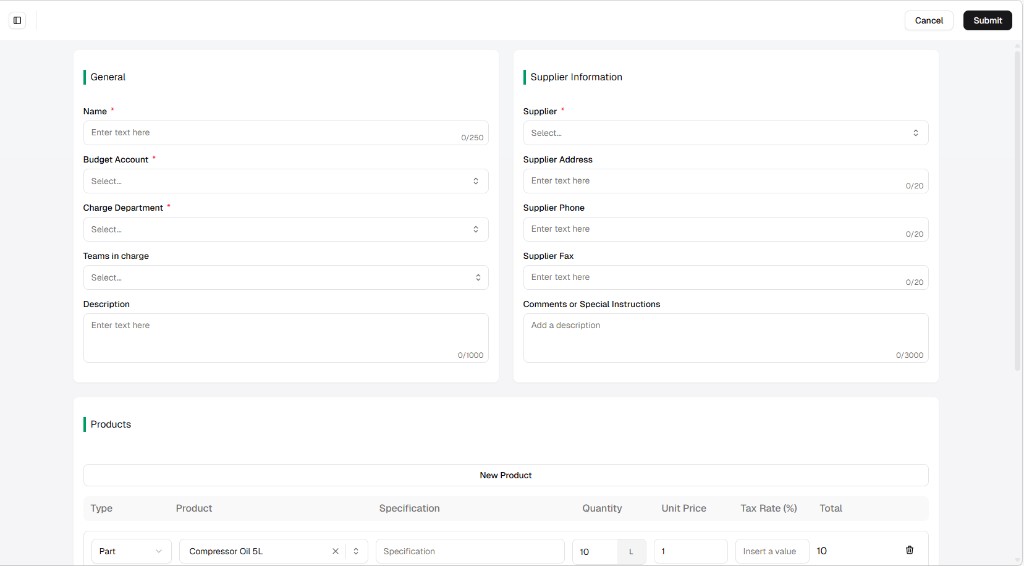
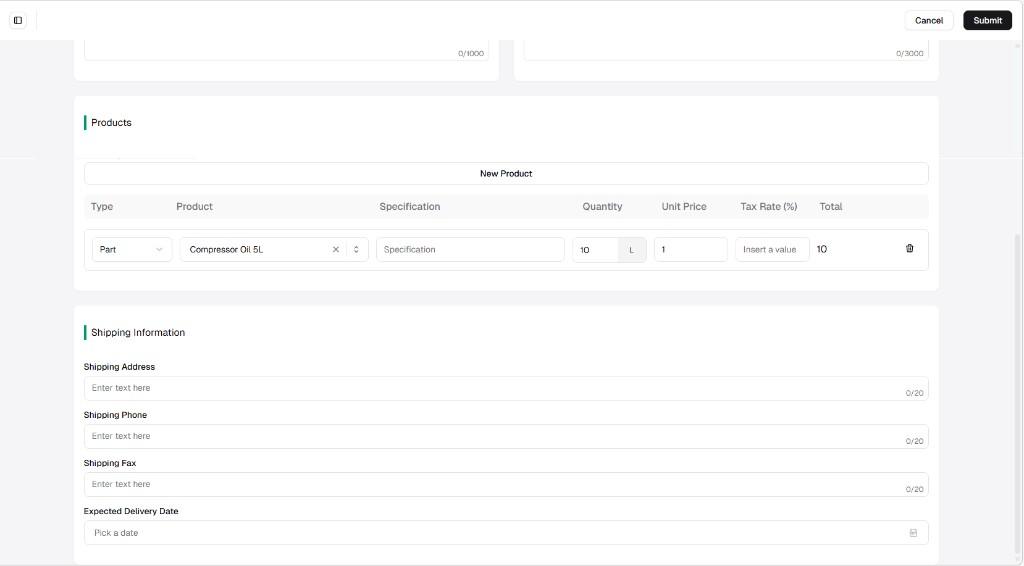
Section titled “4. Review the Create Purchase Order form”The system opens the Create Purchase Order screen with General, Supplier information, and Products (and Shipping where applicable) prefilled from the RFQ. Adjust budget account, charge department, unit prices, tax, or shipping if your process allows edits before commit.
5. Submit
Section titled “5. Submit”Click Submit when the PO is correct. Cancel leaves without creating a PO (exact draft behavior depends on your build).
6. Result — new PO on the list
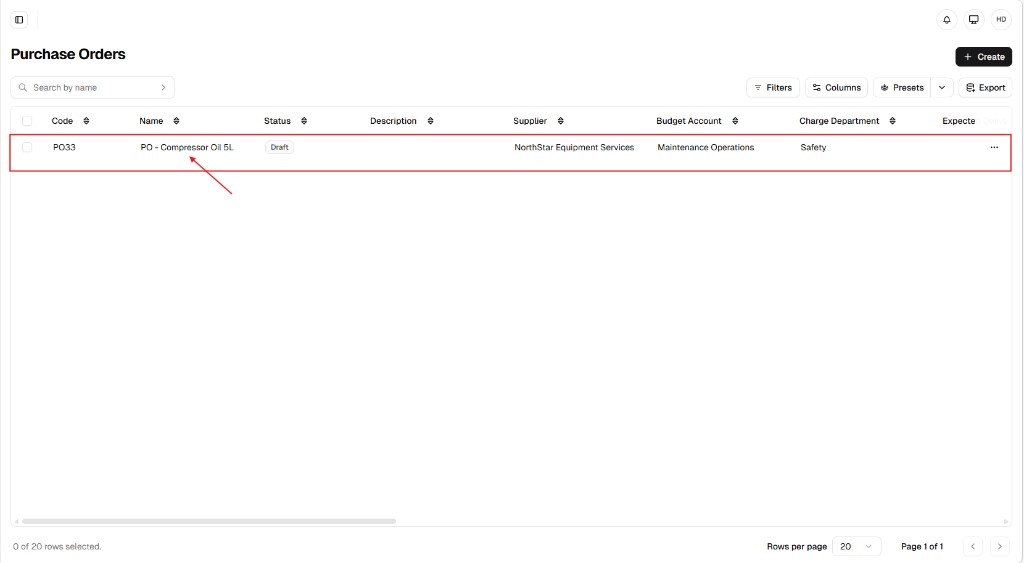
Section titled “6. Result — new PO on the list”UniCMMS creates a new Purchase Order (new Code, for example PO33) and typically takes you to Procurement → Purchase Orders so you can see the record in Draft (or your tenant’s initial PO state).
Purchase order form — what syncs from the RFQ
Section titled “Purchase order form — what syncs from the RFQ”When you use Generate PO, fields are populated from the source RFQ and any quoted values your workflow captured. Your screen may vary slightly, but the pattern is:
1. General and supplier context
Section titled “1. General and supplier context”| Area | Typical sync |
|---|---|
| Name | PO title derived from the RFQ / quote context (editable). |
| Budget account / Charge department | Often required on the PO—may default from site or RFQ metadata; confirm before submit. |
| Supplier * | The Business tied to the accepted RFQ. |
| Supplier address / phone / fax | From Businesses registry or RFQ supplier block—still editable. |
| Billing / shipping | Logistics from the RFQ shipping section when your build maps them. |
2. Financials and costs
Section titled “2. Financials and costs”| Concept | Notes |
|---|---|
| Currency | Uses the currency from the quote or tenant defaults when shown. |
| Additional costs | Some builds let you add freight, fees, or tax lines before submit—add them when your policy requires it. |
| Total | Line math is usually quantity × unit price per row, plus any additional cost lines the product supports (your UI may show a running Total column per line and a document total elsewhere). |
3. Product line items
Section titled “3. Product line items”| Column / field | Typical sync |
|---|---|
| Type & Product | Each Part or Asset line from the RFQ. |
| Specification | Carried when your RFQ stored it on the line. |
| Quantity & unit | Volumes from the RFQ / agreed quote. |
| Unit price | Agreed unit price from the supplier response (when your workflow captured it). |
| Tax rate (%) | Enter or confirm if your process requires tax on the line. |
Operational logic (one-way workflow)
Section titled “Operational logic (one-way workflow)”- Traceability — After generation, UniCMMS keeps a logical link between the PO and the RFQ so you can trace spend back to the original competitive package (exact navigation—detail tabs, related lists—depends on your version).
- Efficiency — Data is pulled from the validated RFQ path, which reduces wrong part or wrong price errors compared to retyping from email.
- Status on the RFQ — Once the PO is created, the source RFQ is often marked Converted, Closed, or similar so the same quote cannot spawn duplicate POs without a controlled exception process.