
Dieser Inhalt ist noch nicht in deiner Sprache verfügbar.
How to Edit a Purchase Request
Section titled “How to Edit a Purchase Request”Editing lets the creator refine General details and Products lines before the request is fully resolved by procurement. Ownership and status rules control whether Edit appears and whether saves are allowed, so the audit trail stays trustworthy.
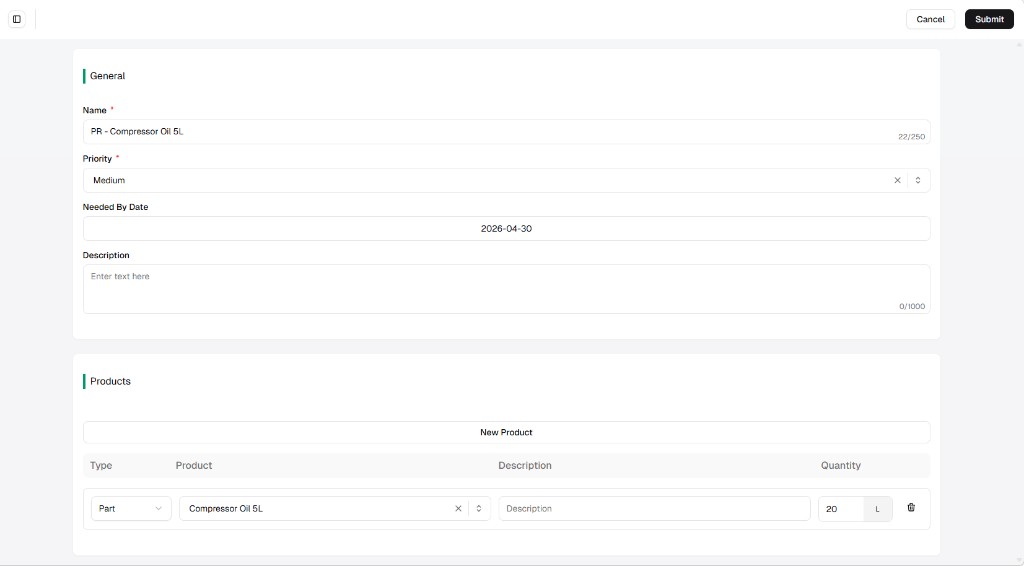
The editor uses the same layout as creating a purchase request: header Cancel and Submit, then General (name, priority, needed-by date, description with the usual character limits) and Products (New product, line Type / Product / Description / Quantity + unit, row trash). Use the create guide for a full field-by-field description; this page focuses on how to open edit and what rules apply.
Open Edit from the list
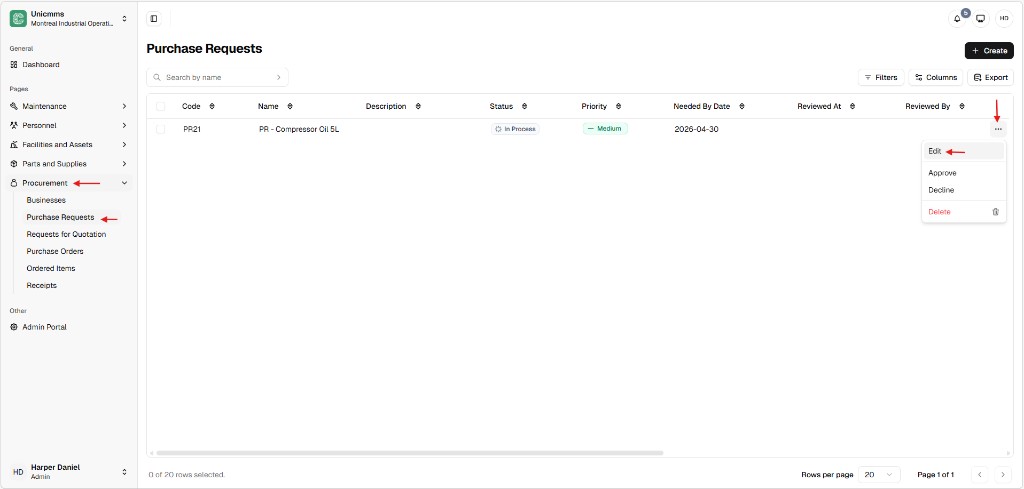
Section titled “Open Edit from the list”- Go to Procurement → Purchase Requests.
- Find the row (use Search by name if the list is long).
- Click ⋯ at the end of the row.
- Choose Edit.
The row menu often includes Approve, Decline, and Delete as well; those are separate actions—see How to approve or decline and How to delete.
Change fields and save
Section titled “Change fields and save”After Edit opens, update what you need, then click Submit to save. Cancel discards changes for that session (exact behavior if you already changed fields depends on your build—confirm before leaving).
Typical updates
Section titled “Typical updates”| Area | Examples |
|---|---|
| General | Rename the request, change Priority, move Needed by date, or expand Description (up to the shown character limits). |
| Products | Add a line with New product, change Quantity or unit, pick a different Product, or remove a line with the trash icon. |
Critical constraints
Section titled “Critical constraints”| Constraint | Description |
|---|---|
| Creator lock | Only the user who created the purchase request can edit it in normal workflows. If you did not create the PR, Edit may be missing or saving may be blocked. |
| Status lock | Editing is allowed only while the PR is still open for changes—for example Draft, Pending, In Process, or In Progress (labels depend on your tenant and workflow). After Approved, Declined, Ordered, or another resolved state, Edit is disabled to protect history. |
| Global sync | Changes in Products (for example switching a line from Part to Asset or changing quantities) take effect when you Submit and can change how the request feeds RFQ / PO paths. |