
Esta página aún no está disponible en tu idioma.
Appearance
Section titled “Appearance”About Appearance settings
Section titled “About Appearance settings”The Appearance section defines organization-wide defaults for how data is displayed across UniCMMS. These values establish the global standard for your tenant: language, currency, and time-related formatting.
They apply to new user accounts and to PDF and Excel exports. Individual users can usually override some preferences in their personal account settings when your product allows it.
Screenshot
Section titled “Screenshot”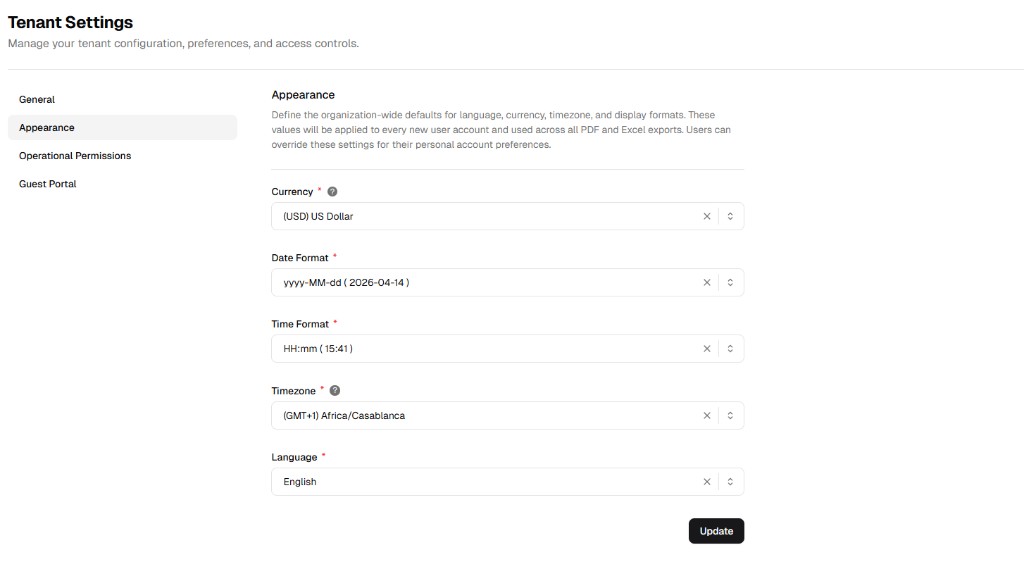
How to configure system appearance
Section titled “How to configure system appearance”Step 1: Navigate to Appearance
Section titled “Step 1: Navigate to Appearance”- Open Admin Portal from the main sidebar (Other).
- Select Tenant Settings under Settings.
- Click the Appearance tab in the sub-navigation.
Step 2: Define localization parameters
Section titled “Step 2: Define localization parameters”Choose formats from the dropdowns.
| Field | Description | Required |
|---|---|---|
| Currency | Primary currency for financial tracking (e.g. USD, EUR, GBP). Affects unit prices and totals. | Yes |
| Date Format | How dates display (e.g. YYYY-MM-DD or DD/MM/YYYY). Important for scheduling clarity. | Yes |
| Time Format | 24-hour (HH:mm) or 12-hour (hh:mm a with AM/PM). | Yes |
| Timezone | Global timezone (e.g. GMT+1) so work order timestamps stay consistent. | Yes |
| Language | Default interface language (English, Français, Español, etc.). | Yes |
Step 3: Save the global configuration
Section titled “Step 3: Save the global configuration”Click Update (bottom right). Reports and the interface use the new formatting from that point forward.
Step 4: Verify applied formatting
Section titled “Step 4: Verify applied formatting”After saving:
- Reopen the Appearance tab and confirm all selected values are retained.
- Check date and time displays in a module screen (for example Work Orders list).
- Export a PDF or Excel file and verify currency and date/time formatting match tenant settings.
Common formatting examples
Section titled “Common formatting examples”- Date: Choosing
MM/dd/yyyycan display a day like03/23/2026. - Time: Choosing
hh:mm ashows times with an AM/PM suffix. - Currency: Choosing (EUR) Euro typically shows amounts with the € symbol in financial fields.