
Esta página aún no está disponible en tu idioma.
How to edit a receipt
Section titled “How to edit a receipt”Editing keeps the digital receipt aligned with what is on the shelf before the record is locked by approval or validation. You normally edit only receipts still in Draft; Validated rows stay read-only for the audit trail.
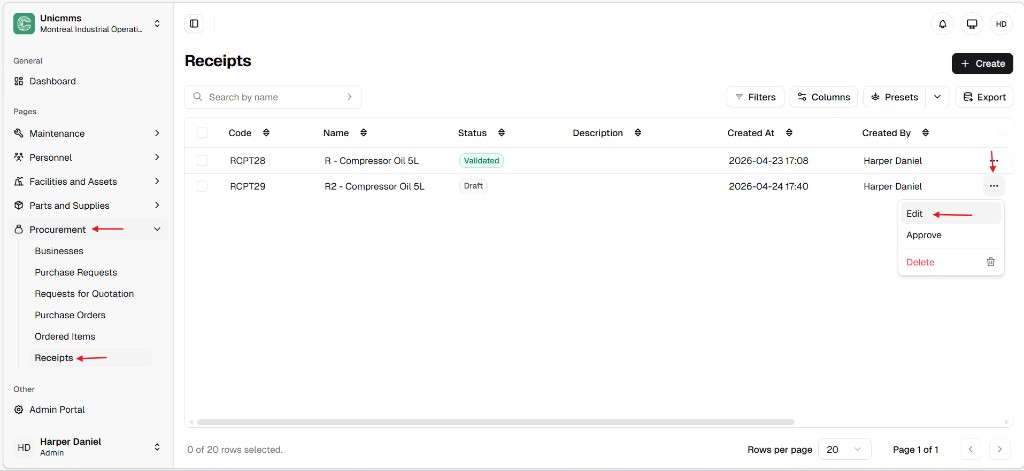
Open the list and choose Edit
Section titled “Open the list and choose Edit”- Navigate — Procurement → Receipts.
- Locate — Use Search by name or scan Code (for example RCPT29). The Status column shows Draft (grey) vs Validated (green)—pick a Draft receipt to change.
- Row menu — Click ⋯ at the end of the row. Choose Edit. The same menu often lists Approve and Delete when your role allows them.
Update the form
Section titled “Update the form”The editor matches create: Cancel and Submit in the header, General and Products.
General
Section titled “General”| Field | Typical edits |
|---|---|
| Name * | Update the title (for example R2 - Compressor Oil 5L). Often up to 250 characters. |
| Description | Add or change notes (for example Correcting quantity after physical recount). Often up to 1000 characters. |
Products
Section titled “Products”Use New product to add a line or the trash icon to remove one. Per row you can change Product, Stock location, line Description, and Received quantity. The Quantity column may show demand context (for example 0/10 L).
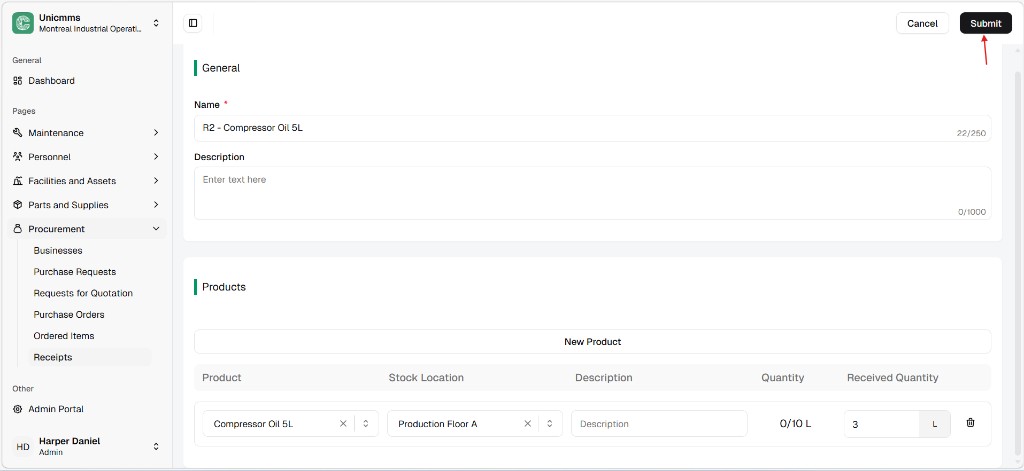
Save — Click Submit. Updated at / Updated by refresh when the save succeeds (exact fields depend on your list columns).
Modification constraints
Section titled “Modification constraints”| Constraint | Description |
|---|---|
| Status lock | You can usually edit only while the receipt is Draft. After Validated / Approved, Edit is disabled so stock and history stay consistent. |
| Draft and inventory | On many tenants, Draft saves do not finalize on-hand until Approve / validation—confirm your workflow with a test receipt if unsure. |
| Audit fields | Timestamps and user stamps update on each successful save of an editable receipt. |