
Esta página aún no está disponible en tu idioma.
How to validate a purchase order
Section titled “How to validate a purchase order”PO validation and Ordered Items (overview)
Section titled “PO validation and Ordered Items (overview)”Validation turns a Draft Purchase Order into an active procurement commitment. After you confirm in the dialog, the PO status updates (your product typically shows On order; some tenants or translations may show In order—same idea: the PO is live, not draft).
UniCMMS then synchronizes each product line from that PO into Procurement → Ordered Items. That list is where maintenance and warehouse roles see what was ordered, which PO it came from, and how much is still outstanding—often before goods arrive—without opening the full PO financial view.
Validate from the list
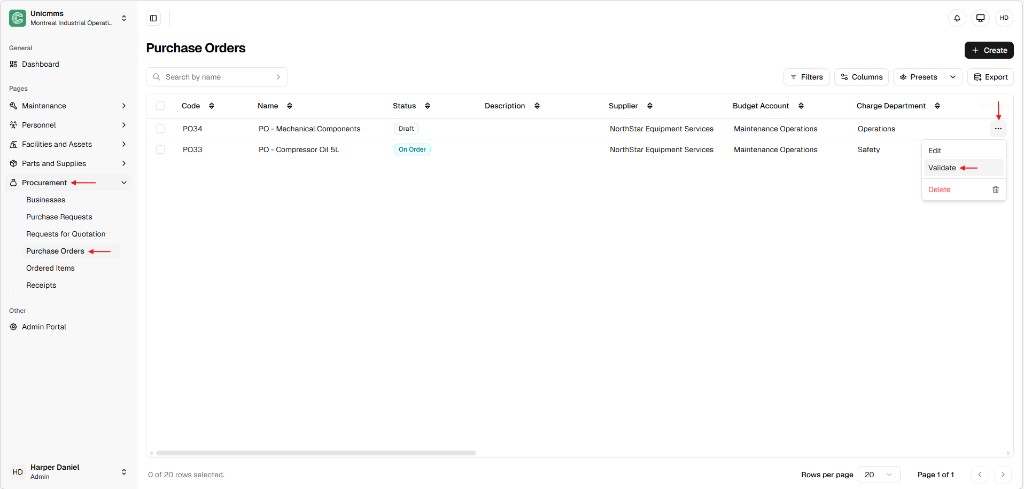
Section titled “Validate from the list”- Go to Procurement → Purchase Orders.
- Find a PO in Draft (for example PO34).
- Click ⋯ (row actions) at the end of the row.
- Choose Validate (alongside Edit and Delete when your role allows them).
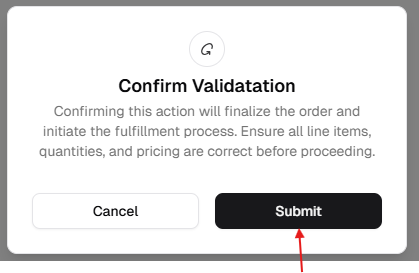
- In the confirmation dialog, read the message—it explains that confirming finalizes the order and starts fulfillment. Check line items, quantities, and pricing on the PO before you continue.
- Click Submit to confirm (or Cancel to abort).
After validation: status on the PO list
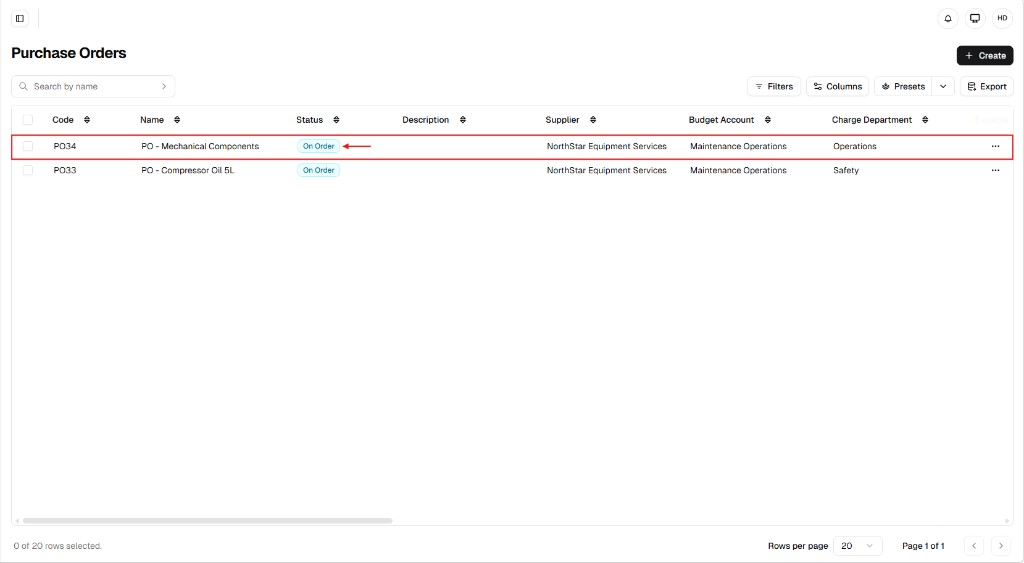
Section titled “After validation: status on the PO list”Back on Purchase Orders, refresh or stay on the list: the PO you validated should show the active status badge—for example On order for PO - Mechanical Components (PO34). Other POs that were already committed can remain On order as well.
See every line in Ordered Items
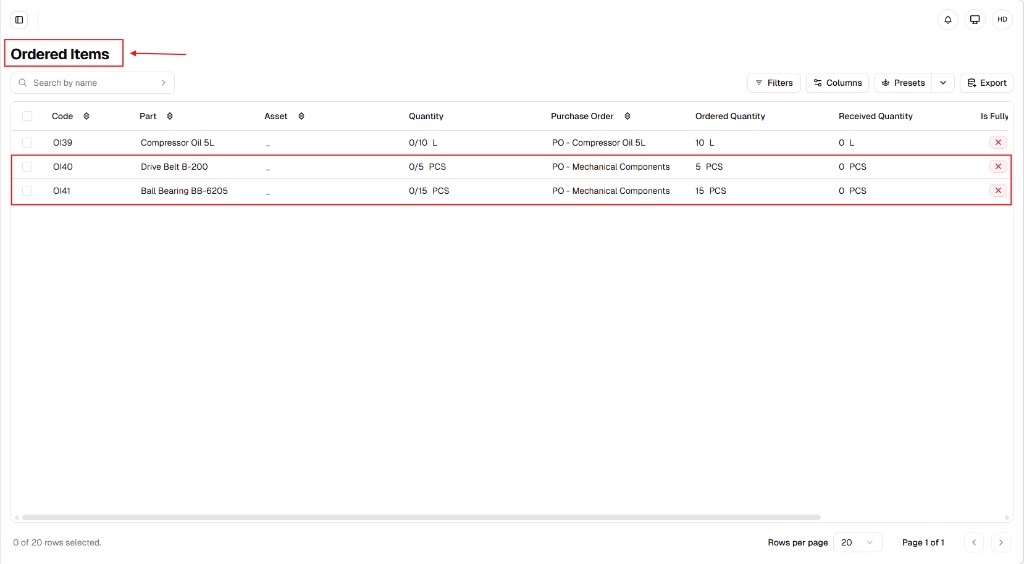
Section titled “See every line in Ordered Items”Open Procurement → Ordered Items. Each product line from the validated PO appears as its own row, linked to the Purchase order name. For example, after validating PO - Mechanical Components, you should see one row per part (such as Drive Belt B-200 and Ball Bearing BB-6205) with ordered quantity, received quantity (often 0 until someone posts a receipt), and a not fully received indicator.
Ordered Items — column reference
Section titled “Ordered Items — column reference”| Column | Description |
|---|---|
| Code | System identifier for the tracked line (for example OI40, OI41). |
| Part | Catalog part name (for example Drive Belt B-200). |
| Asset | Linked asset when the line targets equipment; otherwise —. |
| Quantity | Progress style received / ordered with unit (for example 0/5 PCS). |
| Purchase order | Source PO title (for example PO - Mechanical Components). |
| Ordered quantity | Amount authorized on the validated PO (for example 5 PCS). |
| Received quantity | Amount posted through Receipts (often 0 until goods arrive). |
| Is fully (or similar) | Completion flag (for example not complete until received matches ordered). |
Operational logic: the fulfillment bridge
Section titled “Operational logic: the fulfillment bridge”- Automatic synchronization — You normally do not type rows into Ordered Items by hand; validating the PO creates the tracked lines from the Products section of the PO.
- Real-time updates — When a Receipt is recorded against the PO, received quantity and fulfillment indicators update so teams see demand clear down to the part line.
- Procurement visibility — Technicians and storekeepers can confirm order status from Ordered Items when roles limit access to the full PO screen.
For receiving and inventory behavior after goods arrive, continue with How to create a receipt from Ordered Items and Receipt sync, inventory, and delivery rules.