
Esta página aún no está disponible en tu idioma.
How to approve a receipt
Section titled “How to approve a receipt”Approve or Validate (your product may use either label) is a privileged action: it confirms that physical goods match the receipt and that stock and procurement state should update. Only warehouse leads or administrators should run it when your policy says so.
Before you approve
Section titled “Before you approve”- Open Procurement → Receipts.
- Find a receipt in Draft (grey badge). Validated (green) rows are already finalized—their row menu will not offer the same approval step.
- Use Edit one last time if needed to verify Received quantity, Stock location, and Product lines.
Step-by-step
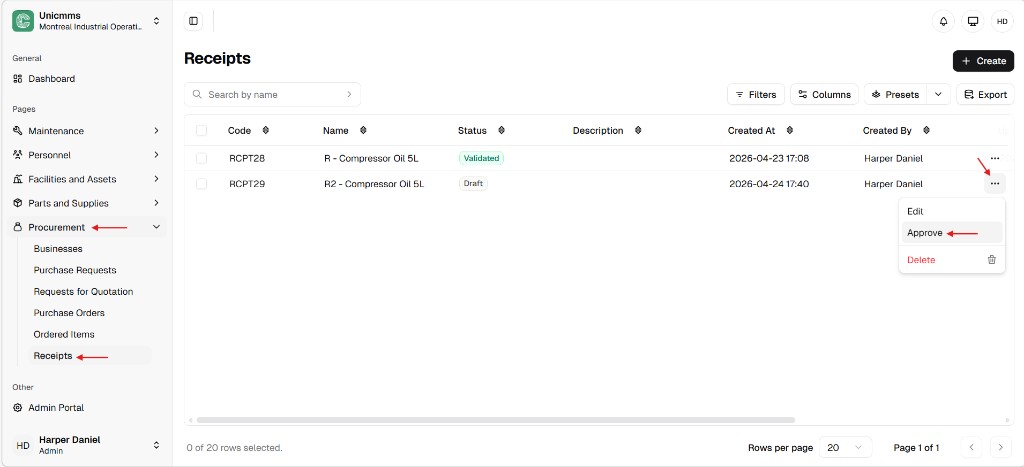
Section titled “Step-by-step”- Navigate — Procurement → Receipts (under Procurement in the sidebar).
- Locate — Use Search by name or scan Code (for example RCPT29) and confirm Status is Draft.
- Start approval — Click ⋯ on the row → Approve (or Validate). Edit and Delete often appear on the same menu for drafts.
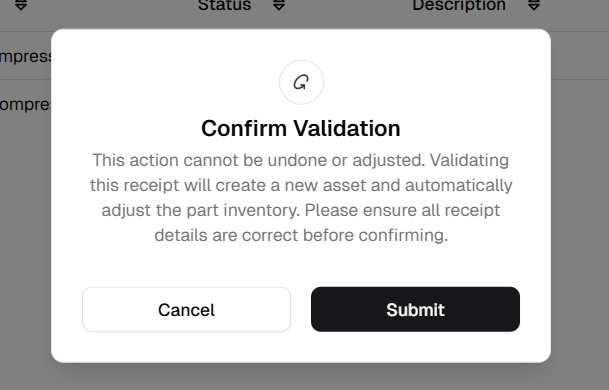
- Confirm — A dialog such as Confirm validation appears. Read it carefully: it typically states that the action cannot be undone or adjusted, that validating the receipt will adjust part inventory, and—when your lines include assets—that it may create a new asset or related records. Use Cancel to go back or Submit to finalize.
- Result — After confirmation, Status moves to Validated / Approved (or your tenant’s equivalent). The row menu no longer offers Edit / Delete for routine users.
What happens automatically after approval
Section titled “What happens automatically after approval”| Automation | Description |
|---|---|
| Inventory increase | Parts & Supplies (or your inventory module) adds received quantity to on hand for that part in the chosen stock location. |
| Asset flows | Receipt lines tied to assets may create or update asset records per your configuration—match what the confirmation dialog states. |
| PO fulfillment | Ordered Items received totals update. When totals match demand per your rules, the Purchase Order can move to Received / Fully received / Closed. |
| Audit lock | The receipt becomes immutable: Edit and Delete are no longer available, preserving delivery history for audits. |
Operational guardrails
Section titled “Operational guardrails”- Financial impact — Finalizing signals that goods were accepted; accounts payable may rely on it for invoice payment. Match the packing slip and PO before Submit.
- Location accuracy — Posting to the wrong location misplaces on-hand; fixing it usually requires a stock transfer or controlled adjustment.
- Permissions — If Approve is missing, your role may lack Manage receipt status or related rights—see Receipt permissions and ask an administrator.