
Esta página aún no está disponible en tu idioma.
How to delete a purchase order
Section titled “How to delete a purchase order”Deleting a PO permanently removes it from the list. Use it for mistakes or canceled buys only while the record is still a draft (or equivalent) and your role allows deletion. The app asks for a second confirmation so accidental taps do not erase data.
Step-by-step
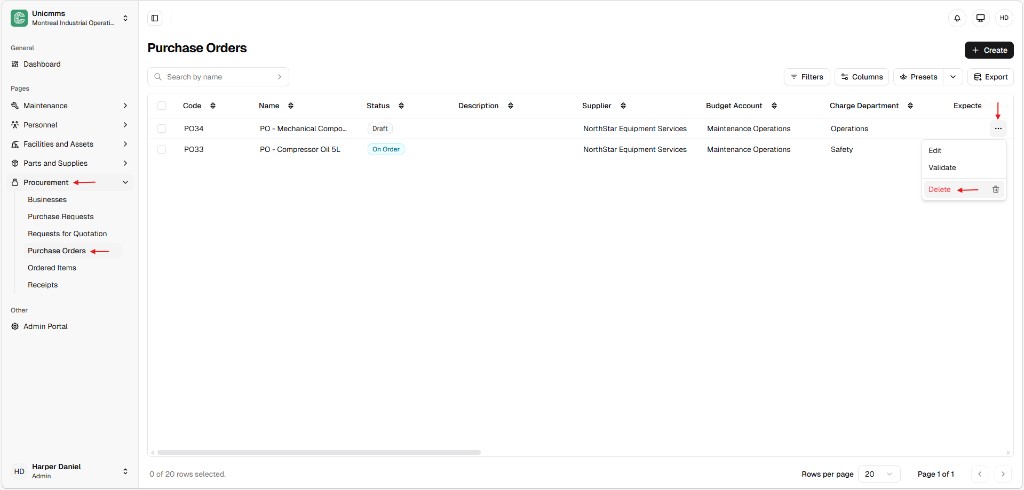
Section titled “Step-by-step”- In the sidebar, open Procurement → Purchase Orders.
- Find the PO row (use Search by name, Filters, or Columns if the list is long).
- Click ⋯ (row actions) at the end of the row.
- Choose Delete (often shown in red with a trash icon, next to Edit and Validate when those apply).
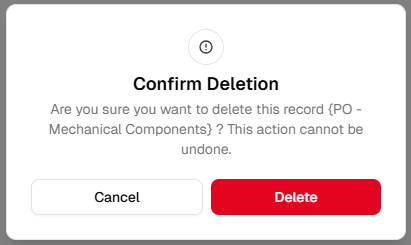
- In Confirm Deletion, read the message—it usually names the record (for example PO - Mechanical Components or PO - Compressor Oil 5L) and states that the action cannot be undone. Click the red Delete to finalize, or Cancel to keep the PO.
Draft-only logic and safety locks
Section titled “Draft-only logic and safety locks”1. The Draft constraint
Section titled “1. The Draft constraint”| Rule | Why it exists |
|---|---|
| Draft-only delete | You can usually delete only while status is Draft. After that, the PO is treated as a live financial document; removing it would break sequence and audit continuity. |
2. Status locks (Delete blocked or ineffective)
Section titled “2. Status locks (Delete blocked or ineffective)”If the PO is in any of these states, Delete is typically not available:
| Status | Reason |
|---|---|
| Validated / Ordered / On order | The vendor or internal workflow has committed to the order; the record must stay for audit and traceability. |
| Partially received / Received (or Fully received) | Goods tie to Receipts and inventory; deleting would disconnect stock and budget history. |