
Ce contenu n’est pas encore disponible dans votre langue.
Metric Units
Section titled “Metric Units”About Metric Units
Section titled “About Metric Units”Metric Units define measurement units used across inventory, purchasing, and meter tracking. A standardized unit catalog prevents duplicate entries (for example kg vs Kg) and improves accuracy in consumption and measurement reports.
Metric Units List (+)
Section titled “Metric Units List (+)”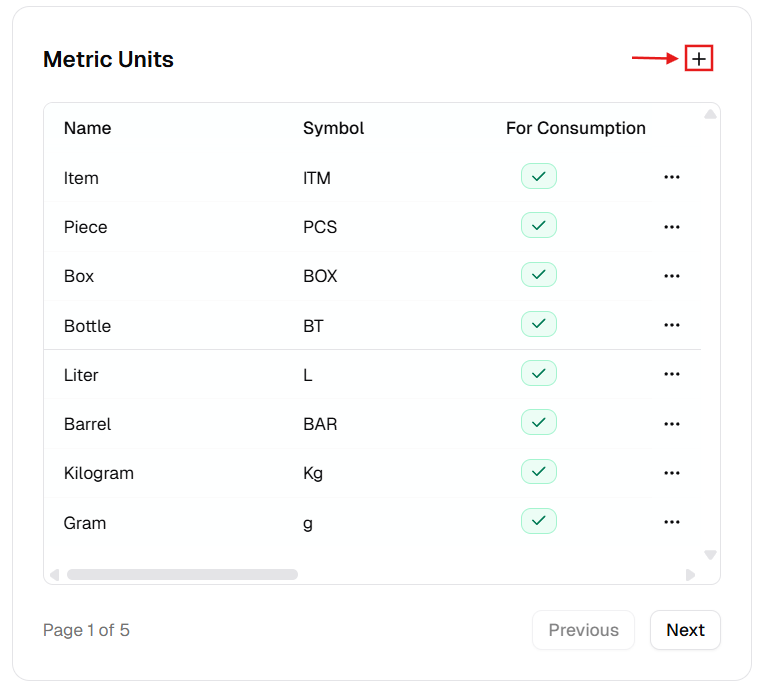
New Metric Unit Dialog
Section titled “New Metric Unit Dialog”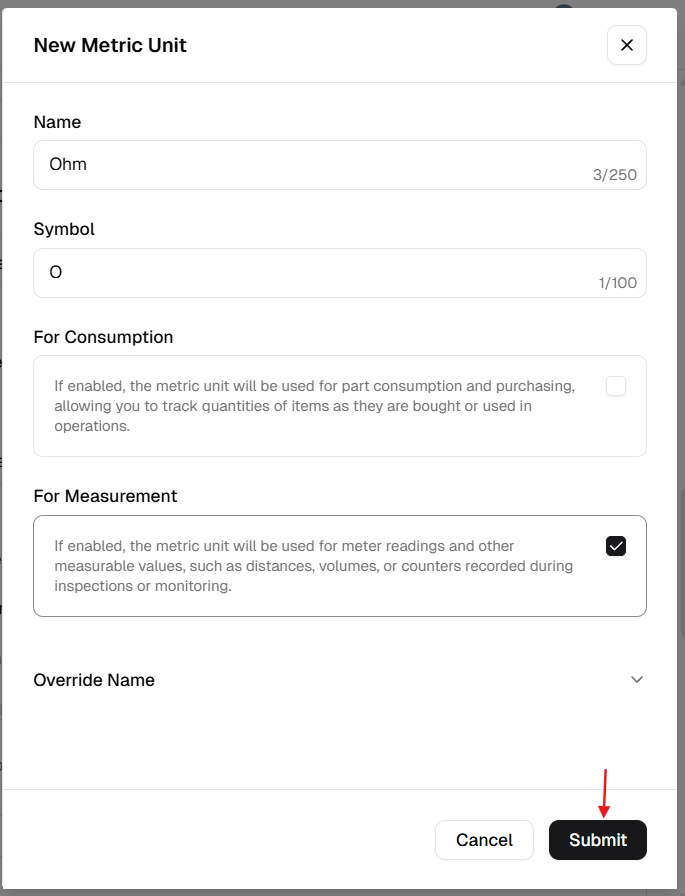
How to manage Metric Units
Section titled “How to manage Metric Units”Add a new metric unit
Section titled “Add a new metric unit”- Open Admin Portal → Settings → Reference Data.
- Find Metric Units and click +.
- Complete the form:
| Field | Description | Required |
|---|---|---|
| Name | Full unit name (e.g. “Kilograms”). | Yes |
| Symbol | Abbreviation (e.g. “kg”). | Yes |
| For Consumption | ON if used for part usage (e.g. pieces). | Conditional* |
| For Measurement | ON if used for meter readings (e.g. hours). | Conditional* |
| Override Name | Translated label. | No |
* Validation: At least one of For Consumption or For Measurement must be enabled.
- Click Submit.
Update an existing unit
Section titled “Update an existing unit”- More (⋯) → Edit.
- Update labels or usage toggles.
- Click Update.
Delete a metric unit
Section titled “Delete a metric unit”- More (⋯) → Delete.
- Safeguard: Deletion is blocked if the unit is linked to any part, asset meter, or historical record.
Verification after changes
Section titled “Verification after changes”After creating, editing, or deleting a metric unit:
- Confirm the Metric Units table shows the expected updates.
- Verify toggle flags (For Consumption, For Measurement) are set correctly.
- Open related forms (part usage, purchasing, meter entry) and confirm unit options reflect your changes.