
How to Update a Meter
Section intitulée « How to Update a Meter »Follow these steps to modify an existing meter.
By default in UniCMMS, Measurement Unit is locked after meter creation to protect historical data consistency.
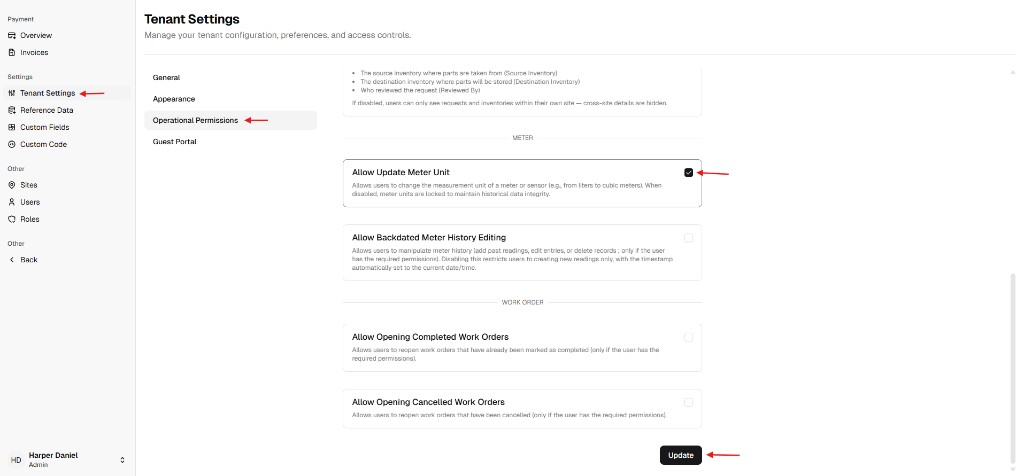
If your tenant needs to change the unit later, an administrator must enable Allow Update Meter Unit.
Step 1: Locate the Meter
Section intitulée « Step 1: Locate the Meter »Navigate to Maintenance > Meters and find the meter you want to update.
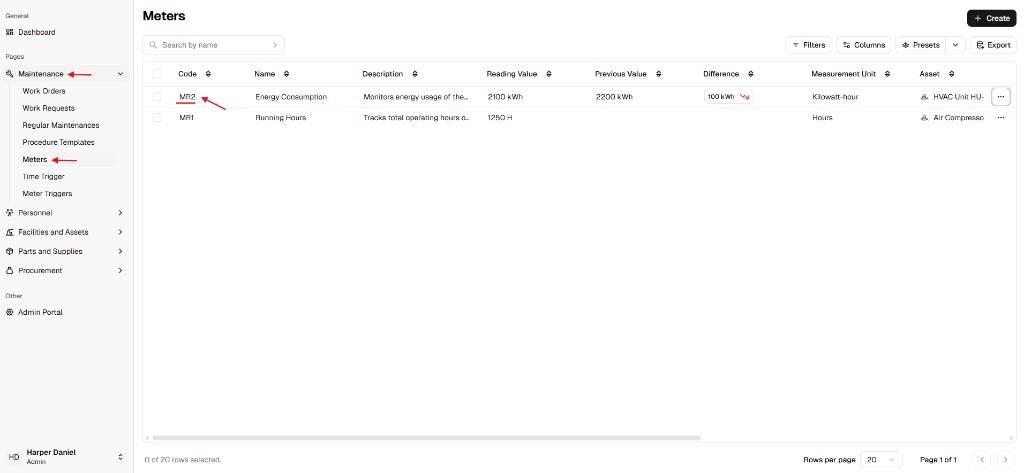
Step 2: Access the Edit Form
Section intitulée « Step 2: Access the Edit Form »Open the meter detail page, then click the Edit icon/button from the summary card.
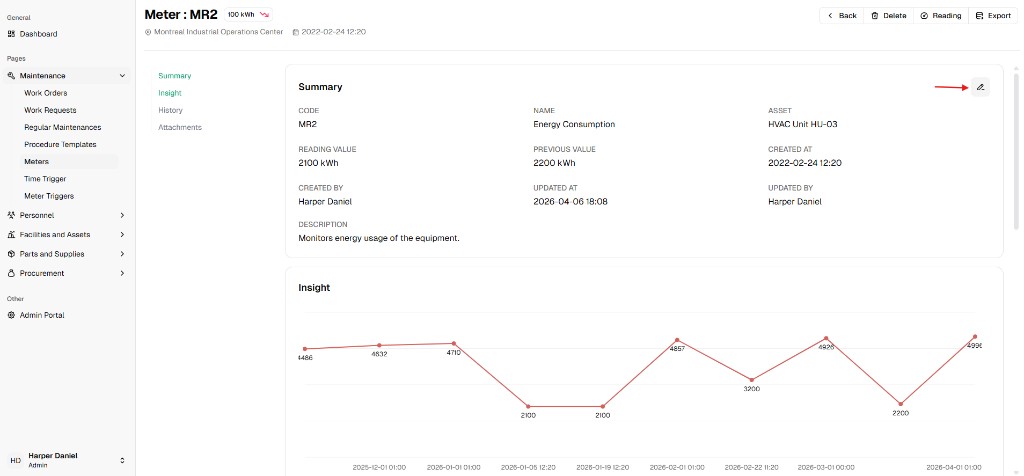
Step 3: Understand locked vs unlocked Measurement Unit
Section intitulée « Step 3: Understand locked vs unlocked Measurement Unit »When Allow Update Meter Unit is not enabled, the edit dialog does not let you change Measurement Unit.
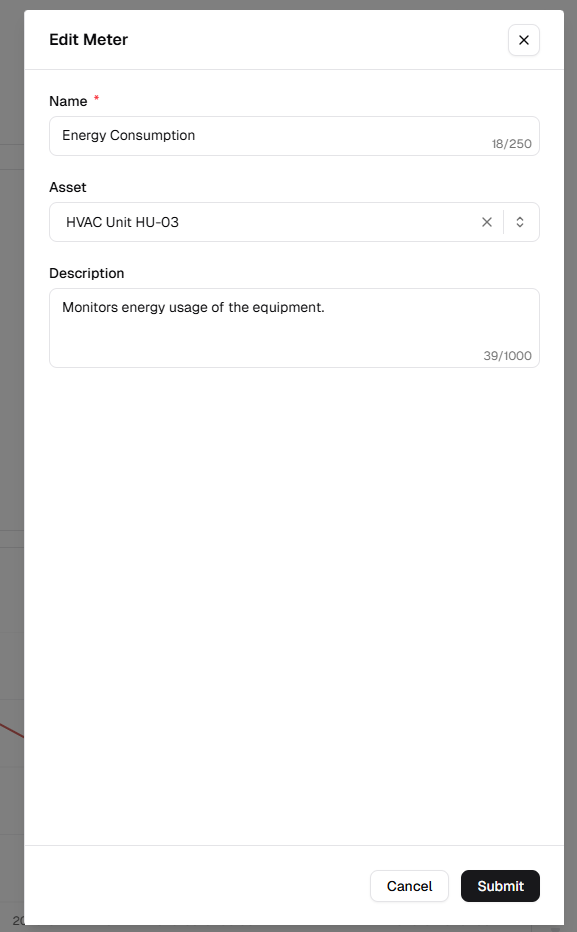
This is expected behavior for data integrity.
Step 4: Enable “Allow Update Meter Unit” (Admin Portal)
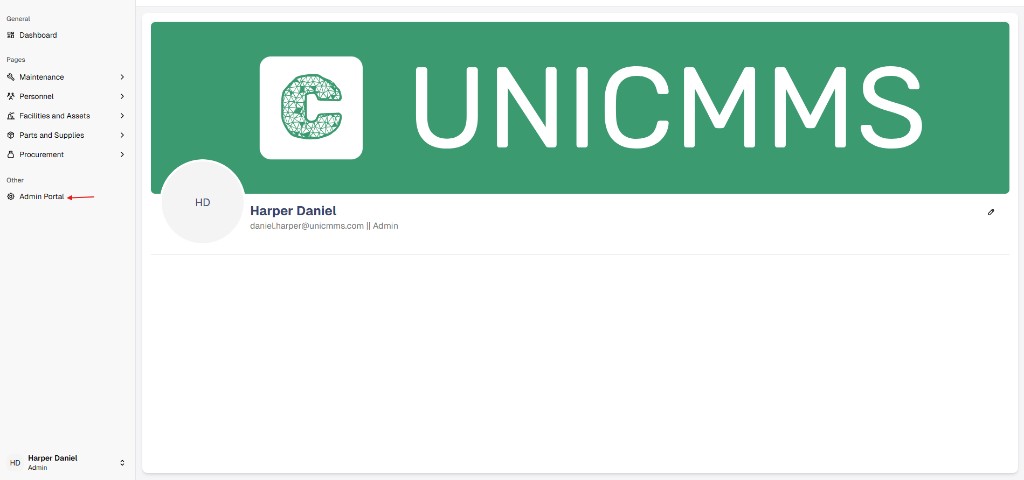
Section intitulée « Step 4: Enable “Allow Update Meter Unit” (Admin Portal) »If your client needs to update meter units after creation, enable the tenant setting:
- Open Admin Portal from the main sidebar.
- Go to Tenant Settings.
- Open Operational Permissions.
- Turn on Allow Update Meter Unit.
- Click Update to save.
Step 5: Modify Parameters (after enabling)
Section intitulée « Step 5: Modify Parameters (after enabling) »Re-open the Edit Meter form. After enabling the option, the Measurement Unit field becomes editable (as shown below).
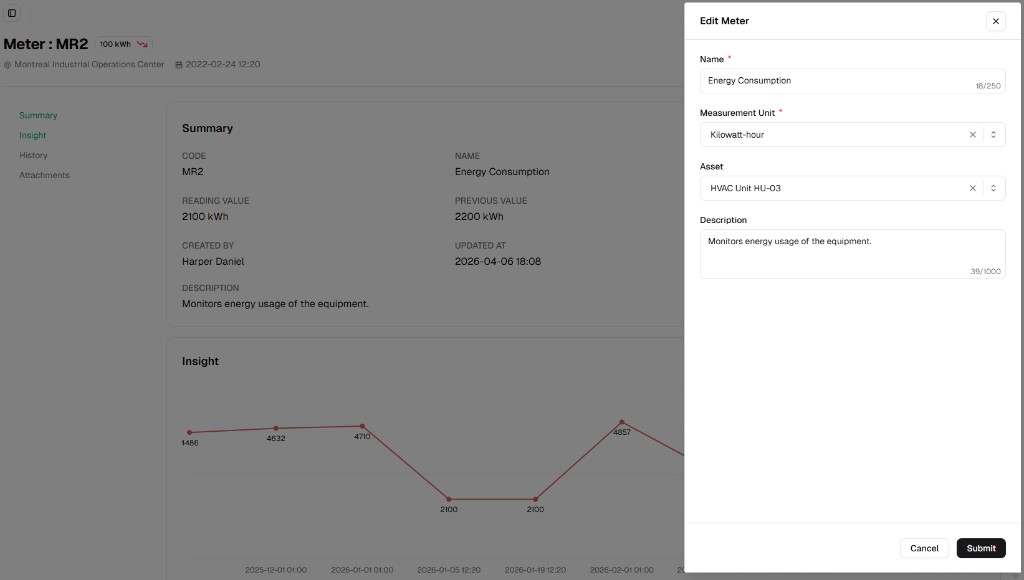
| Field | Instruction | Required |
|---|---|---|
| Name | Update the identifier for the meter. | ✅ Yes |
| Measurement Unit | Change only if the tenant setting Allow Update Meter Unit is enabled. | ✅ Yes |
| Asset | Reassign the meter to a different asset if necessary. | — |
| Description | Update the contextual details or purpose of the meter. | — |
Step 6: Finalize Changes
Section intitulée « Step 6: Finalize Changes »Click the Submit button to save the updated configuration.