
Ce contenu n’est pas encore disponible dans votre langue.
How to Create a Site
Section titled “How to Create a Site”Creating a Site establishes a new operational hub in your hierarchy. Facilities, assets, inventory, work orders, and user permissions can all be scoped to this Site for reporting and access control.
Sites List Page
Section titled “Sites List Page”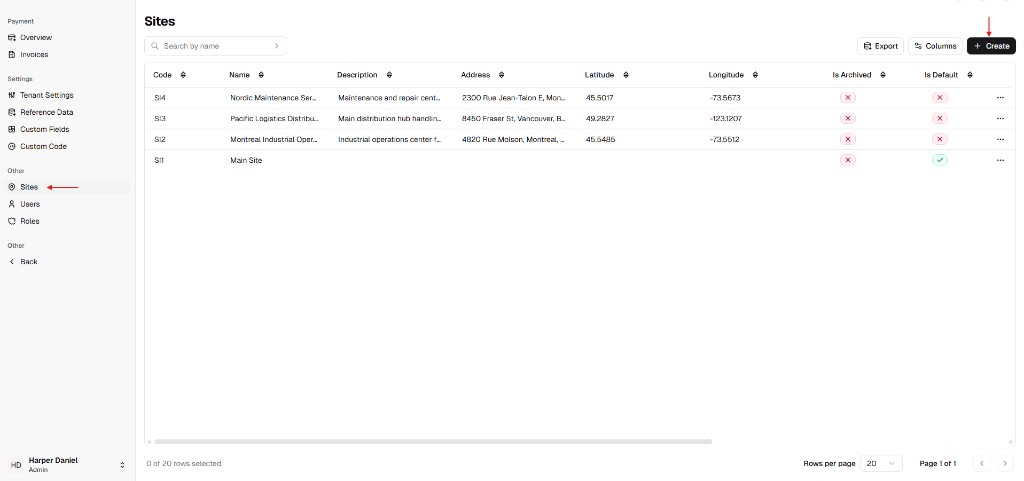
Create Site Drawer
Section titled “Create Site Drawer”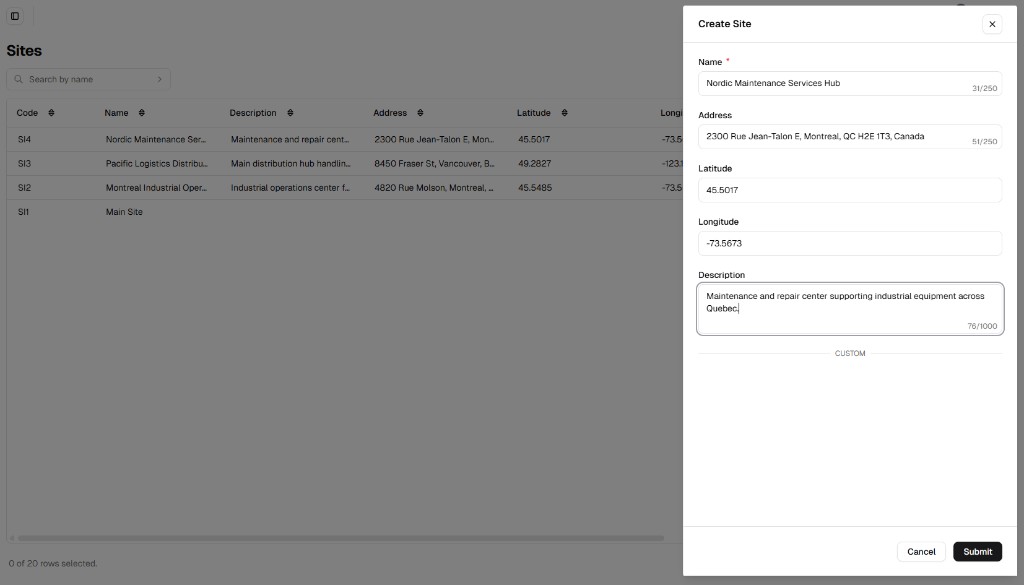
Step 1 – Open the Sites Module
Section titled “Step 1 – Open the Sites Module”- From the main sidebar, go to Other and click Admin Portal.
- In the Admin Portal menu, click Sites.
Step 2 – Open the Creation Form
Section titled “Step 2 – Open the Creation Form”- Click + Create in the top-right corner of the Sites page.
- The Create Site drawer opens on the right.
Step 3 – Define Site Parameters
Section titled “Step 3 – Define Site Parameters”Complete the form fields below. Fields marked with a red asterisk are required.
| Field | Description | Required |
|---|---|---|
| Name | Clear, unique site name (e.g. Nordic Maintenance Services Hub). | Yes |
| Address | Full physical address for service planning and logistics. | Yes |
| Latitude | GPS latitude in decimal degrees for map placement. | No |
| Longitude | GPS longitude in decimal degrees for map placement. | No |
| Description | Extra context (e.g. Maintenance and repair center for industrial operations). | No |
Step 4 – Save and Return to the List
Section titled “Step 4 – Save and Return to the List”- Review all entered values.
- Click Submit at the bottom-right of the drawer.
Step 5 – Verify the New Site
Section titled “Step 5 – Verify the New Site”After submission:
- Confirm the drawer closes.
- Check that the new Site appears in the Sites table.
- Use Search by name to quickly validate the record.
If the Site does not appear, refresh the list and verify required fields (Name, Address) were provided before retrying.