
Ce contenu n’est pas encore disponible dans votre langue.
How to Delete a Site
Section titled “How to Delete a Site”Use Delete only when a Site was created by mistake or has been fully decommissioned and all operational data has been moved or reassigned. Confirmed deletion removes the Site from the Sites list.
Open Row Menu and Select Delete
Section titled “Open Row Menu and Select Delete”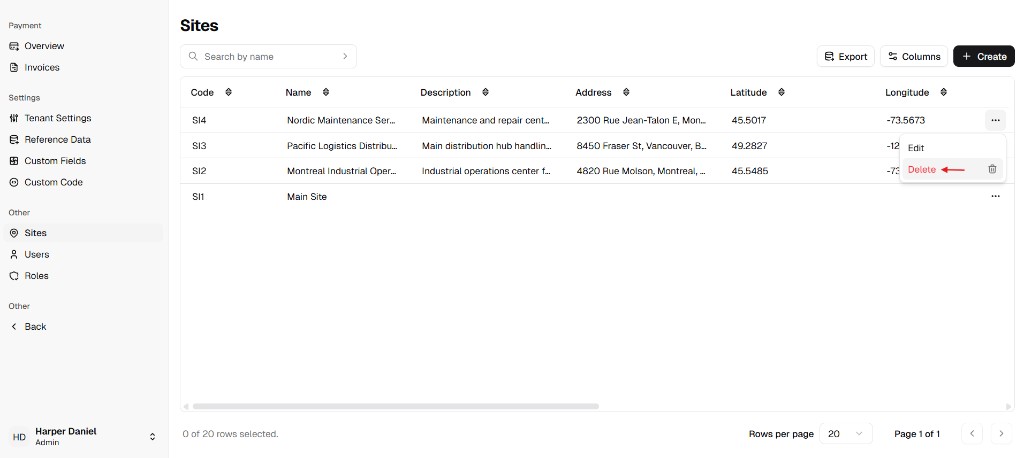
Confirm Deletion Modal
Section titled “Confirm Deletion Modal”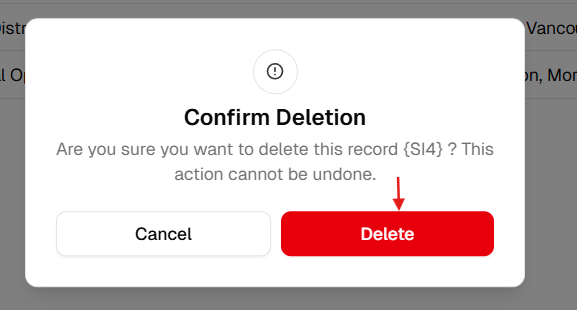
System safeguard – relationship dependency
Section titled “System safeguard – relationship dependency”To prevent orphaned data, UniCMMS blocks deletion while the Site still owns related records.
Step 1 – Verify Dependencies (recommended)
Section titled “Step 1 – Verify Dependencies (recommended)”- Confirm no assets, facilities, or users still reference this Site (use your normal Admin Portal and module workflows to reassign or archive them).
- If anything remains assigned, resolve it before attempting Delete.
Step 2 – Open the Sites List
Section titled “Step 2 – Open the Sites List”- From the main sidebar, go to Other → Admin Portal.
- Click Sites.
Step 3 – Open the Action Menu
Section titled “Step 3 – Open the Action Menu”- Locate the Site you want to remove.
- Click the More (⋯) icon on that row.
Step 4 – Select Delete
Section titled “Step 4 – Select Delete”- Choose Delete from the menu.
- Read the confirmation prompt carefully.
Step 5 – Confirm Deletion
Section titled “Step 5 – Confirm Deletion”- Ensure you selected the correct Site.
- In the confirmation dialog, click Delete.
If the Site has no blocking dependencies, it is permanently removed from the Sites list. If deletion is blocked, the safeguard above applies—clean up assignments and repeat from Step 1.
Step 6 – Verify Removal
Section titled “Step 6 – Verify Removal”After confirmation:
- Confirm the deletion dialog closes.
- Check that the Site no longer appears in the Sites table.
- Use Search by name to verify the site record is no longer returned.