
Ce contenu n’est pas encore disponible dans votre langue.
How to Delete a Business
Section titled “How to Delete a Business”Deleting a business permanently removes it from the global directory. Use this only when the record is no longer needed and your governance rules allow it.
Open Businesses and start delete
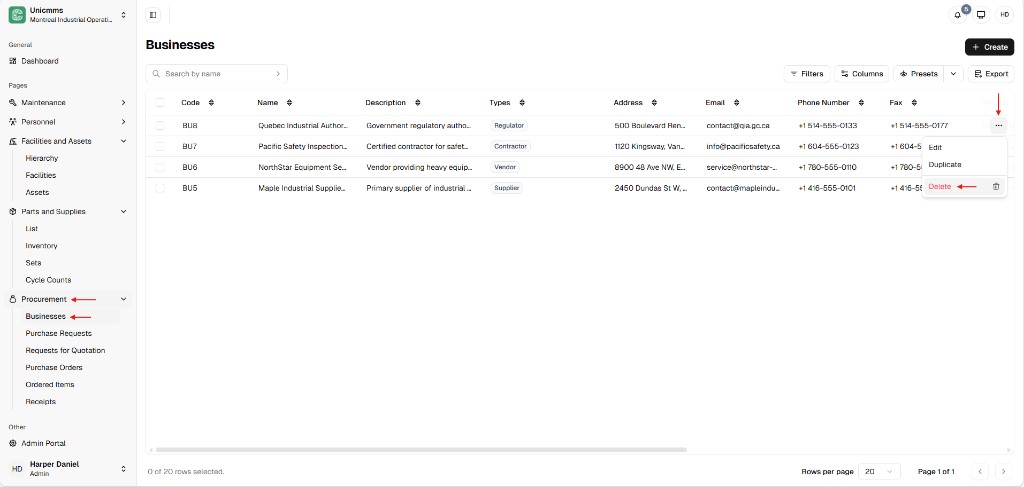
Section titled “Open Businesses and start delete”- In the sidebar, expand Procurement and click Businesses (same path as How to add a business).
- Find the row (use Search by name if needed).
- Click the ⋯ (more) icon on the right of the row.
- Choose Delete (often shown with a trash icon).
The menu may also list Edit and Duplicate—those are covered in How to edit a business.
Confirm deletion
Section titled “Confirm deletion”A Confirm Deletion dialog opens:
- A warning icon and the title Confirm Deletion.
- A message that includes the record name (for example
{BU8 - Quebec Industrial Authority}) and states that the action cannot be undone. - Cancel — closes the dialog without deleting.
- Delete (red) — confirms permanent removal.
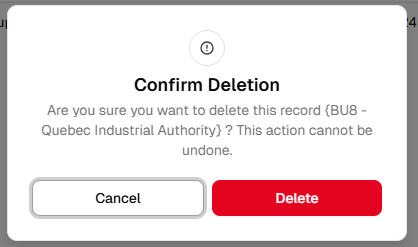
- Read the message, then click Delete to proceed or Cancel to keep the business.