
Ce contenu n’est pas encore disponible dans votre langue.
How to Approve a Request for Quotation (RFQ)
Section titled “How to Approve a Request for Quotation (RFQ)”Only users whose role includes the right procurement permissions can approve an RFQ. In the Roles editor, the control that governs this step is typically Validate Request For Quotation (your product labels may vary slightly). If Approve does not appear in the row menu, ask an administrator to check Admin Portal → Roles and the Request For Quotation (RFQ) permissions.
Approve a draft RFQ
Section titled “Approve a draft RFQ”1. Navigate
Section titled “1. Navigate”Go to Procurement → Requests for Quotation.
2. Locate a Draft row
Section titled “2. Locate a Draft row”Find the RFQ in the master list. Approval from this path is intended for records still in Draft (or your tenant’s equivalent pre-published state).
3. Open the row menu
Section titled “3. Open the row menu”Click ⋯ (More) at the far right of the RFQ row.
4. Choose Approve
Section titled “4. Choose Approve”Select Approve (often shown with a sync / circular arrow icon). Edit, Duplicate, Derive RFQ, and Delete are different actions.
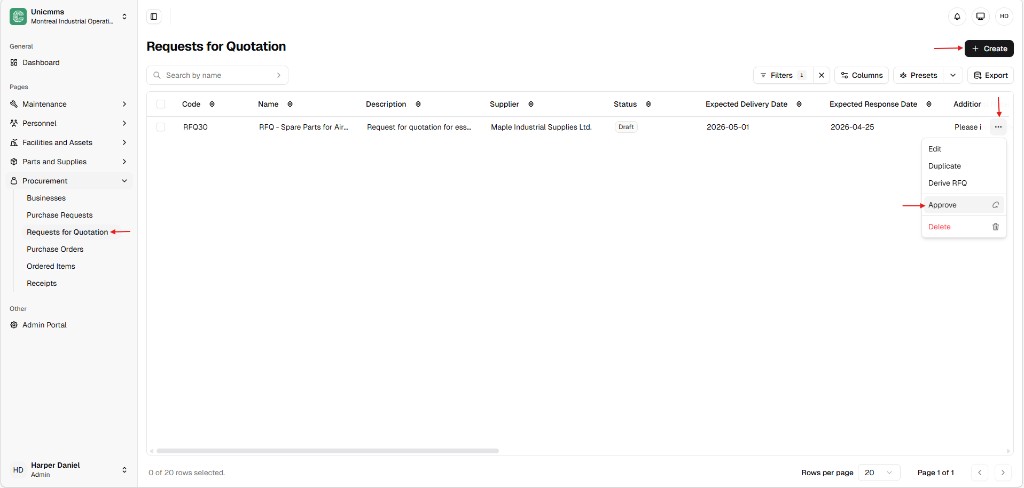
5. Read the Approve RFQ modal
Section titled “5. Read the Approve RFQ modal”A dialog titled Approve RFQ explains that you are confirming the RFQ is correct and ready for publication. The product also reminds you that you or another user must publish it separately before it becomes visible to suppliers on the external vendor portal (wording may match your build exactly).
6. Finalize
Section titled “6. Finalize”- Click Submit to complete approval.
- Click Cancel to close the dialog without approving.
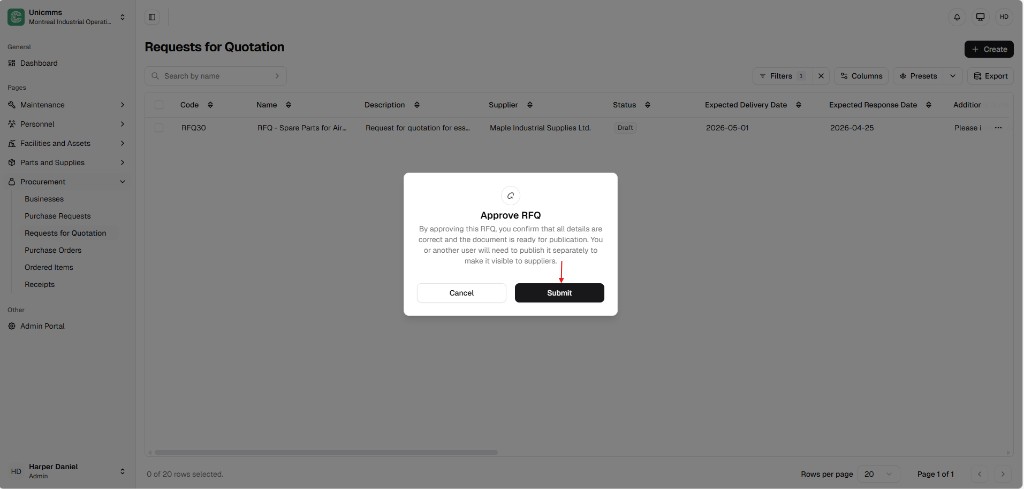
Post-approval automation
Section titled “Post-approval automation”After Submit succeeds, UniCMMS typically performs actions such as:
| System action | Result |
|---|---|
| Status change | The RFQ moves from Draft to Approved (or your tenant’s equivalent approved state). |
| Visibility / publication | The record is ready for publication to the supplier experience; a separate publish step may still be required for external visibility (per the in-product message). |
| Audit trail | The system records who approved the RFQ and when (timestamp). |
Exact behavior depends on your workflow, integrations, and guest / vendor portal configuration.
When procurement is ready to buy against that agreed package, use Generate PO from the RFQ (after the RFQ is in the correct Approved / validated state for conversion).
Operational logic and guardrails
Section titled “Operational logic and guardrails”- Editing restrictions — After approval, the RFQ usually cannot be edited in the same way as a draft. If you discover an error, common patterns are to use Duplicate from the ⋯ row menu (or create a new RFQ) and retire the incorrect record per policy—follow your organization’s rules.
- Role security — If Approve is missing from ⋯, the signed-in user’s role likely does not include Validate Request For Quotation (or equivalent). See the RFQ permission table.