
Ce contenu n’est pas encore disponible dans votre langue.
How to Update Organization Profile
Section titled “How to Update Organization Profile”To update your organization’s global identity, open the General settings form under Tenant Settings.
Screenshot
Section titled “Screenshot”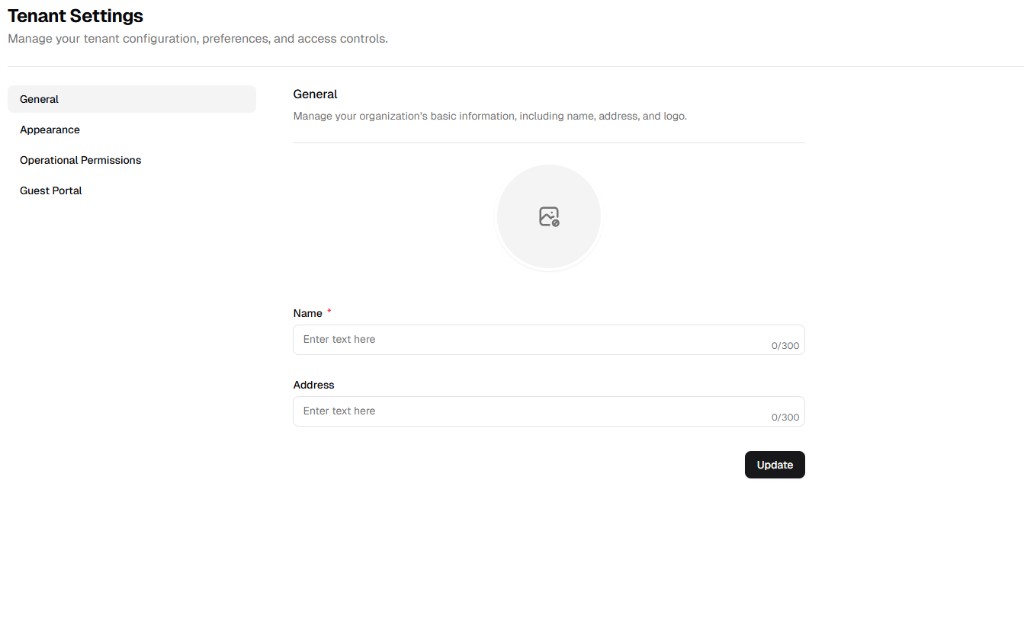
Step 1: Access the Admin Portal
Section titled “Step 1: Access the Admin Portal”From the main UniCMMS dashboard, use the left sidebar. Scroll to Other and select Admin Portal.
Step 2: Open Tenant Settings
Section titled “Step 2: Open Tenant Settings”Inside the Admin Portal, open the Settings group in the secondary sidebar. Click Tenant Settings.
Step 3: Select the General tab
Section titled “Step 3: Select the General tab”The page should open on General by default. If not, click General in the settings sub-navigation to show the profile fields.
Step 4: Define profile parameters
Section titled “Step 4: Define profile parameters”Complete the fields to establish your organization’s identity.
| Field | Description | Required |
|---|---|---|
| Logo | Click the central Upload control to add your company logo for headers and reports. | No |
| Name | Official organization name. Appears on system exports and branding. | Yes |
| Address | Primary physical address of your main facility or headquarters. | No |
Step 5: Save changes
Section titled “Step 5: Save changes”When the data is correct, click the Update button (bottom right). The system applies these settings across modules and user sessions.
Step 6: Verify updates
Section titled “Step 6: Verify updates”After clicking Update:
- Confirm no validation errors remain in required fields.
- Reopen Tenant Settings > General and verify saved values.
- Check a page or export where organization details are displayed to confirm the update is visible.