
Ce contenu n’est pas encore disponible dans votre langue.
How to delete a receipt
Section titled “How to delete a receipt”Delete removes a receipt record permanently when your role and status allow it. Use it for mistakes or cancelled shipments that were never finalized.
Step-by-step
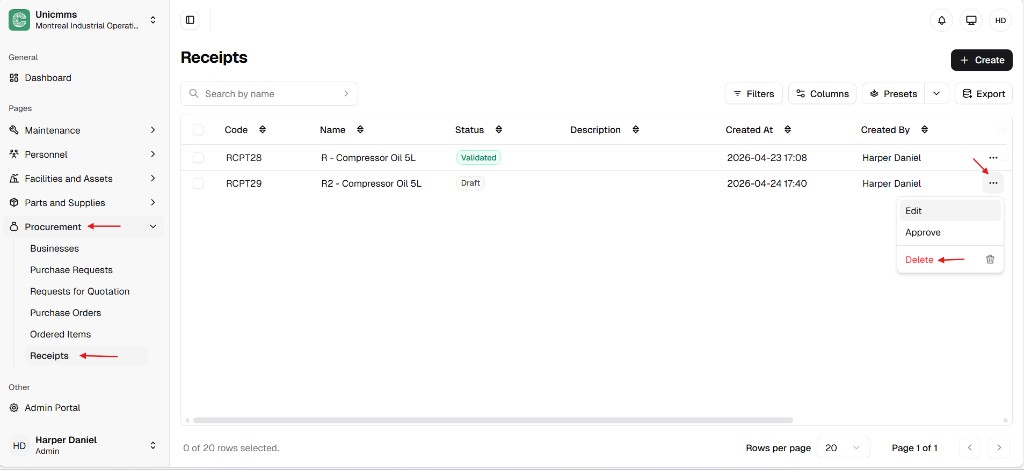
Section titled “Step-by-step”- Navigate — Procurement → Receipts.
- Locate — Find the row (Code such as RCPT29, Name, Status). Use Search by name if the list is long. Delete is normally offered only while Status is Draft (grey badge). Validated (green) receipts are protected.
- Open the menu — Click ⋯ at the end of the row. Choose Delete (often in red with a trash icon). Edit and Approve may appear on the same menu for Draft rows.
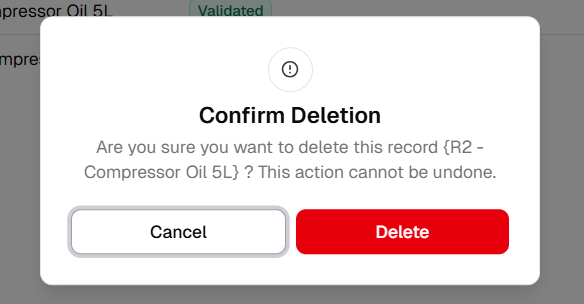
- Confirm — In Confirm deletion, read the message—it names the record (for example R2 - Compressor Oil 5L) and states that the action cannot be undone. Click the red Delete to remove it, or Cancel to keep the receipt.
Deletion rules
Section titled “Deletion rules”| Rule | Why |
|---|---|
| Draft-only | Delete is usually available only for Draft receipts. A draft has not finalized inventory or fulfillment, so removal is low risk. |
| Validated / approved lock | After validation or approval, Delete is blocked or hidden. Stock and Ordered Items / PO history would break if the receipt disappeared. |