
Budget Accounts
Section titled “Budget Accounts”About Budget Accounts
Section titled “About Budget Accounts”Budget Accounts categorize maintenance spending (for example capital expenditure, operating expense, or repair programs). Linking Work Orders and Purchase Orders to budget accounts improves cost control, reporting consistency, and finance reconciliation.
Budget Accounts List (+)
Section titled “Budget Accounts List (+)”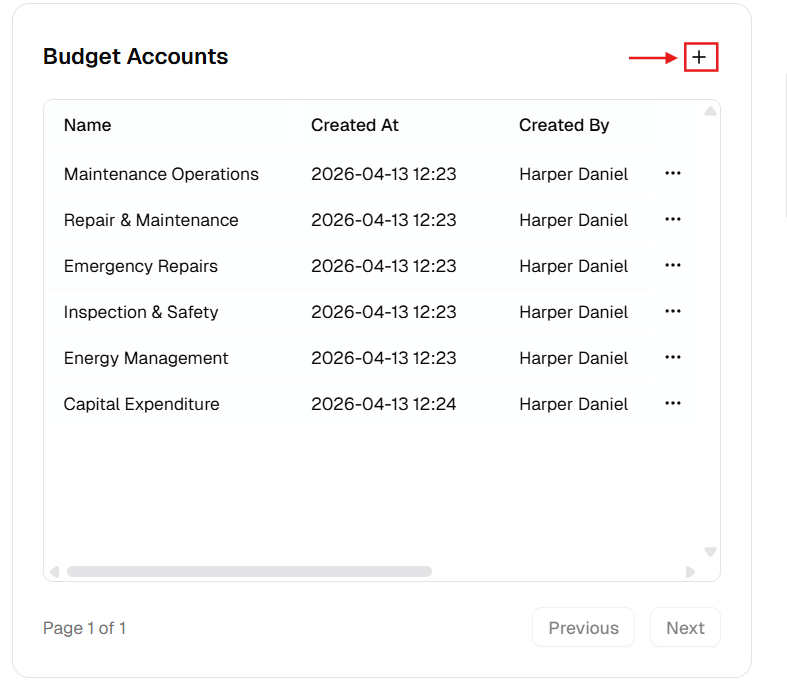
New Budget Account Dialog
Section titled “New Budget Account Dialog”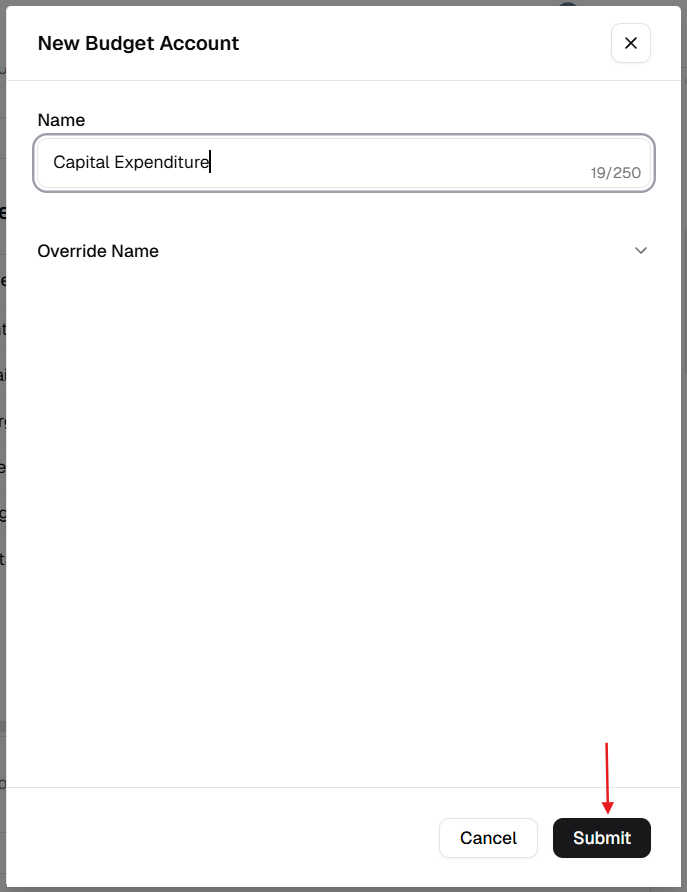
How to manage Budget Accounts
Section titled “How to manage Budget Accounts”Add a new budget account
Section titled “Add a new budget account”- Open Admin Portal → Settings → Reference Data.
- Find Budget Accounts and click +.
- Complete the form:
| Field | Description | Required |
|---|---|---|
| Name | Account name or code (e.g. “701-Maintenance-Labor”). | Yes |
| Override Name | Translated label. | No |
- Click Submit.
Update an existing account
Section titled “Update an existing account”- More (⋯) → Edit.
- Update Name or Override Name.
- Click Update.
Delete a budget account
Section titled “Delete a budget account”- More (⋯) → Delete.
- Safeguard: Deletion is blocked while the account is linked to any work order cost, PO, or other financial use.
Verification after changes
Section titled “Verification after changes”After creating, editing, or deleting an account:
- Confirm the Budget Accounts table shows the latest data.
- Verify naming format is consistent with your finance team standards.
- Open a Work Order or Purchase Order and confirm the updated account options are available.