
How to Update a User
Section titled “How to Update a User”Administrative changes use the Users list and the Edit User dialog. You can adjust identity, Role, Sites, optional HR fields, and tenant CUSTOM fields without creating a new account.
Open the Users page
Section titled “Open the Users page”- Open Admin Portal from the main sidebar (under Other, choose Users).
- The Users page shows a searchable table of accounts.
Use Search by name to find someone quickly. The toolbar typically includes + Create, Export, Filters (with a badge when filters apply), and Columns so you can show or hide table fields. The table lists identifiers such as Code, name, License status, Email, Phone Number, Sites, Role, and a row Actions control.
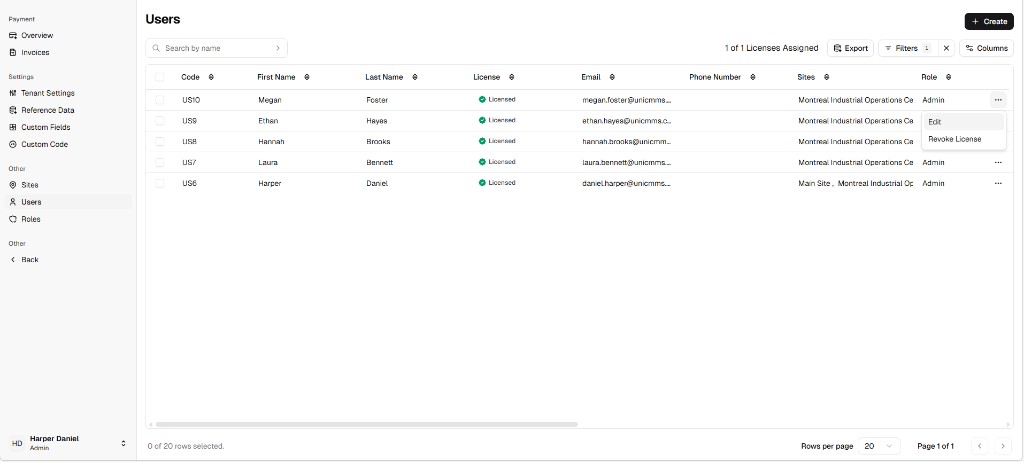
A green Licensed label (with a checkmark) in the License column means a seat is assigned; licensing rules are covered in Key operational logic.
Start editing from the row menu
Section titled “Start editing from the row menu”- Find the user in the table.
- In the Actions column, click the More (…) icon.
- Choose Edit.
The Edit User modal opens. The same menu also offers Revoke License, which removes that user’s license—use only when you intend to block access per your policy.
Change fields in the Edit User dialog
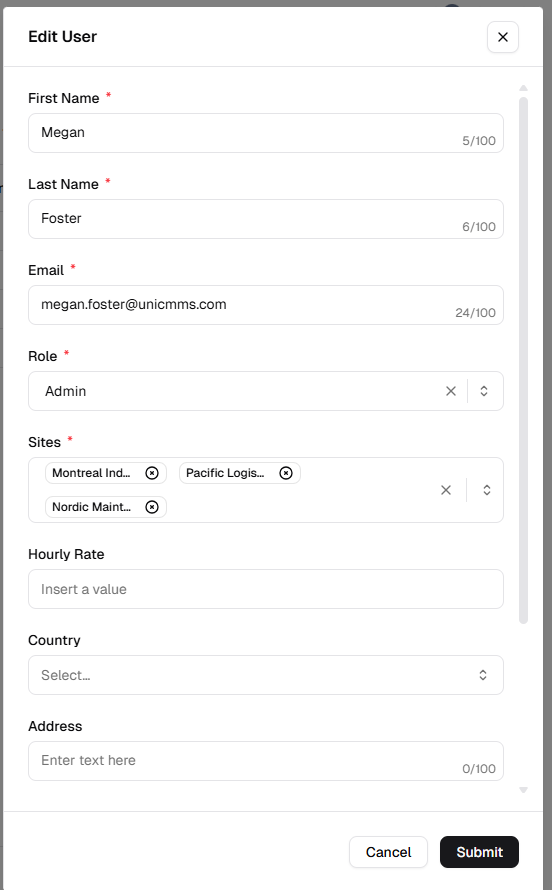
Section titled “Change fields in the Edit User dialog”The dialog title is Edit User. Close with × in the header or Cancel at the bottom to discard changes.
Unlike Create User, the edit flow focuses on profile and access: there is no password field in this dialog—you update identity, Role, Sites, and optional details (password changes, if available in your deployment, are handled elsewhere).
Identity, role, and sites
Section titled “Identity, role, and sites”| Field | What to do |
|---|---|
| First Name *, Last Name *, Email * | Text fields with a 0/100 character counter; update spelling, legal name, or login email as allowed. |
| Role * | Dropdown — pick the user’s role (for example Admin). You can clear the current value with the X on the control before choosing another role. |
| Sites * | Multi-select — authorized sites appear as tags. Remove a site by clicking × on its tag; add sites from the dropdown. |
Optional profile fields
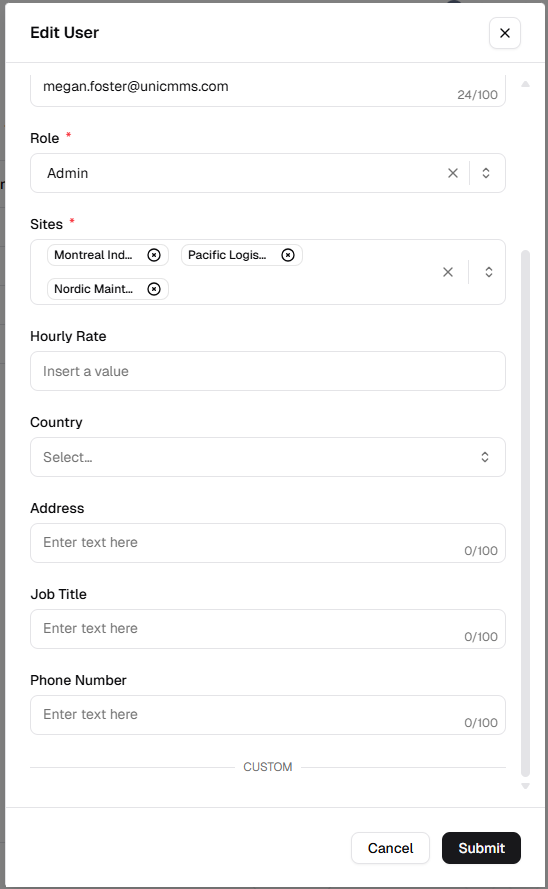
Section titled “Optional profile fields”Scroll the modal to reach labor and contact fields:
| Field | Notes |
|---|---|
| Hourly Rate | Optional numeric value; placeholder Insert a value. |
| Country | Optional dropdown (Select…). |
| Address | Text with 0/100 counter. |
| Job Title | Text with 0/100 counter. |
| Phone Number | Text with 0/100 counter. |
Custom fields
Section titled “Custom fields”If your tenant defines user custom fields, they appear under the CUSTOM divider at the bottom of the form. Fill or update them according to your standards.
Save your changes
Section titled “Save your changes”- Review Role, Sites, and any profile updates.
- Click Submit to apply changes immediately.
- Click Cancel to close without saving.