
Metric Units
Section titled “Metric Units”About Metric Units
Section titled “About Metric Units”Metric Units define measurement units used across inventory, purchasing, and meter tracking. A standardized unit catalog prevents duplicate entries (for example kg vs Kg) and improves accuracy in consumption and measurement reports.
Metric Units List (+)
Section titled “Metric Units List (+)”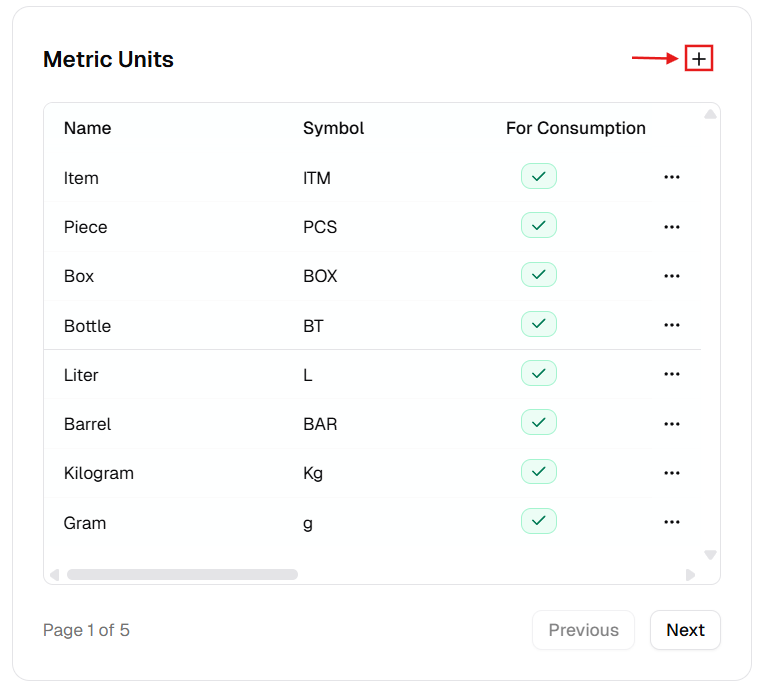
New Metric Unit Dialog
Section titled “New Metric Unit Dialog”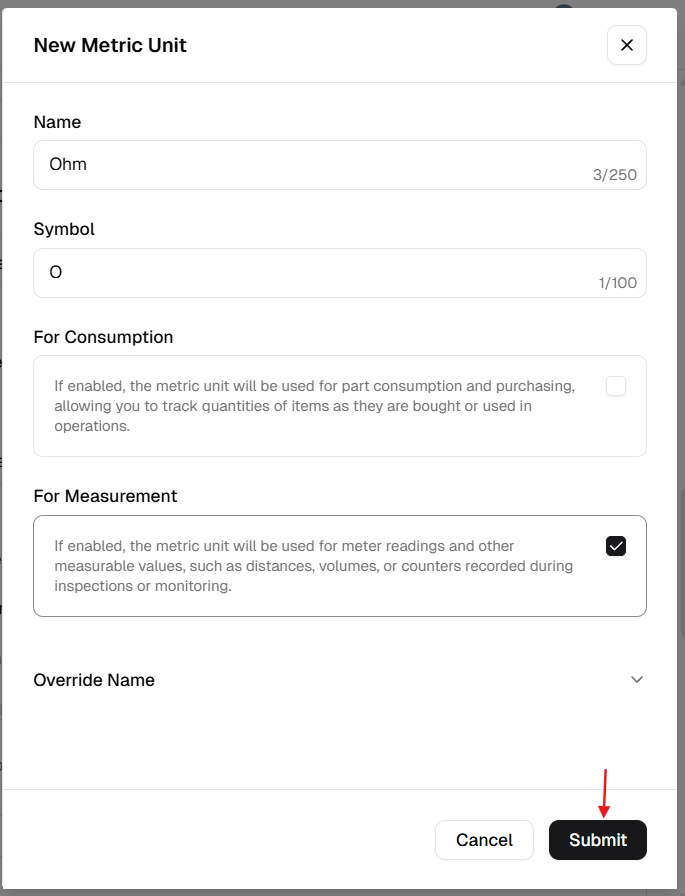
How to manage Metric Units
Section titled “How to manage Metric Units”Add a new metric unit
Section titled “Add a new metric unit”- Open Admin Portal → Settings → Reference Data.
- Find Metric Units and click +.
- Complete the form:
| Field | Description | Required |
|---|---|---|
| Name | Full unit name (e.g. “Kilograms”). | Yes |
| Symbol | Abbreviation (e.g. “kg”). | Yes |
| For Consumption | ON if used for part usage (e.g. pieces). | Conditional* |
| For Measurement | ON if used for meter readings (e.g. hours). | Conditional* |
| Override Name | Translated label. | No |
* Validation: At least one of For Consumption or For Measurement must be enabled.
- Click Submit.
Update an existing unit
Section titled “Update an existing unit”- More (⋯) → Edit.
- Update labels or usage toggles.
- Click Update.
Delete a metric unit
Section titled “Delete a metric unit”- More (⋯) → Delete.
- Safeguard: Deletion is blocked if the unit is linked to any part, asset meter, or historical record.
Verification after changes
Section titled “Verification after changes”After creating, editing, or deleting a metric unit:
- Confirm the Metric Units table shows the expected updates.
- Verify toggle flags (For Consumption, For Measurement) are set correctly.
- Open related forms (part usage, purchasing, meter entry) and confirm unit options reflect your changes.