
How to Delete a Purchase Request
Section titled “How to Delete a Purchase Request”Deleting a purchase request permanently removes it from the list and cannot be undone from the product UI. Use it for duplicates, mistaken entries, or requests that are no longer valid while they are still allowed by status and permissions.
Delete is destructive: prefer editing if you only need to correct quantities, dates, or line items.
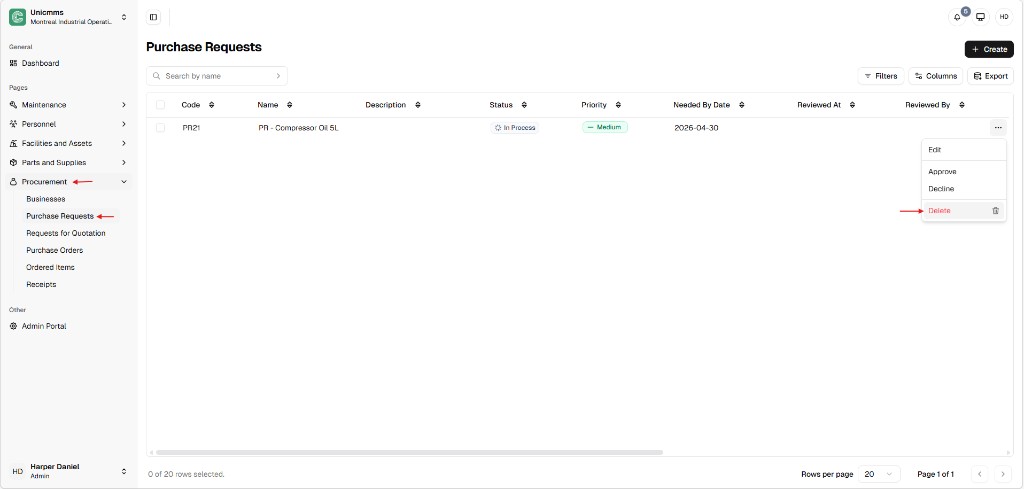
Step 1 — Open Delete from the list
Section titled “Step 1 — Open Delete from the list”- Go to Procurement → Purchase Requests.
- Locate the row (use Search by name if needed).
- Click ⋯ on the right side of the row.
- Choose Delete (usually red text with a trash icon).
The same menu typically lists Edit, Approve, and Decline; those are separate actions.
Step 2 — Confirm in the dialog
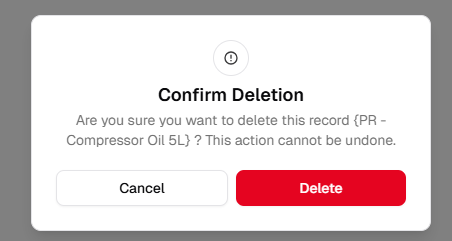
Section titled “Step 2 — Confirm in the dialog”A Confirm Deletion modal appears. It names the record (for example the request Name) and states that the action cannot be undone.
- Click Delete (red primary button) to remove the record permanently.
- Click Cancel to close the dialog and keep the purchase request.
Deletion rules and guardrails
Section titled “Deletion rules and guardrails”| Rule | Description |
|---|---|
| Creator permission | A standard user can usually delete only PRs they created. Admins or special roles may differ—see Roles. |
| Status lock (resolved) | You cannot delete a request that is resolved (for example Approved, Declined, Ordered, or converted to downstream procurement). The system keeps those rows for audit integrity. |
| Non-resolved only | Deletion is typically allowed only while the PR is still open—for example Draft, Pending, or In Process (exact labels depend on your tenant). |