
How to Edit a Business
Section titled “How to Edit a Business”Updates to a business are global: every site uses the latest contact and profile information on procurement links (subject to your product version and caching). You need Edit permission on businesses; if the option is missing, see Role permissions reference or ask an administrator.
Open the Businesses list and row menu
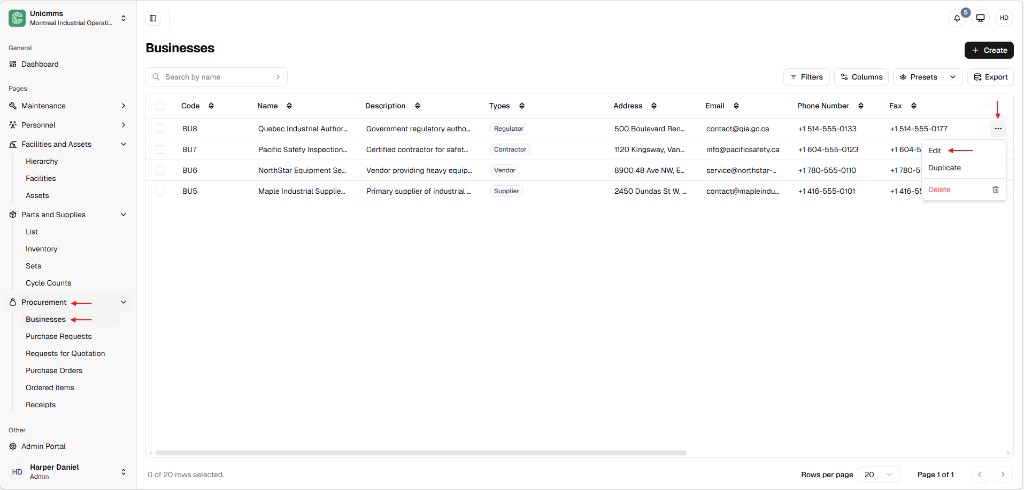
Section titled “Open the Businesses list and row menu”- In the sidebar, expand Procurement and click Businesses.
- Find the business (use Search by name if the list is long).
- On the row, click the ⋯ (more) icon on the right.
- Choose Edit.
The same menu may also offer Duplicate (copy the record) and Delete (see How to delete a business); this page covers Edit only.
Change fields in Edit Business
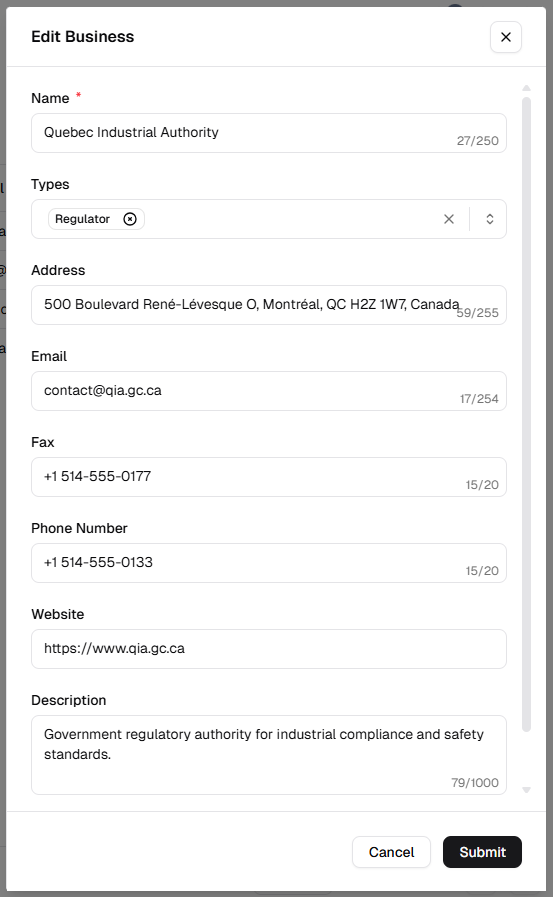
Section titled “Change fields in Edit Business”The Edit Business dialog matches Create Business: Name * (required), Types (dropdown / tags, for example Regulator), Address, Email, Fax, Phone number, Website, and Description. Counters show usage versus limits (for example 27/250 on Name). Use × in the header or Cancel to close without saving; scroll if the form is taller than the viewport.
| Field | Notes |
|---|---|
| Name * | Required; up to 250 characters. |
| Types | One or more types (e.g. Supplier, Vendor, Contractor, Regulator); clear a tag with × on the chip when the UI allows. |
| Address | Up to 255 characters. |
| Up to 254 characters. | |
| Fax | Up to 20 characters. |
| Phone number | Up to 20 characters. |
| Website | Single-line URL. |
| Description | Multiline; up to 1000 characters. |
- Click Submit to save. Changes apply across the organization for that business record.