
How to edit a purchase order
Section titled “How to edit a purchase order”Editing keeps unit prices, tax, funding, and delivery information accurate as the procurement cycle evolves—before receipts make the document immutable for audit purposes. The editor uses the same layout as creating a purchase order: General, Supplier information, Products, and Shipping information, with Cancel and Submit in the header.
Open the list and choose Edit
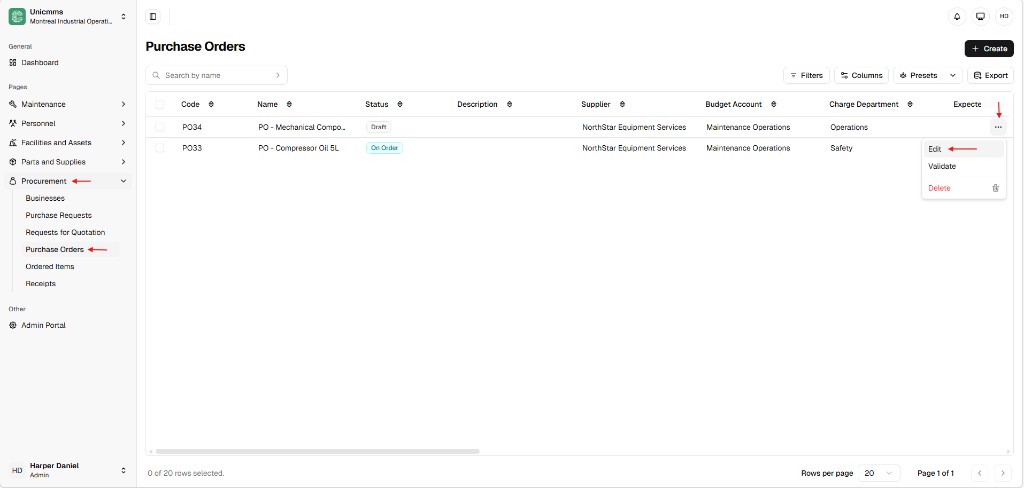
Section titled “Open the list and choose Edit”- In the sidebar, open Procurement → Purchase Orders.
- Find the PO (use Search by name if needed—for example PO34 or PO33).
- Click ⋯ (row actions) at the end of the row.
- Choose Edit.
The row menu also offers Validate and Delete (when your role allows them). Pick Edit to open the form for that document.
Update the form
Section titled “Update the form”Next: Change any fields your status and permissions allow. Line Total values update when you change quantity, unit price, or tax rate (%).
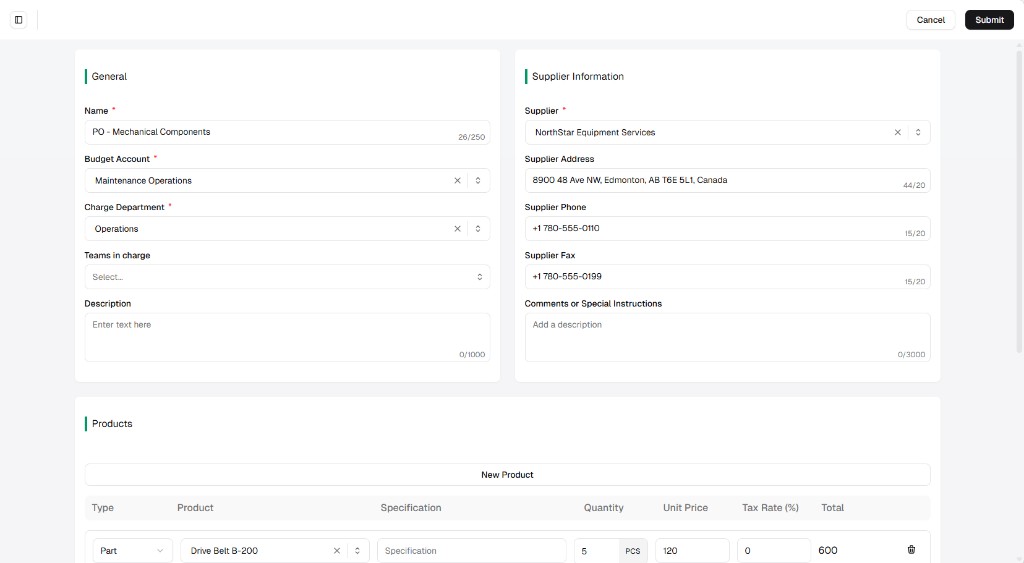
Upper portion — General and Supplier
Section titled “Upper portion — General and Supplier”General covers Name, Budget account, Charge department, Teams in charge, and internal Description. Supplier information covers the selected Supplier and vendor-facing address, phone, fax, and Comments or special instructions (values often come from the Businesses record until you override them for this PO).
Lower portion — Products and Shipping
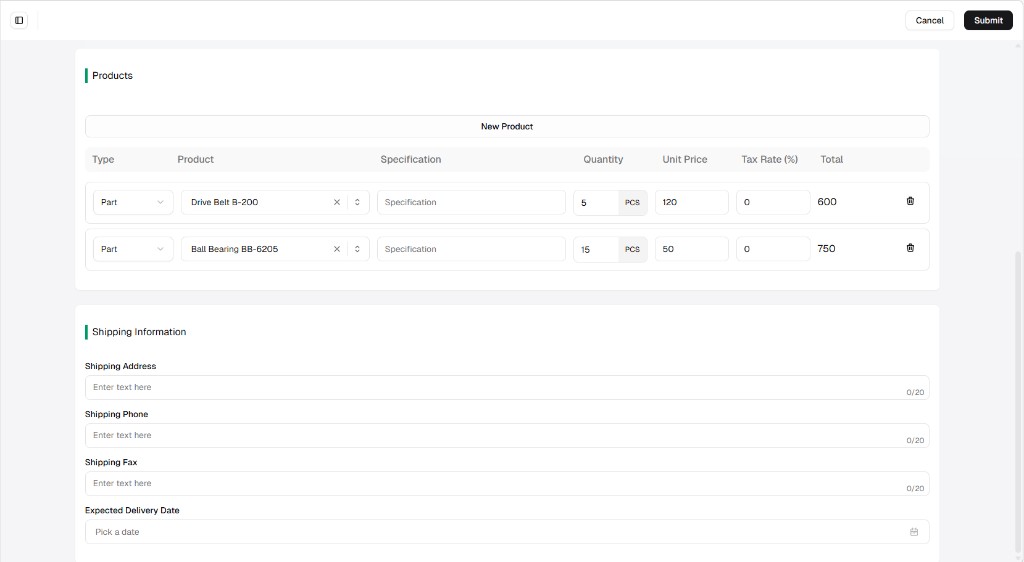
Section titled “Lower portion — Products and Shipping”In Products, each row has Type, Product, Specification, Quantity (with unit such as PCS), Unit price, Tax rate (%), a read-only Total, and a trash control to remove the line when shown. Shipping information holds delivery address, phone, fax, and Expected delivery date.
Quick reference — what to change when
Section titled “Quick reference — what to change when”| Area | Typical edits |
|---|---|
| General | Name, Budget account, or Charge department when funding or ownership changes; Description for internal notes. |
| Supplier | Supplier if the vendor changed; Comments or special instructions for delivery or invoicing notes to the vendor. |
| Products | Quantity, unit, unit price, tax rate, specification, or product on a line; add lines with + New product or remove with the trash icon. |
| Shipping | Expected delivery date or shipping address / phone / fax when the drop-off plan changes. |
For field-level detail (character limits, required fields, and column meanings), see How to create a purchase order.
Save: Click Submit (top-right) to persist your changes, or Cancel to leave without saving—exact Cancel behavior depends on your build.
Modification constraints and logic
Section titled “Modification constraints and logic”| Constraint | Description |
|---|---|
| Status lock | You can usually edit only while the PO is Draft or Validated (or equivalent pre-receipt state). After partially received or fully received, editing is restricted or blocked to protect the financial and inventory audit trail. |
| Total recalculation | Each change to price or quantity (and tax) updates line and document totals—confirm totals still fit budget and approval rules. |
| Audit log | Updates are attributed to the signed-in user and timestamped (exact screens depend on your build). |