
How to create a purchase order
Section titled “How to create a purchase order”To issue a new order, go to Procurement → Purchase Orders and click + Create. The form is organized into four blocks so financial and logistics data stay aligned: General, Supplier information, Products, and Shipping information. Use Cancel (outline) or Submit (primary, top-right) when shown.
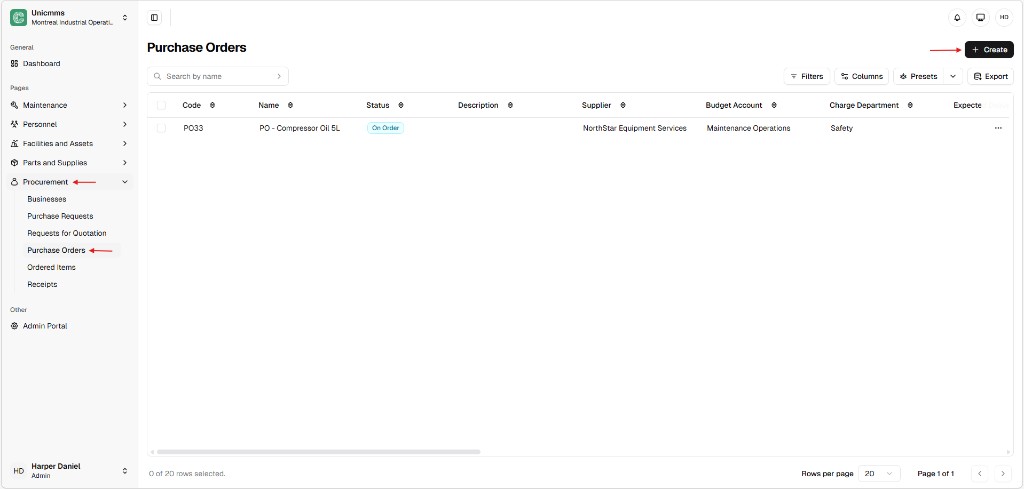
Open the list and start + Create
Section titled “Open the list and start + Create”- In the sidebar, open Procurement → Purchase Orders.
- Click + Create (top-right of the main area).
The list shows Code, Name, Status, Description, Supplier, Budget account, Charge department, Expected delivery (or similar columns), and row ⋯ actions. Use Search by name, Filters, Columns, Presets, and Export as needed.
Form overview
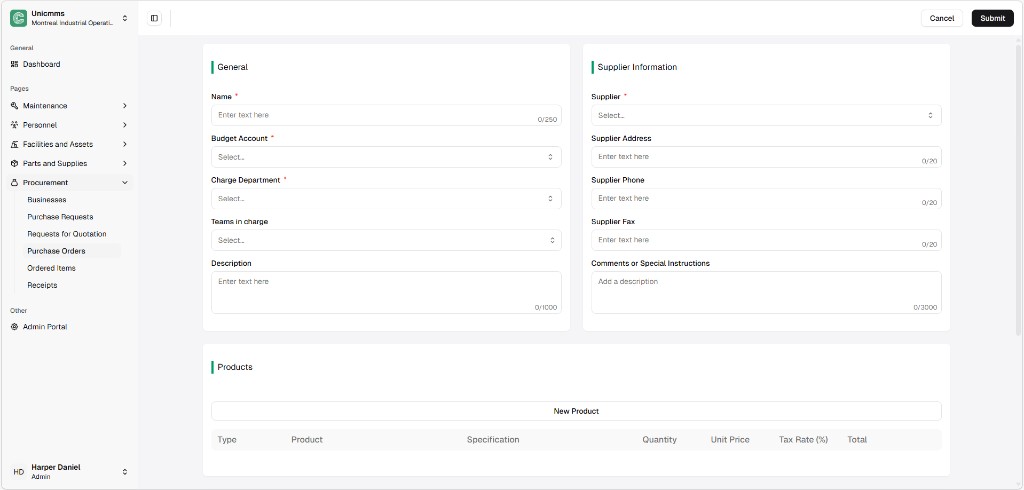
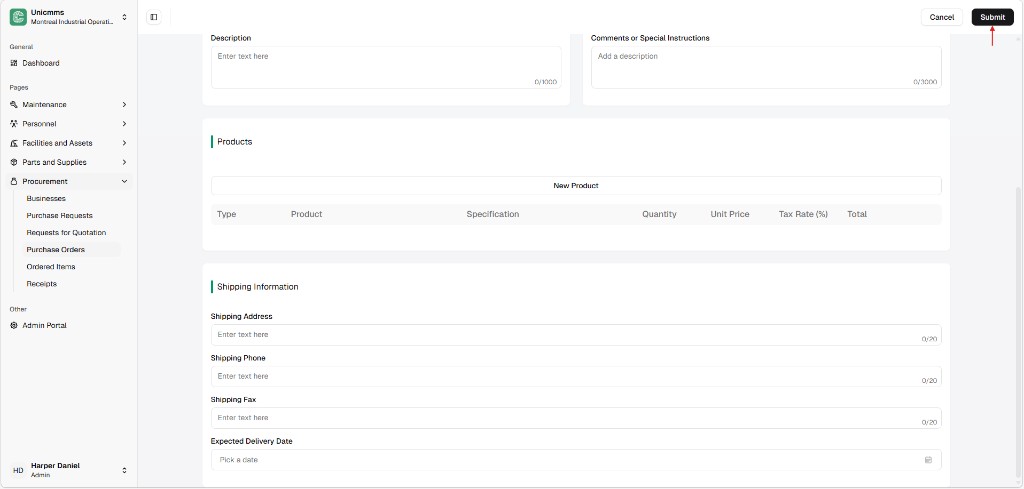
Section titled “Form overview”The Create Purchase Order screen opens with General and Supplier information side by side at the top, then Products below. Scroll to reach Description (when shown with the lower panels), Comments or special instructions, full Products rows, Shipping information, and Submit.
1. General section
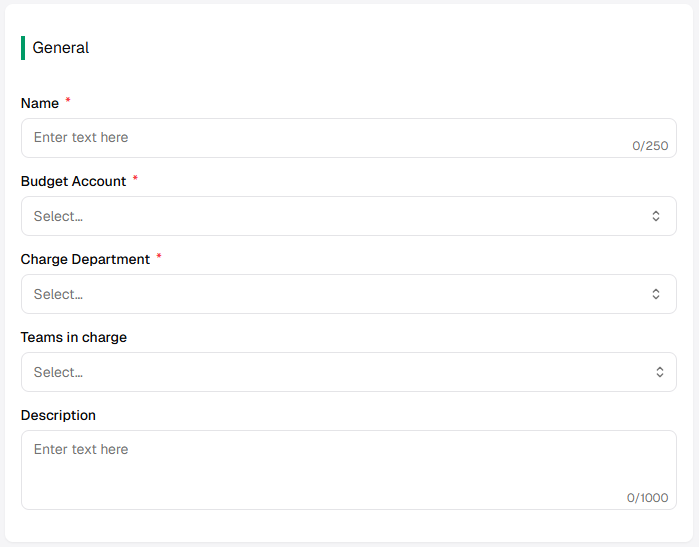
Section titled “1. General section”This block ties the PO into your financial structure. Required fields are marked with * in the product UI.
| Field | Description | Required? | Limit (typical) |
|---|---|---|---|
| Name * | Clear title (for example Annual compressor oil supply). | Yes | Up to 250 characters (counter in the field). |
| Budget account * | Account the spend draws from (for example Maintenance Operations). | Yes | — |
| Charge department * | Department responsible for the cost (for example Safety, Production). | Yes | — |
| Teams in charge | Internal team that owns the order through its lifecycle. | No | — |
| Description | Internal notes about the order. | No | Up to 1000 characters (counter in the field). |
2. Supplier information
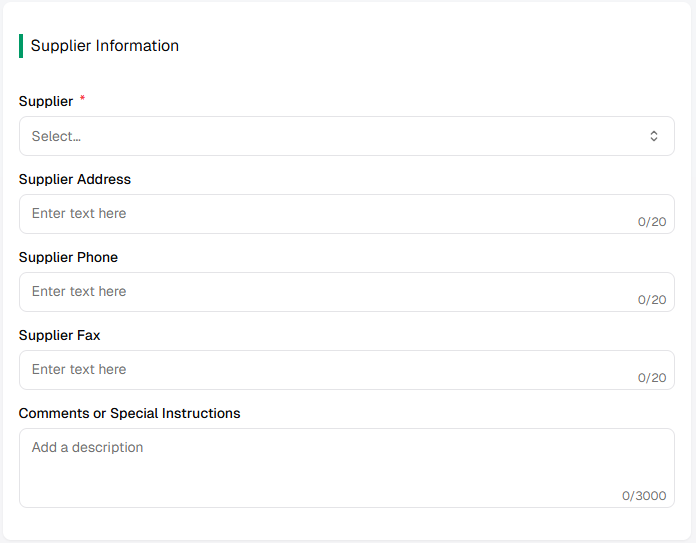
Section titled “2. Supplier information”Defines the external vendor and vendor-facing notes.
| Field | Description | Required? | Limit (typical) |
|---|---|---|---|
| Supplier * | Business from the global Businesses directory (searchable dropdown). | Yes | — |
| Supplier address / phone / fax | Often prefilled from the business record; editable for this PO. | No | Short fields may show a 20-character counter in the UI—confirm with your tenant if longer text is supported elsewhere. |
| Comments or special instructions | Notes for the vendor (for example Gate code 1234, Deliver 08:00–12:00 only). | No | Large text area (for example up to 3000 characters). |
3. Products section
Section titled “3. Products section”The commercial core of the PO—line-level price, tax, and totals.

| Element | Description |
|---|---|
| New product | Adds another line to the order table. |
| Type | Part or Asset (or your tenant’s categories). |
| Product | Catalog item being purchased (searchable selection). |
| Specification | Technical detail for the line. |
| Quantity / unit | How many and unit of measure (for example L for liters). |
| Unit price | Price per unit. |
| Tax rate (%) | Tax percentage for the line when your process uses it. |
| Total | Calculated line amount (quantity × unit price, adjusted for tax when your build applies the rate as a percentage: extended price ≈ quantity × unit price × (1 + tax rate ÷ 100)). |
| Trash | Removes the line when shown. |
4. Shipping information
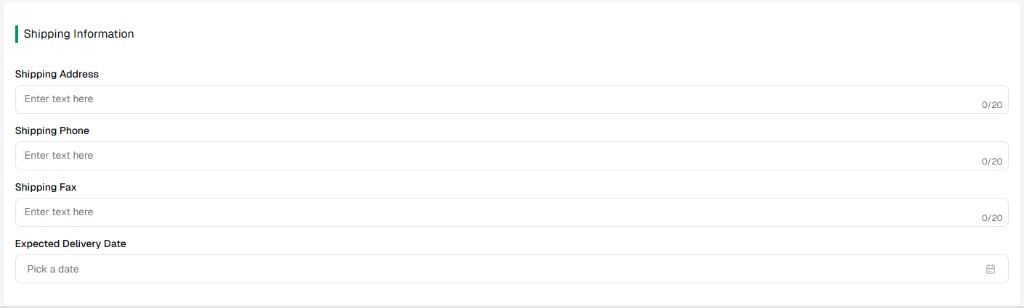
Section titled “4. Shipping information”Delivery logistics for where and when goods should arrive.
| Field | Description |
|---|---|
| Shipping address / phone / fax | Where and how to reach the delivery site or dock. |
| Expected delivery date | Date picker for the deadline the vendor should meet. |
Submit
Section titled “Submit”Review every required field (*) and each product line, then click Submit to save the PO. New POs usually start in Draft (or On order / other labels per your workflow) until validated or sent—see How to validate a purchase order.
Operational logic: the financial lock
Section titled “Operational logic: the financial lock”- Status tracking — A new PO typically begins as Draft, then moves through states such as Validated, Ordered, On order, Partially received, or Fully received (labels depend on your tenant).
- Inventory link — The PO leads to Receipts; when lines are received, part inventory can update automatically for tracked stock.
- TCO reporting — Because each PO references a budget account (and often assets on lines), management can relate spend to categories and total cost of ownership (TCO) reporting.