
Procedure Templates
Section titled “Procedure Templates”About Procedure Templates
Section titled “About Procedure Templates”Procedure Templates let you build reusable Standard Operating Procedures (SOPs) and checklists that can be attached to Work Orders. They make execution consistent across technicians by standardizing:
- The order of steps
- Which answers are required
- What data type is captured
- When follow-up steps appear (via conditions)
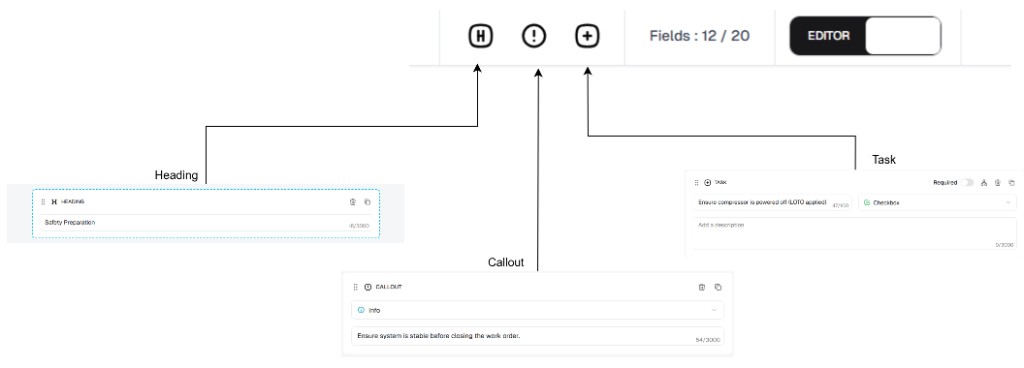
In the template builder, you typically combine three block types:
- Heading — section separators and workflow structure
- Callout — important information, warnings, or context
- Task — actionable items technicians complete and submit
In Editor mode, use the standard toolbar: H (heading), ! (callout), + (task).
For a full guided flow, see How to Create a Procedure Template.
Reference Guide: Task Input Types
Section titled “Reference Guide: Task Input Types”Selecting the correct Input Type ensures your maintenance records remain clean and reportable.
| Input Type | Description | Best Use Case |
|---|---|---|
| Text Field | Allows the technician to type a short, open-ended text response. | Logging serial numbers, specific part names, or brief observation notes. |
| Checkbox | A simple toggle box for single-item confirmation. | Basic visual verifications (e.g., “Guards in place,” “Area cleaned”). |
| Number Field | Strictly limits input to numerical values. | Recording meter readings, temperatures, PSI, or voltage levels. |
| Single Choice | Presents a custom list of options, forcing the technician to select exactly one answer. | Status conditions (e.g., “Pass / Needs Repair / Fail”). |
| Check List | Presents a custom list of options, allowing the technician to select multiple answers. | Multi-part checks (e.g., “Select all fluids topped off: Oil, Coolant, Brake Fluid”). |
| Inspect Check | A standardized condition input format specifically designed for asset inspections. | Routine physical asset condition audits. |
| Yes-No-N/A | Provides three pre-built quick-select buttons. Faster than creating a custom Single Choice list. | Standard compliance or safety questions (e.g., “Is the emergency stop functional?”). |
| Date | Opens a calendar picker to log a specific day. | Recording expiration dates or part installation dates. |
| Datetime | Opens a calendar and clock picker to log both the day and exact time. | Logging the precise moment an issue occurred or a test was completed. |
Conditional logic overview
Section titled “Conditional logic overview”Conditional logic makes templates dynamic. You define a rule on a parent task (for example, Lower Than 7.5), then attach one or more sub-tasks that appear only when the condition evaluates to true.
This is especially useful for exception handling workflows, such as:
- Triggering additional inspection steps only when a reading is out of range
- Showing corrective actions only when a pass/fail check fails
- Reducing visual noise for technicians by hiding irrelevant tasks
See the full runtime example in How to Create a Procedure Template.