
How to add Ordered Items to a draft receipt
Section titled “How to add Ordered Items to a draft receipt”Use Add to receipt when you already have an open draft receipt (same truck, same day, or a correction) and need to append lines you did not include the first time, or when arrivals are staggered but should stay on one receipt record.
For a brand-new receipt from the same screen, use Create receipt instead—see How to create a receipt from Ordered Items.
Ordered Items list (context)
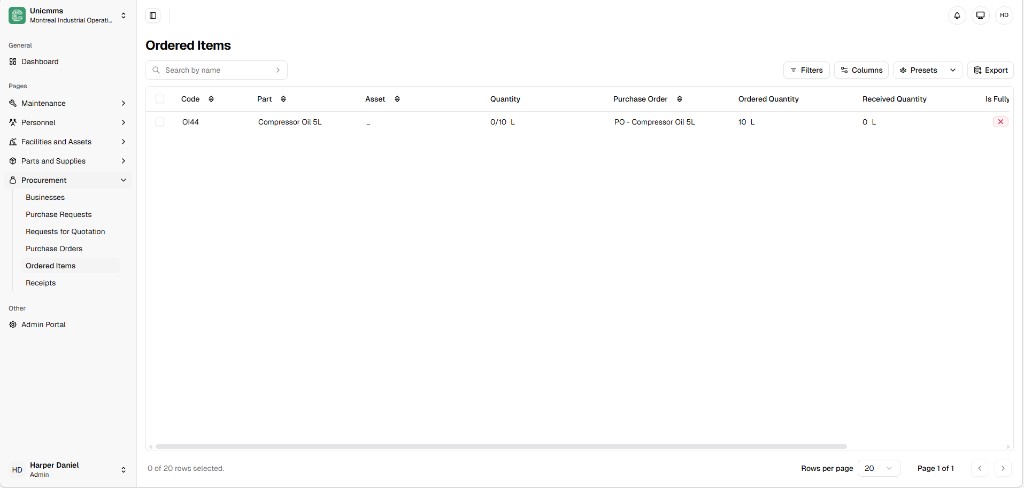
Section titled “Ordered Items list (context)”Open Procurement → Ordered Items. The grid shows every validated line with checkboxes for bulk actions, Search by name, and tools such as Filters, Columns, Presets, and Export. Typical columns include Code (for example OI44), Part, Asset, Quantity as a received/ordered ratio (for example 0/10 L), Purchase order, Ordered quantity, Received quantity, and Is fully (for example a red X until the line is complete).
Step-by-step
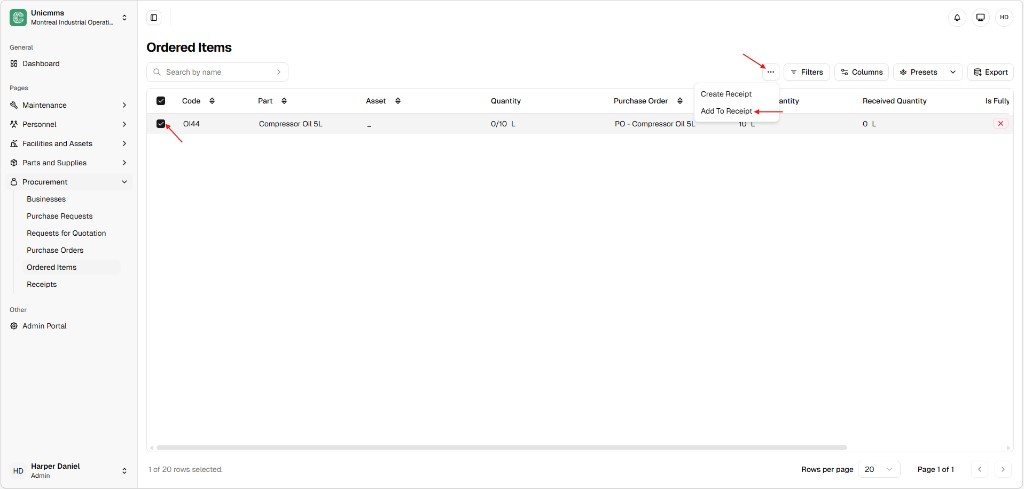
Section titled “Step-by-step”- Select — Tick the checkbox on the left for each Ordered Item row to merge onto the draft receipt (for example OI44 — Compressor Oil 5L). The footer shows how many rows are selected (for example 0 of 20 rows selected when none are checked).
- Open the header menu — Click More (⋯) at the top-right of the table toolbar (not the row-level ⋯ on each line).
- Add to receipt — Choose Add To Receipt (exact capitalization may vary). The other common option in the same menu is Create receipt for a new document.
-
Choose the draft receipt and lines — A dialog opens (the title may vary by release—rely on the Receipt and Items fields). Complete it as follows:
- Receipt * — Searchable dropdown: pick the open draft you want to extend (for example R - Compressor Oil 5L).
- Items — One row per selected ordered item (you can use New product to add another line when the product allows it). Typical columns:
- Product — The part from the ordered line (for example Compressor Oil 5L).
- Stock location — Where stock will post (for example Production Floor A).
- Description — Optional line note.
- Quantity — Often shows the fulfillment ratio from demand (for example 0/10 L = nothing received yet on 10 L ordered).
- Received quantity — Enter what you are booking on this receipt (for example 3 L for a partial arrival). Use the row trash icon to drop a line if needed.
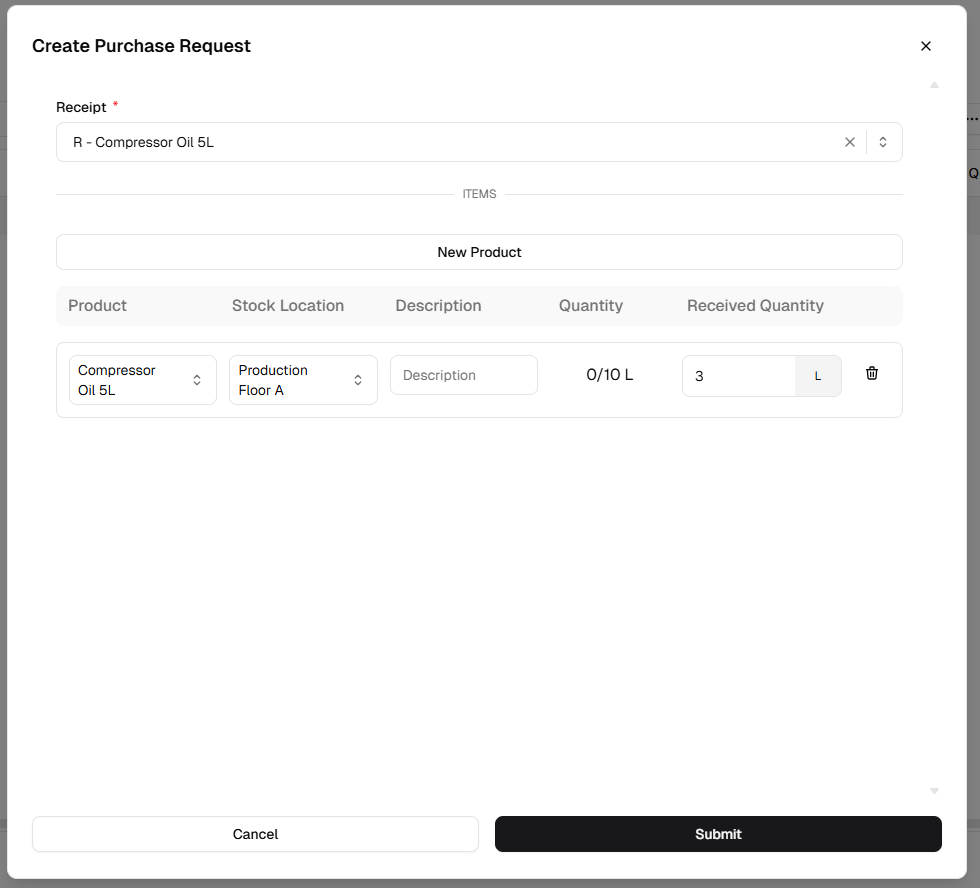
- Submit — Click Submit in the dialog to merge these lines onto the draft. Then open Procurement → Receipts if you need to adjust the full receipt or complete a final Submit when your tenant uses an extra confirmation step. After the receipt is posted, Ordered Items and inventory update as described in Receipt sync, inventory, and delivery rules.