
How to Delete a Request for Quotation (RFQ)
Section titled “How to Delete a Request for Quotation (RFQ)”Deleting an RFQ permanently removes it from the list. Use it for wrong drafts, duplicates, or canceled bids before downstream procurement depends on the record. Prefer Edit if you only need to change supplier, lines, or dates.
The row ⋯ menu also offers Edit, Duplicate, Derive RFQ, and Approve—those are separate from Delete.
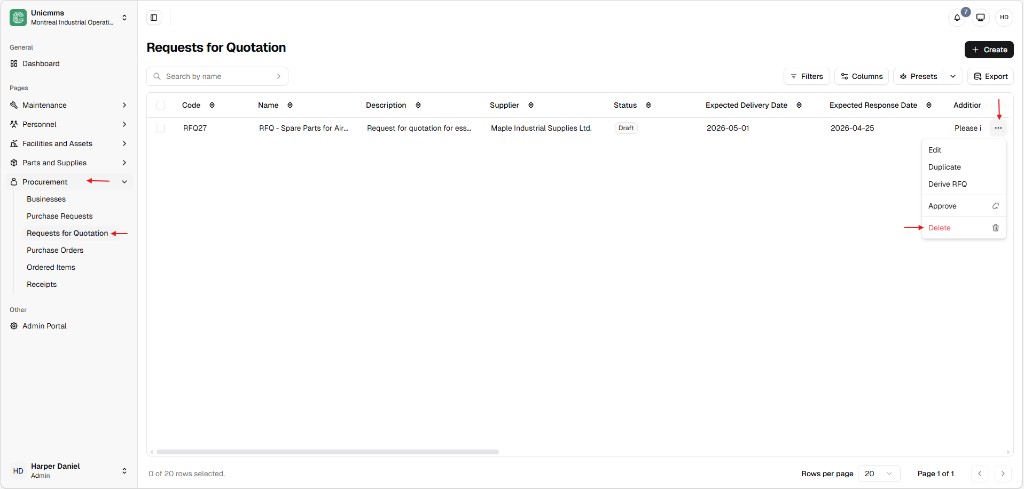
Step 1 — Choose Delete from the list
Section titled “Step 1 — Choose Delete from the list”- Go to Procurement → Requests for Quotation.
- Locate the RFQ (use Search by name, Filters, or Columns if needed).
- Click ⋯ at the end of the row.
- Choose Delete (usually red text with a trash icon).
Step 2 — Confirm in the dialog
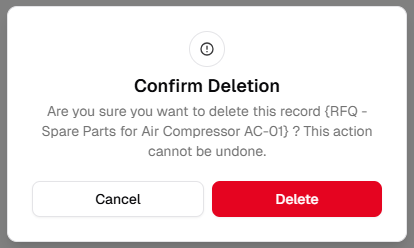
Section titled “Step 2 — Confirm in the dialog”A Confirm Deletion modal appears. It names the RFQ (for example the Name in braces) and states that the action cannot be undone.
| Control | Description |
|---|---|
| Message | Confirms which record will be removed. |
| Cancel | Closes the dialog without deleting. |
| Delete | Red primary button — confirms permanent removal. |
Safety lock and guardrails
Section titled “Safety lock and guardrails”| Rule | Description |
|---|---|
| Downstream link | UniCMMS blocks deletion if the RFQ is already tied to a Purchase Order or other locked procurement history. That protects the financial audit trail. |
| Draft / open only | Removal is usually allowed only while the RFQ is still Draft (or an equivalent non-committed state)—exact labels follow your tenant. |
| Role | Delete may require a specific permission; if it is missing, your role may be read-only for removal. |