
How to Update Organization Profile
Section titled “How to Update Organization Profile”To update your organization’s global identity, open the General settings form under Tenant Settings.
Screenshot
Section titled “Screenshot”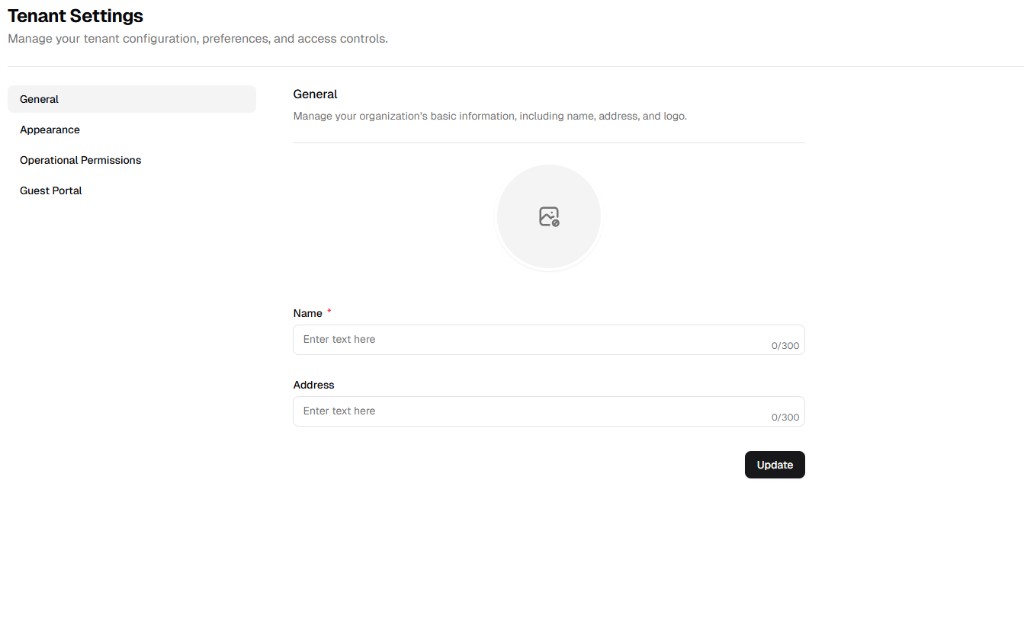
Step 1: Access the Admin Portal
Section titled “Step 1: Access the Admin Portal”From the main UniCMMS dashboard, use the left sidebar. Scroll to Other and select Admin Portal.
Step 2: Open Tenant Settings
Section titled “Step 2: Open Tenant Settings”Inside the Admin Portal, open the Settings group in the secondary sidebar. Click Tenant Settings.
Step 3: Select the General tab
Section titled “Step 3: Select the General tab”The page should open on General by default. If not, click General in the settings sub-navigation to show the profile fields.
Step 4: Define profile parameters
Section titled “Step 4: Define profile parameters”Complete the fields to establish your organization’s identity.
| Field | Description | Required |
|---|---|---|
| Logo | Click the central Upload control to add your company logo for headers and reports. | No |
| Name | Official organization name. Appears on system exports and branding. | Yes |
| Address | Primary physical address of your main facility or headquarters. | No |
Step 5: Save changes
Section titled “Step 5: Save changes”When the data is correct, click the Update button (bottom right). The system applies these settings across modules and user sessions.
Step 6: Verify updates
Section titled “Step 6: Verify updates”After clicking Update:
- Confirm no validation errors remain in required fields.
- Reopen Tenant Settings > General and verify saved values.
- Check a page or export where organization details are displayed to confirm the update is visible.