
Guest Portal
Section titled “Guest Portal”About the Guest Portal
Section titled “About the Guest Portal”The Guest Portal is a public entry point for people without a UniCMMS account (office staff, tenants, visitors) to submit maintenance requests. It helps issues get reported quickly while keeping licensed seats for your maintenance team.
Screenshots
Section titled “Screenshots”Guest Portal Tab (Overview)
Section titled “Guest Portal Tab (Overview)”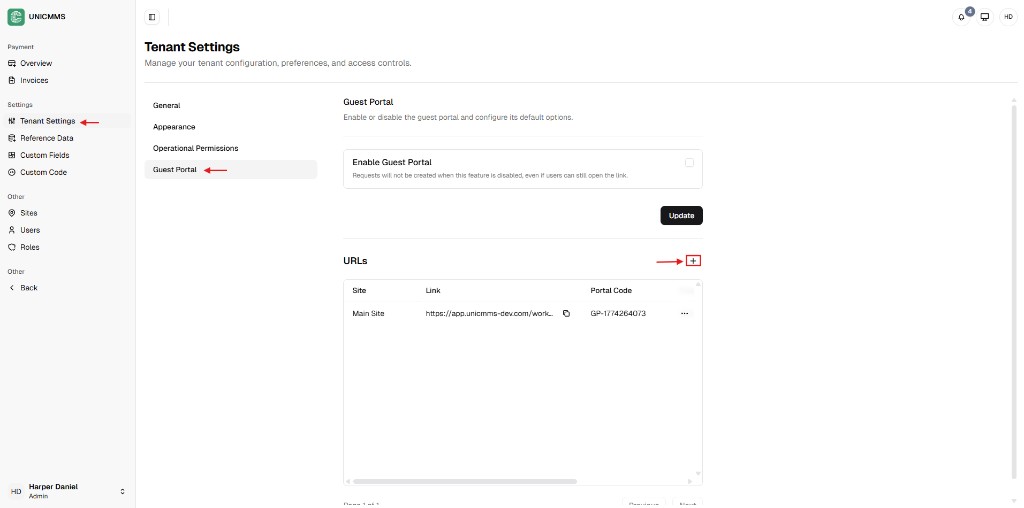
New Portal Link Dialog
Section titled “New Portal Link Dialog”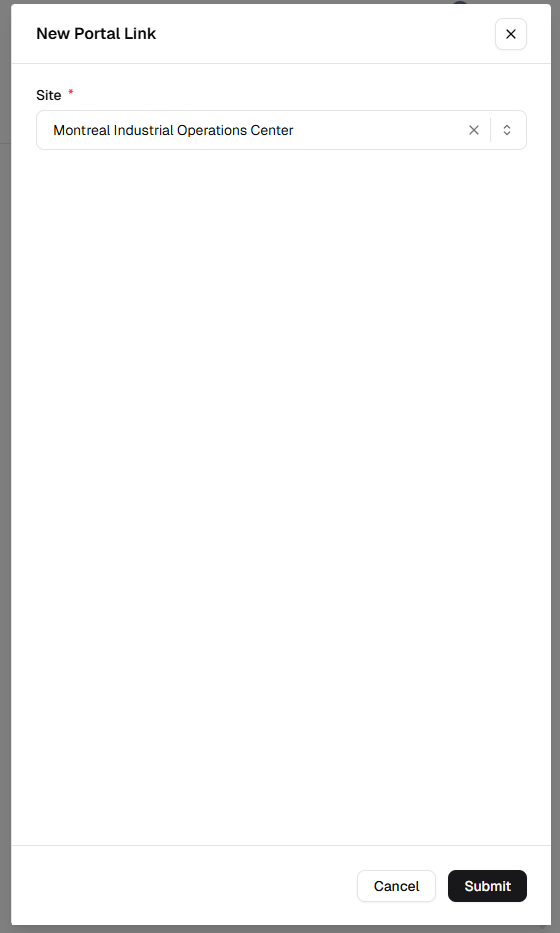
Guest Portal Enabled with URLs
Section titled “Guest Portal Enabled with URLs”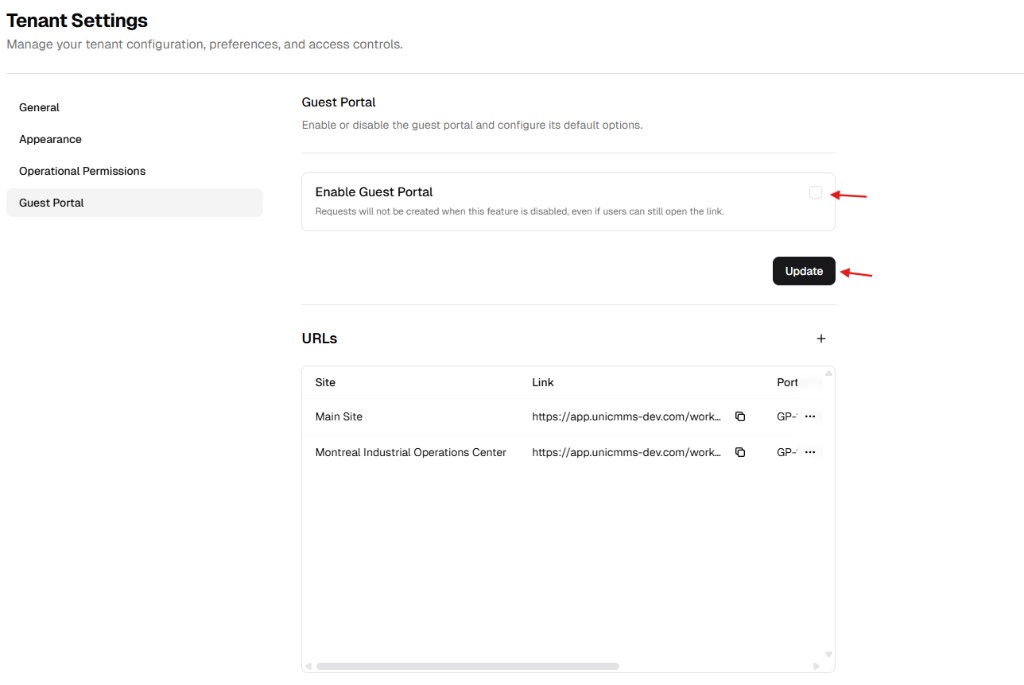
How to enable the Guest Portal
Section titled “How to enable the Guest Portal”Step 1: Navigate to Guest Portal
Section titled “Step 1: Navigate to Guest Portal”- Open Admin Portal from the main sidebar (Other).
- Select Tenant Settings under Settings.
- Click the Guest Portal tab.
Step 2: Activate global access
Section titled “Step 2: Activate global access”- Turn on Enable Guest Portal.
- Click Update to save the global switch.
How to generate portal links
Section titled “How to generate portal links”Requests are usually site-specific, so you create a separate URL per facility.
Step 1: Open the link creator
Section titled “Step 1: Open the link creator”In the URLs section, click the + button (top right of the table).
Step 2: Assign a site
Section titled “Step 2: Assign a site”In New Portal Link, choose the Site (facility) that submissions from this link will use.
| Field | Description | Required |
|---|---|---|
| Site | Facility where guest requests are automatically routed. | Yes |
Step 3: Save and generate
Section titled “Step 3: Save and generate”Click Submit. UniCMMS creates a unique Link and Portal Code for that site.
Managing portal URLs
Section titled “Managing portal URLs”After links appear in the URLs table you can:
- Copy the link — Share by email or embed on an intranet.
- Use the portal code — Secondary identifier or mobile-friendly access where your product supports it.
- Rely on site tagging — Requests submitted through a given link stay associated with that Site, which saves dispatch time.
Verification after changes
Section titled “Verification after changes”After enabling the portal or creating links:
- Confirm Enable Guest Portal remains ON after page refresh.
- Verify the new site link appears in the URLs table.
- Open the generated link in a private/incognito browser and confirm request submission behavior matches your settings.