
AVAILABILITY
Permission: ✓ Add Meter Trigger
Platform: ✓ Web ✗ Mobile
How to Create a Meter Trigger
Section titled “How to Create a Meter Trigger”Use a Meter Trigger to run automation when a meter reading reaches a condition you define (for example, above a threshold or increasing by an interval). This guide shows the full flow from opening the form to submitting a valid trigger.
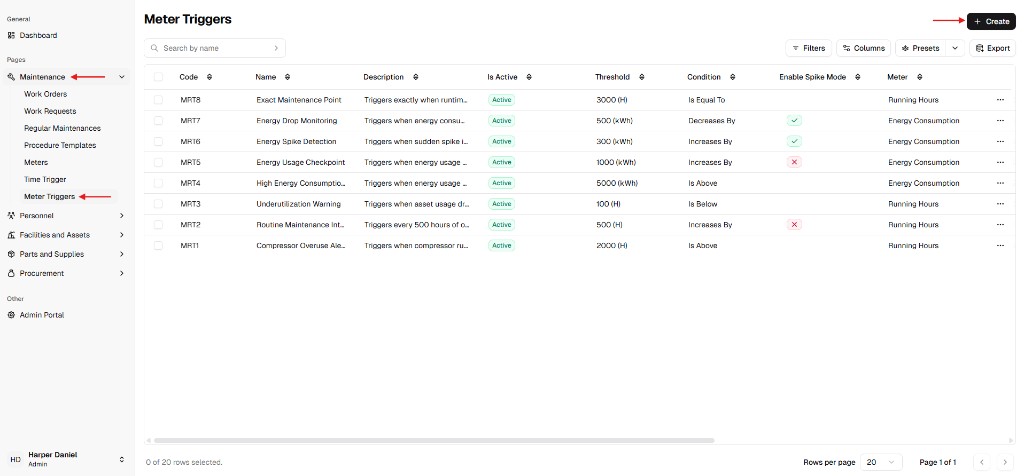
Step 1: Navigate to Meter Triggers
Section titled “Step 1: Navigate to Meter Triggers”From the main sidebar, go to Maintenance and select Meter Triggers.
Step 2: Open the Creation Form
Section titled “Step 2: Open the Creation Form”Click + Create in the top-right corner of the list view to open the Create Meter Trigger panel.
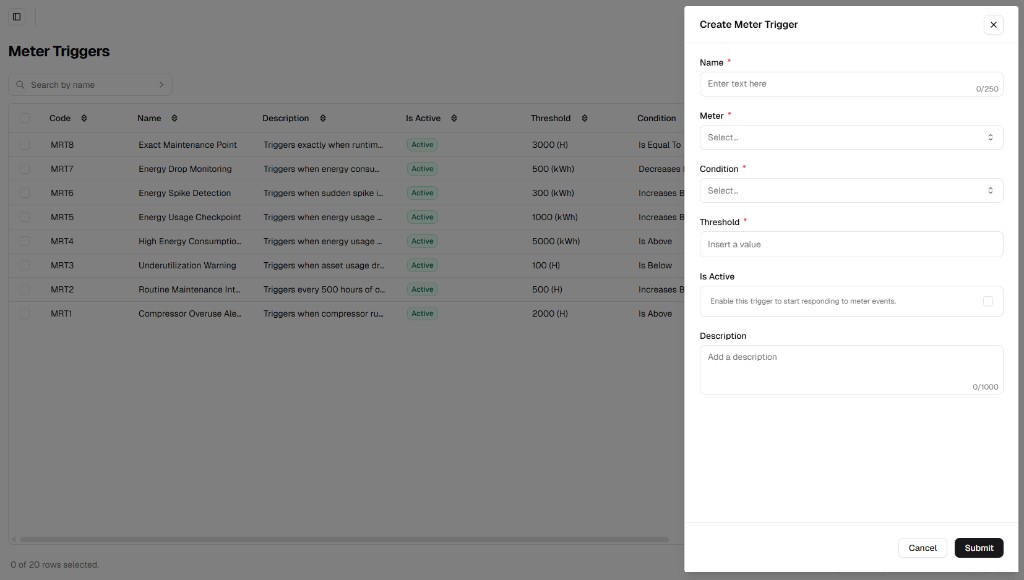
Step 3: Define Trigger Parameters
Section titled “Step 3: Define Trigger Parameters”| Field | Instruction | Required |
|---|---|---|
| Name | Use a clear label that identifies purpose and threshold (e.g. Boiler Runtime - Every 500h). | Yes |
| Meter | Select the meter to monitor. The trigger evaluates readings recorded for this selected meter only. | Yes |
| Condition | Choose the comparison logic (is above, is below, is equal to, increases by, decreases by). | Yes |
| Enable Spike Model | Optional toggle shown for increases by and decreases by. Use it when you want to evaluate change between consecutive readings instead of total cumulative change. | Optional |
| Threshold | Enter the numeric value used by the selected condition. | Yes |
| Is Active | Enable this toggle to start evaluating readings immediately after saving. Leave disabled if you want to prepare it first and activate later. | Optional |
| Description | Add internal notes (why the trigger exists, owner, expected action). | Optional |
Step 4: Finalize and Activate
Section titled “Step 4: Finalize and Activate”Click Submit to save the trigger.
- If Is Active is enabled, UniCMMS starts evaluating new incoming readings immediately.
- If Is Active is disabled, the trigger is saved in an inactive state until you activate it later.
Validation checklist
Section titled “Validation checklist”Before submitting, confirm:
Name,Meter,Condition, andThresholdare filled.- The selected
Conditionmatches your maintenance intent. - The threshold unit/value makes sense for the chosen meter.