
How to Activate or Deactivate a Time Trigger
Section titled “How to Activate or Deactivate a Time Trigger”Use Is Active when you want to pause a schedule or turn it back on while keeping the same code, recurrence, and dates. Nothing runs for that trigger while it is inactive.
Step 1: Open the Time Trigger list
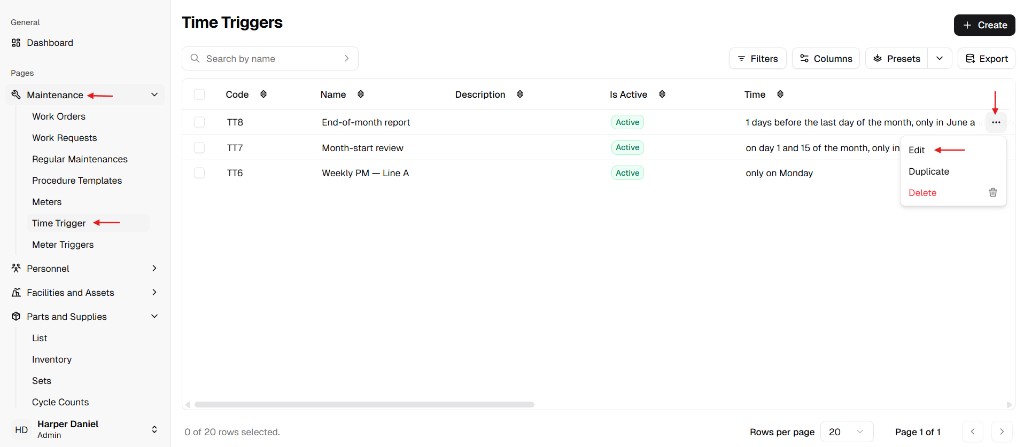
Section titled “Step 1: Open the Time Trigger list”From the main sidebar, go to Maintenance → Time Trigger.
The table includes an Is Active column (for example a green Active badge when the trigger is enabled). That reflects the current saved state.
Step 2: Open Edit for the trigger
Section titled “Step 2: Open Edit for the trigger”Find the row you need. In the actions column, click ⋯ (More), then choose Edit.
Step 3: Change Is Active and submit
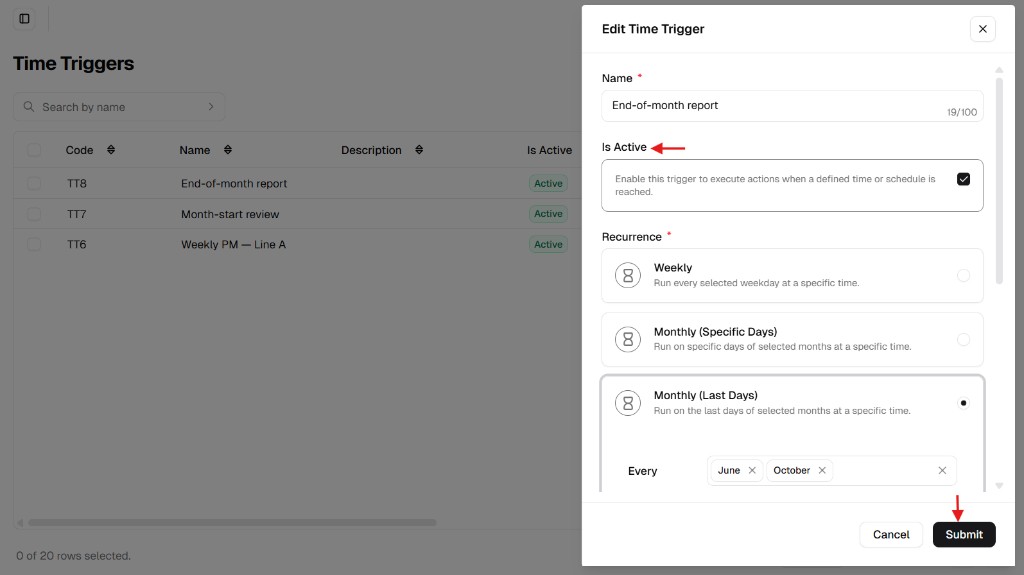
Section titled “Step 3: Change Is Active and submit”In the Edit Time Trigger panel:
- Activate: turn Is Active on (checkbox checked).
- Deactivate: turn Is Active off (checkbox cleared).
The description under Is Active explains that the trigger only runs when enabled and the schedule is reached.
Click Submit to save. The list should show the updated status in Is Active (you may need to refresh the list if your session does not auto-update).
For other field changes in the same form, see How to Edit a Time Trigger.