
How to View Time Trigger History
Section titled “How to View Time Trigger History”The History tab on a time trigger’s detail page lists when the schedule actually ran (or was recorded as executed), most recent first. Use it to audit runs and confirm the pattern matches what you configured.
Step 1: Open the Time Trigger list
Section titled “Step 1: Open the Time Trigger list”From the main sidebar, go to Maintenance → Time Trigger.
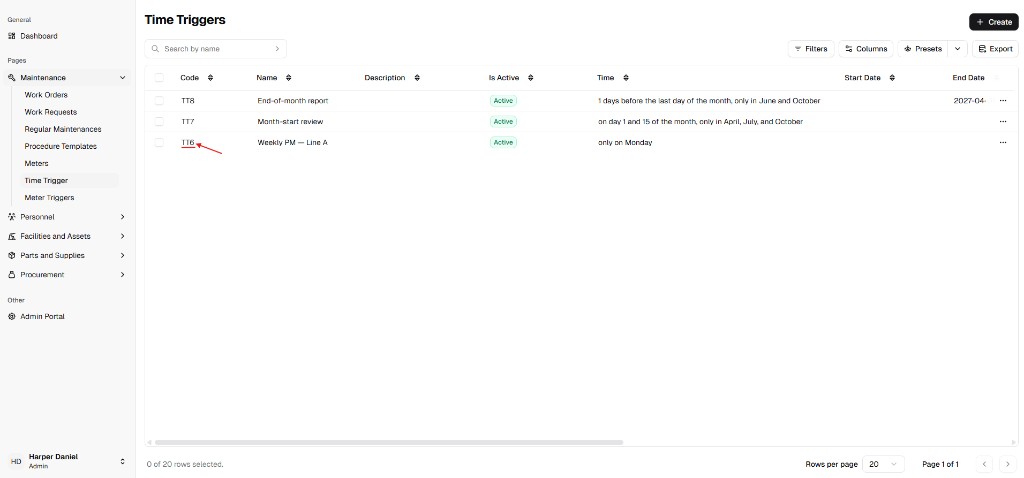
You’ll see your triggers in a table with Code, Name, Description, Is Active, Time (schedule summary), and actions.
Step 2: Open the trigger detail
Section titled “Step 2: Open the trigger detail”From the list, open the trigger you want (for example by clicking its Code or the row, depending on your layout). The detail header shows Time Trigger : plus the code (e.g. TT6), Active status, facility context, and key dates.
Use the Back control (top right) to return to the list. Delete removes the trigger (same as from the list).
Step 3: Open the History tab
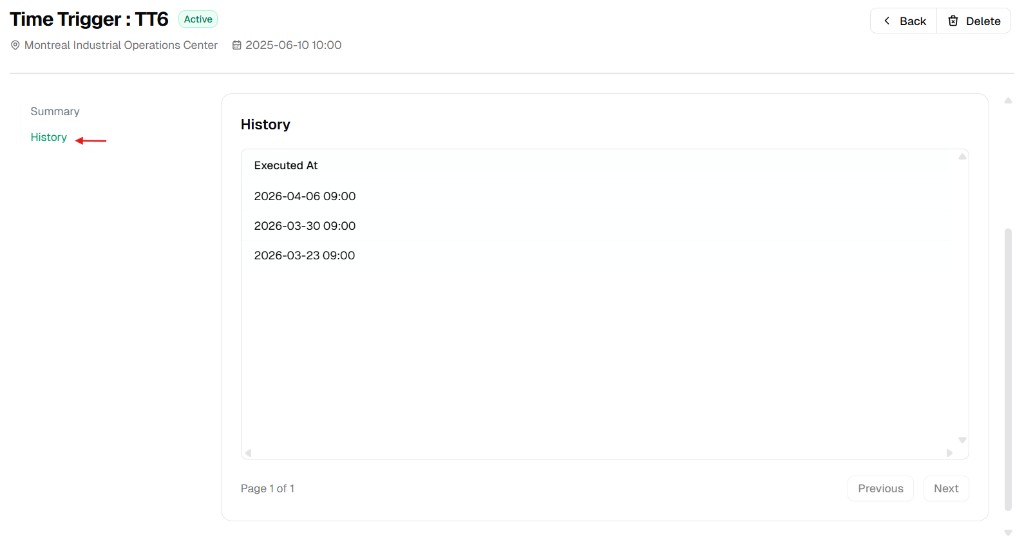
Section titled “Step 3: Open the History tab”In the left panel of the detail page, choose History (next to Summary).
The main area shows a single column Executed At: each row is a timestamp in YYYY-MM-DD HH:mm form—the moment that run was logged.
What History is for
Section titled “What History is for”| Use | Detail |
|---|---|
| Verify cadence | For a weekly rule, intervals between Executed At rows should match the chosen weekdays and time. |
| Troubleshooting | If Next Run Date on the list looks wrong, History shows whether recent runs occurred. |
| Compliance / audits | Export or screenshot as needed for records (behavior of export depends on your site setup). |